Enable Video Upload for SPs
This page walks you through how to allow video upload to specific running activities for users with SP privilege.
Are You an SP?
Continue to this how-to guide to find out how to upload videos to LearningSpace.
To allow SPs to upload videos to the activities they are participating in:
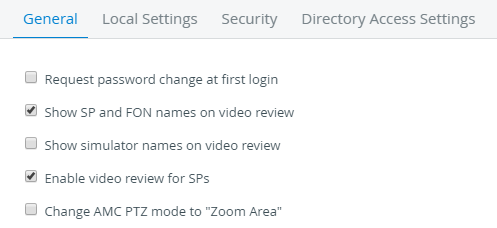
Enable video review for SPs.
This option must be enabled because SPs do not have access to the Video Review module by default.
Scroll down and select the respective checkbox:
When uploading a video, the SP's name is automatically tied to the recording. Select the Show SP and FON names on video review checkbox to display the SP's name on the Video Review page.
Every SP registered in your LearningSpace system will have access to the Video Review module on their dashboards: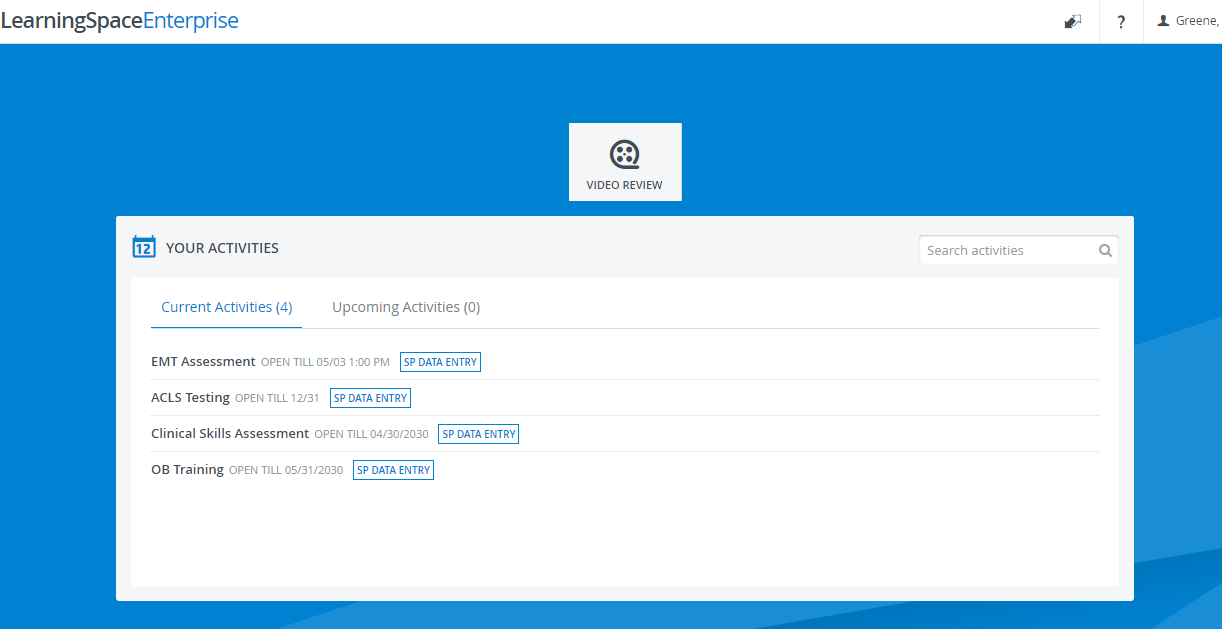
SPs can only upload videos to the Activities they are allowed to.
Then, select a running activity.
Video upload is only allowed for running Activities.
Open it for editing.
Go to the Options tab.
Select the SP checkbox under the "Enable video upload for."
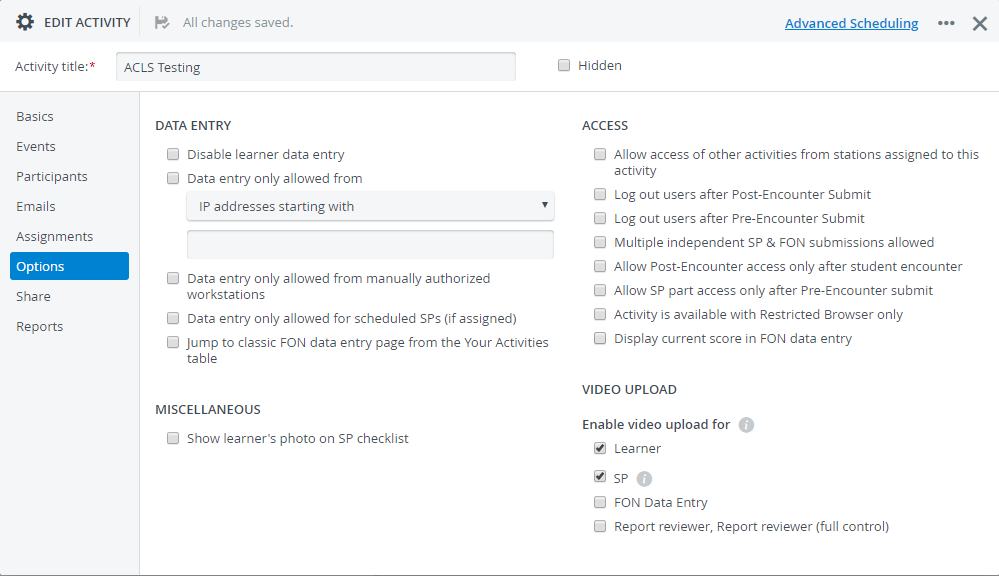
From there on, SPs who are members of the SP group of the activity (in the Participants tab) can upload their video files to the activity:
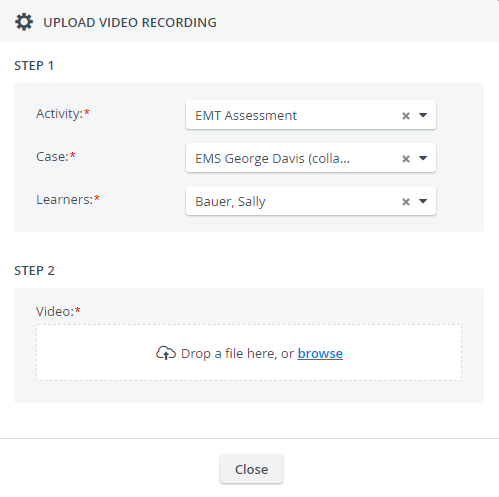
SPs can select the activities they are members of and where their privilege to upload videos is enabled.
Only the activities that fit these requirements will auto-populate in the Activity drop-down when trying to upload a video: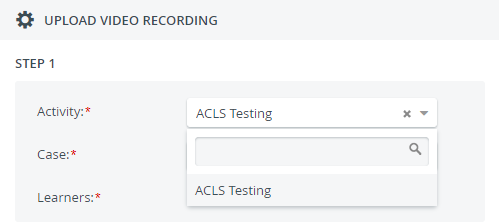
After selecting an activity, SPs can select any case for the Activity and any learner who is a member of the activity's learner group.