Drop-Down

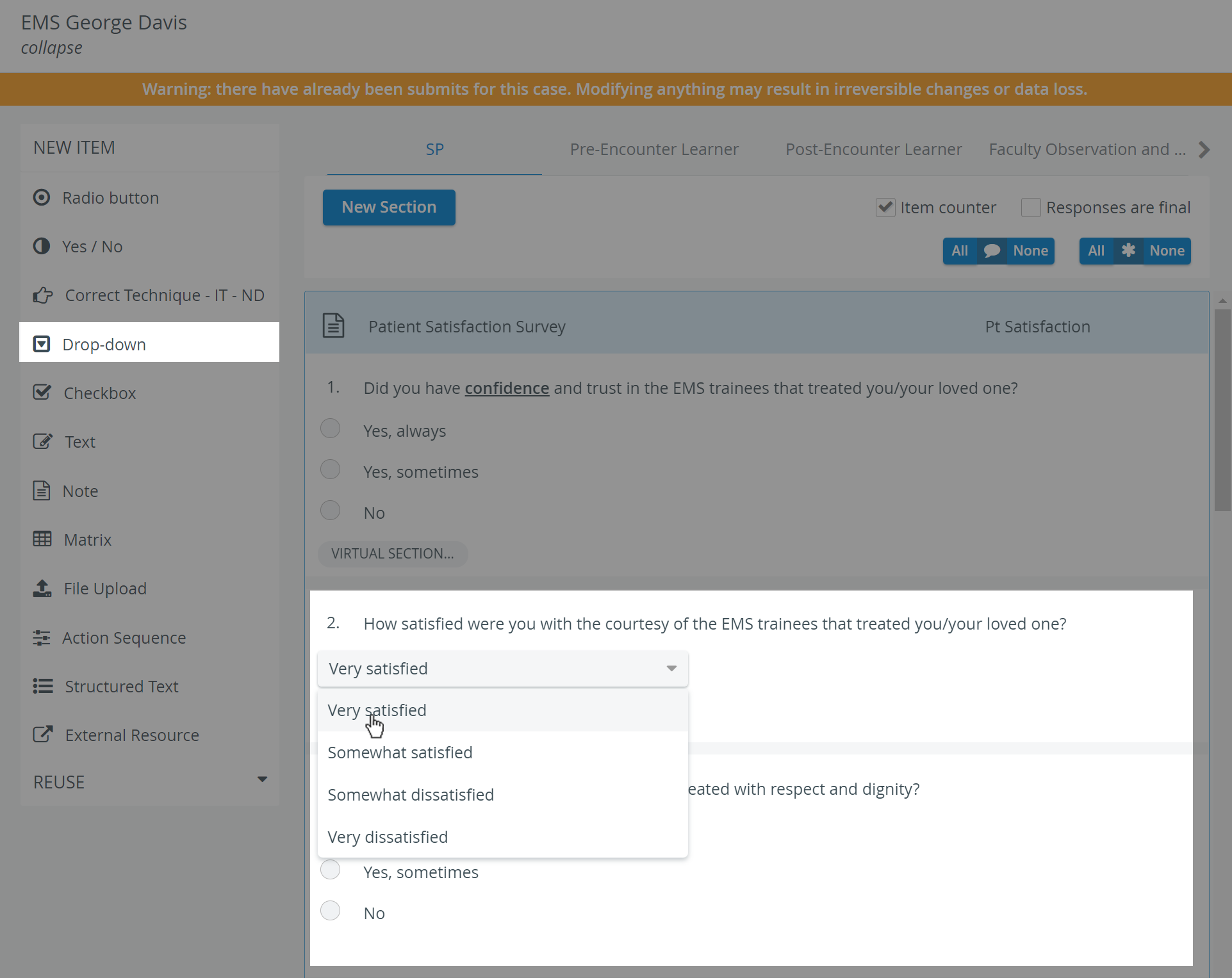
Unlike the Radio button item type, which is not recommended to include more than about six answer choices, a drop-down menu can accommodate even dozens of choices.
At data entry, respondents are shown the question and a drop-down menu. Once they open the drop-down menu, all the available answer options are listed, and they must select one. When modified, the selection switches to the recent choice, but undoing the selection is impossible. Respondents receive the score assigned to the answer they selected.
Scoring
Enter the question in the Question phrase field, then click the Set Answers button. In the prompted Answer Setup pop-up window, answers can be entered with the point value determined, including options for NS (not scored) and B (bonus). Add more fields by clicking the Add New Answer button, or delete any extra fields by clicking the red X.
Use the buttons in the bottom right of the item panel for further options:


As with any added item, a copied one can be freely modified. To add more fields, click the Add New Answer button; to delete an extra field, click the X icon that appears when you hover over the row to be deleted.
For further information, visit our Case Manager and Cases - How to pages or watch our Case Manager Training Videos.