Data Entry tab
Data Entry tab
The Data Entry tab of the Single Room View enables you to complete the FON checklist for the Case (if applicable) during live recording.
Data Entry is available for scheduled events or when recording on the fly if the Activity, Case, and Learner group are associated with the room.
If your layout differs in the Single Room View, you likely have the Legacy version. For the user guide of Legacy pages, please go here.
Data entry can be submitted for a single learner or the whole group assigned to the event. Selected learners are displayed in blue. The respective toggle can be used to enable group grading.

If different responses were given to individual learners and Group grading is activated afterward, a warning message appears about the Various responses and allows the grader to set the answers the same:

The ⚠️ Incomplete response messages might appear under certain question items in case some learner(s) already have a FON response for the question; some don't.
Learn more under How to Use Group Grading.
The group grading limit is 100 learners. If more learners are selected, the system warns you:

FON data entry users should pay attention during Data entry and submit for the correct Learners—in case they enter the Recording before the Admins (or any users with appropriate privileges) who start the recording.
In this case, the Learners selected by the admins for data entry (and annotation) are not updated on the FON Data Entry Users' Recording page.
Multiple Users Active in the same Room
During FON data entry, if the recording is stopped/started and/or the Recording setup is modified in the same room by another user, the system will warn the users performing the data entry:

When selecting Continue,
a warning message
an exclamation mark ( ! )
will warn the user in the header of the data entry panel to complete the submission, because after that, the Recording Setup will be refreshed with the modified data.
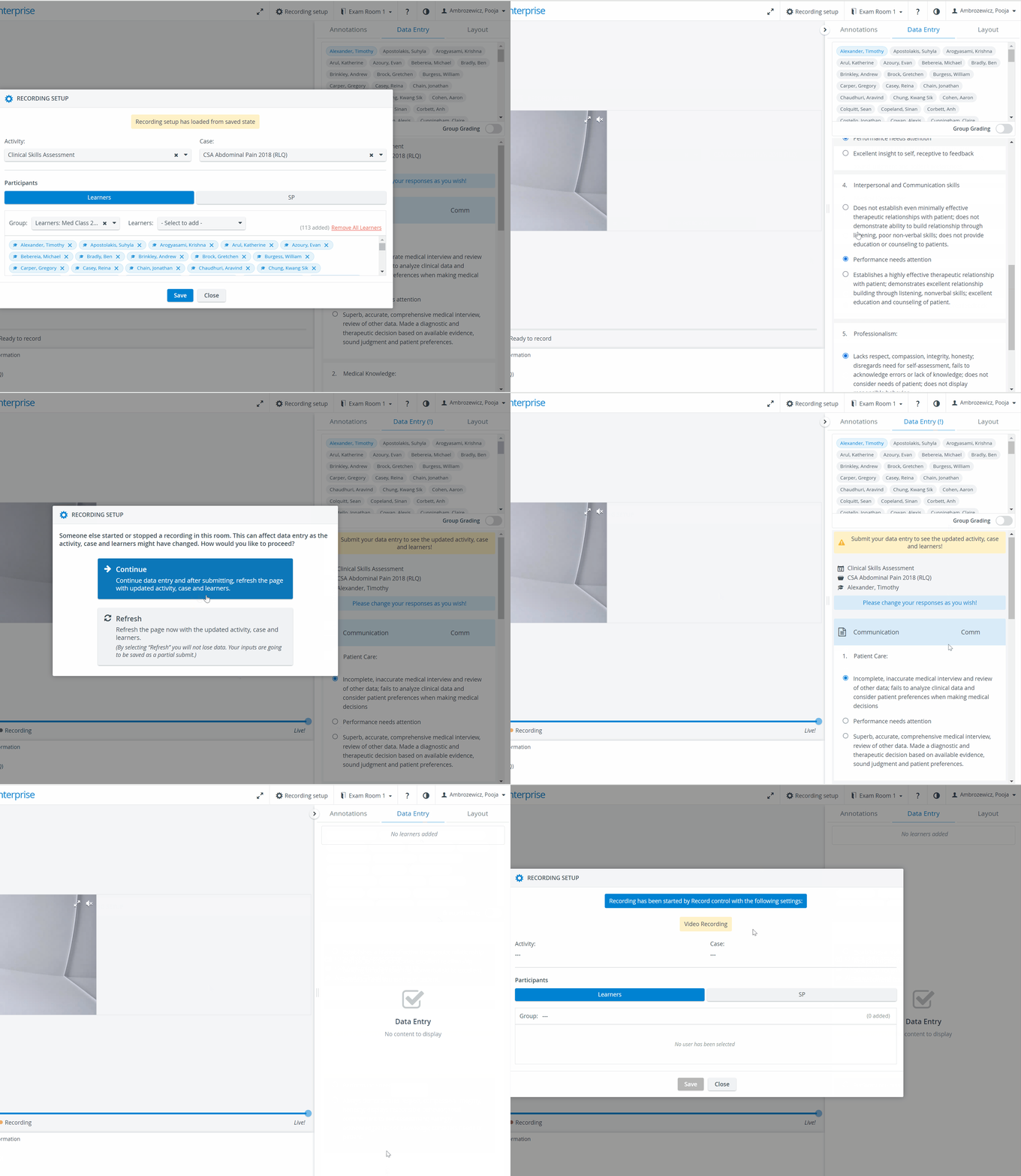
When you select Refresh, the system will immediately refresh the page with the updated Recording setup. Inputs so far will be saved as partial submissions.
Once the recording is stopped, users performing data entry can
continue to submit the current data entry with the new recording setup (Continue), or
get back their original recording setup (Refresh).
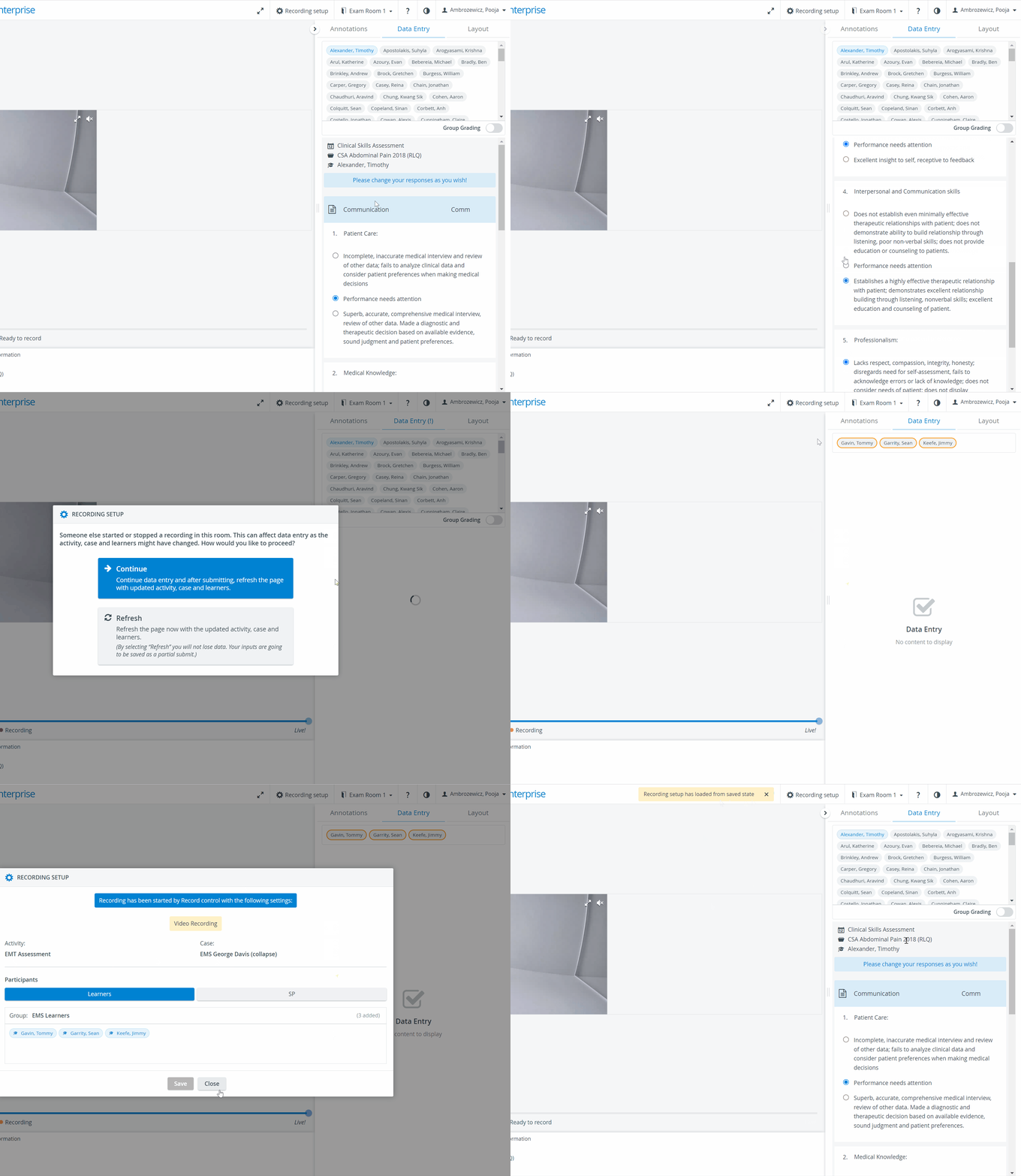
Someone else starts a recording during your data entry in the same room.
A pop-up will come up with two options:Continue → When selecting this option, the system will continue data entry, and after submission, refresh the page with the updated activity, case, and learners.
Refresh → When selecting this option, the system will refresh the page immediately with the updated activity, case, and learners. Users will not lose data; the inputs will be saved as partial submissions.
Your recording setup and data entry remain the same until you have submitted your data entry.
After submission, the data entry will be in sync with the recording that the other user started.Someone else stops a recording during your data entry in the same room.
If your recording setup is different from that of the user who stopped the recording, a pop-up will appear.
The following two options are offered:Continue → When selecting this option, the system will continue data entry, and after submission, it will refresh the page with the original activity, case, and learners.
Refresh → When selecting this option, the system will refresh the page immediately with the original activity, case, and learners. Users will not lose data; the inputs will be saved as partial submissions.
The data entry will remain open until you have submitted it.
When selecting the Continue option, the recording panel of the user performing data entry will be disabled, with a tooltip message displayed when hovering over the Recording setup button:

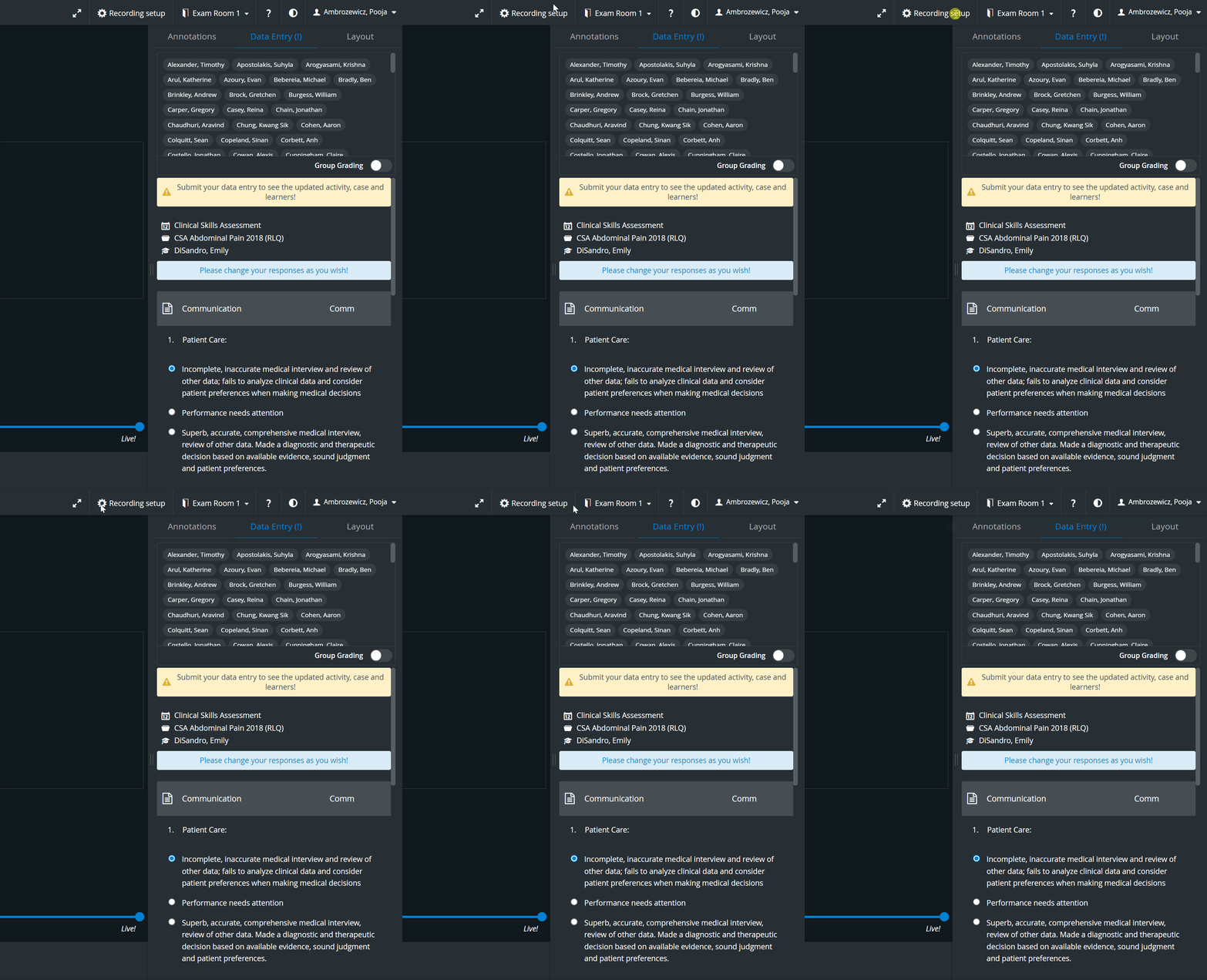
If a recording is started by scheduling or triggered by user action, the functionality is the same.
If the FON Data entry user performing the data entry does not have access to the learners of the modified recording setup (i.e., they are not included in the assignment group), they will see the learners in an orange frame.

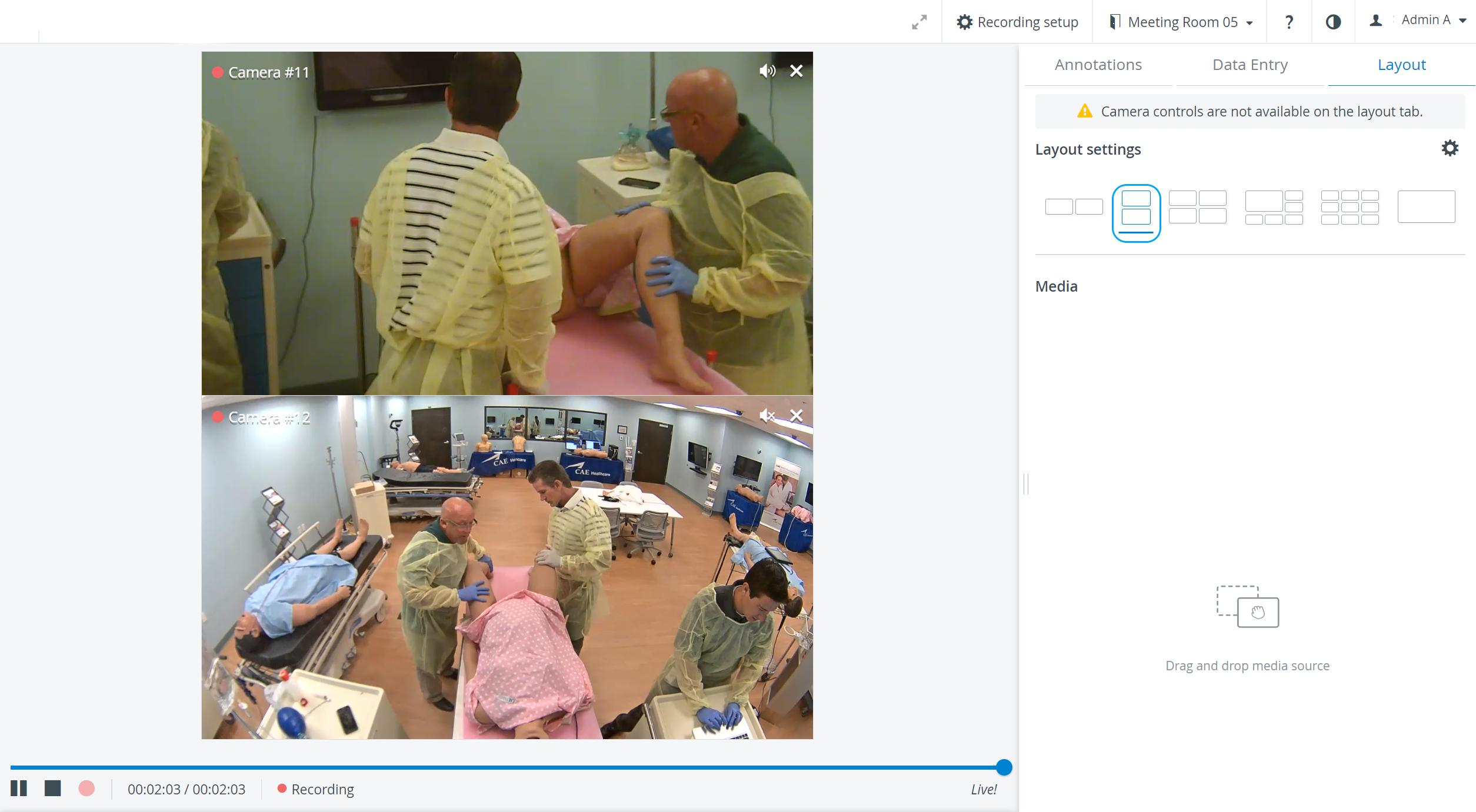
Vertical Double Layout
In the latest version of LearningSpace, the utilization of the space available in the Single Room View panels can be maximized, and the panels on the right side - Data Entry tab, Annotations tab -, or additional windows can be displayed in a larger size with the Vertical double layout feature:

For more information, visit our Recording - How to pages and watch the Recording Module Training Video.