Data Entry Panel in Video Review - Legacy version
Data Entry means filling out a checklist of questions related to a simulation Case or other exercise - the evaluation mainly aims at learner competence and performance.
As checklists are created within a Case and are to be filled out for a specific user, Data Entry is only possible within the frames of an Activity, where a Case (as content) is linked to a selected range of participants (Learner, Faculty, and SP groups).
For users with Faculty Data Entry privilege, the Faculty and Observation checklist of a Case can be filled out in the Room View of a recording that they have access to (via membership of the Faculty group assigned to an Activity).
The Data Entry panel can be opened by clicking the corresponding tab on the left side of the screen.
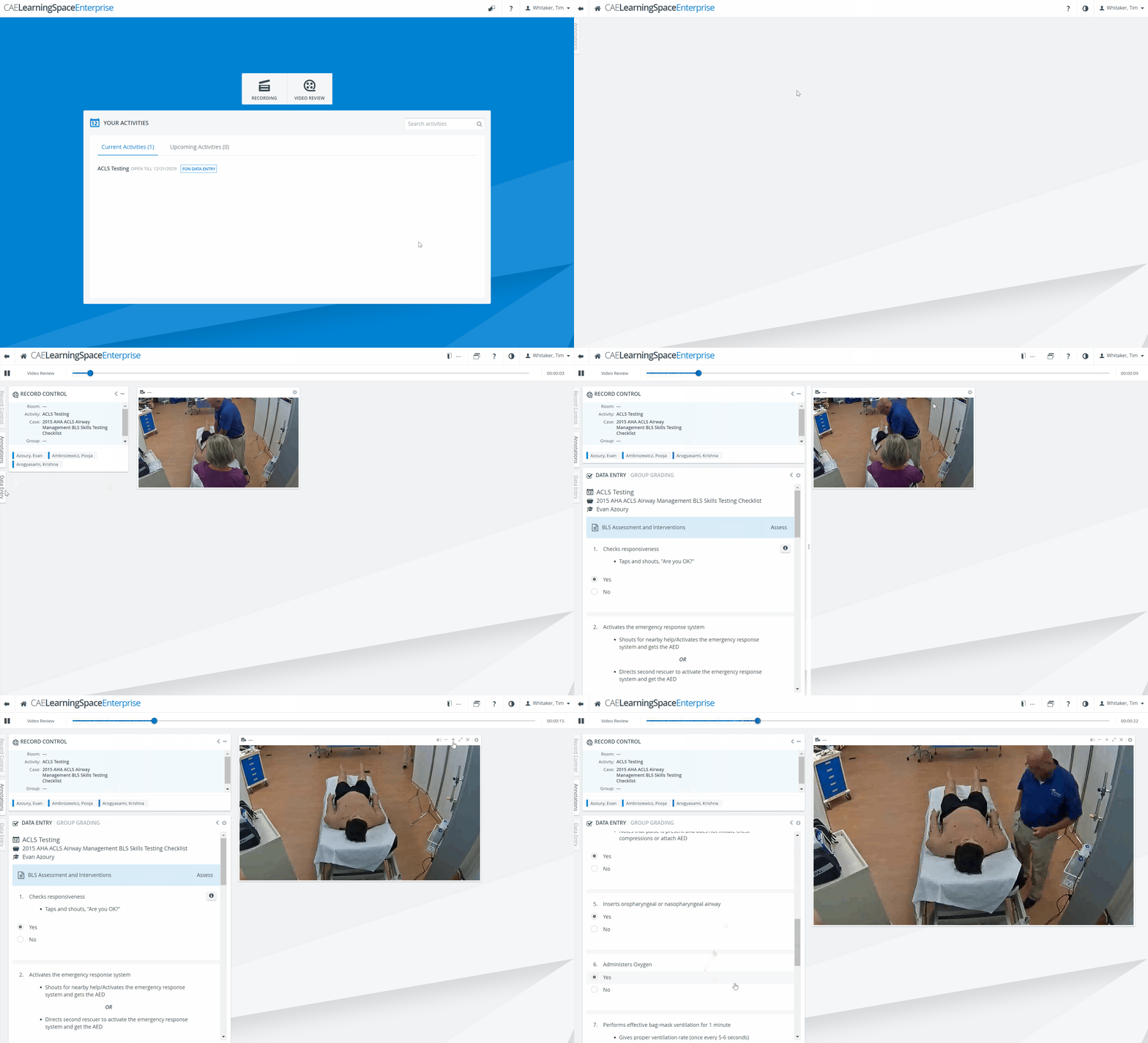
To have the panel expanded, close the Record Control and Annotations panels by clicking the respective tabs.
IMPORTANT: During virtual meetings, the Zoom meeting is automatically recorded, post-processed, and sent to the cloud on the Zoom side. LearningSpace only downloads the video from the Zoom cloud after it becomes available for download on the Zoom side. During this time, LearningSpace generates a video entry for the Zoom meeting (triggered immediately after the meeting starts) on the Video Review page.
Until the video is fully downloaded from the Zoom cloud to be reviewed in LS, the status of the video entry is “Downloading“. An info tooltip next to the status of such videos contains a rough estimate of when the videos will be available for review:

“Cloud recordings generally take about 2 times the duration recorded to process, but occasionally may take up to 24 hours due to higher processing loads. For example, an hour-long meeting with only 30 minutes recorded would typically take 30-60 minutes to process.“
For further information, visit our Video review - How to pages.