Create Your Zoom Owner Account
Note
For our customers who already have a Zoom subscription, we offer our new Zoom OAuth (Open Authentication) solution to continue integrating Zoom services into LearningSpace.
Visit zoom.us and create a new owner account by signing up.
Important
Use the email sign-up option.
Provide the email address of your Zoom account.
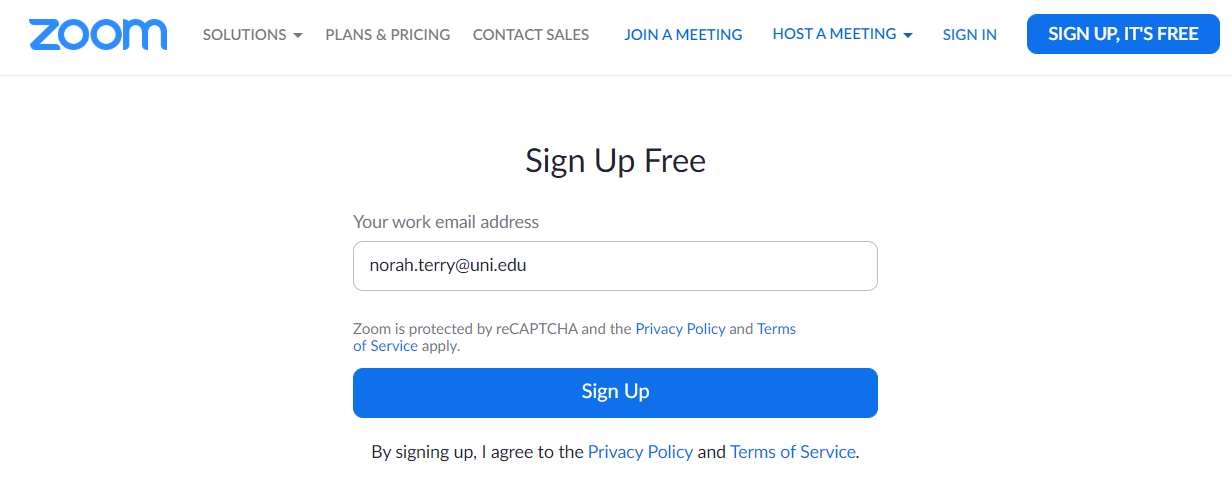
Primary Email Address
This email address will serve as the primary address of your Zoom account.
Virtual rooms will be organized under the owner account registered with this primary email address.
Anyone who has access to the Zoom owner account can:upgrade to a new plan (change the number of hosts)
See and copy the API key and secret, and
manage the type of each user in Zoom: Licensed or Basic type.
Click Sign Up. You will receive an activation email at your account email address.
Check your mailbox to verify your email:
Click Activate Account,
or paste the provided URL into your browser.
You will be redirected to Zoom to continue your sign-up process.
Under Account Info, you must provide your name and set a password for your Zoom account.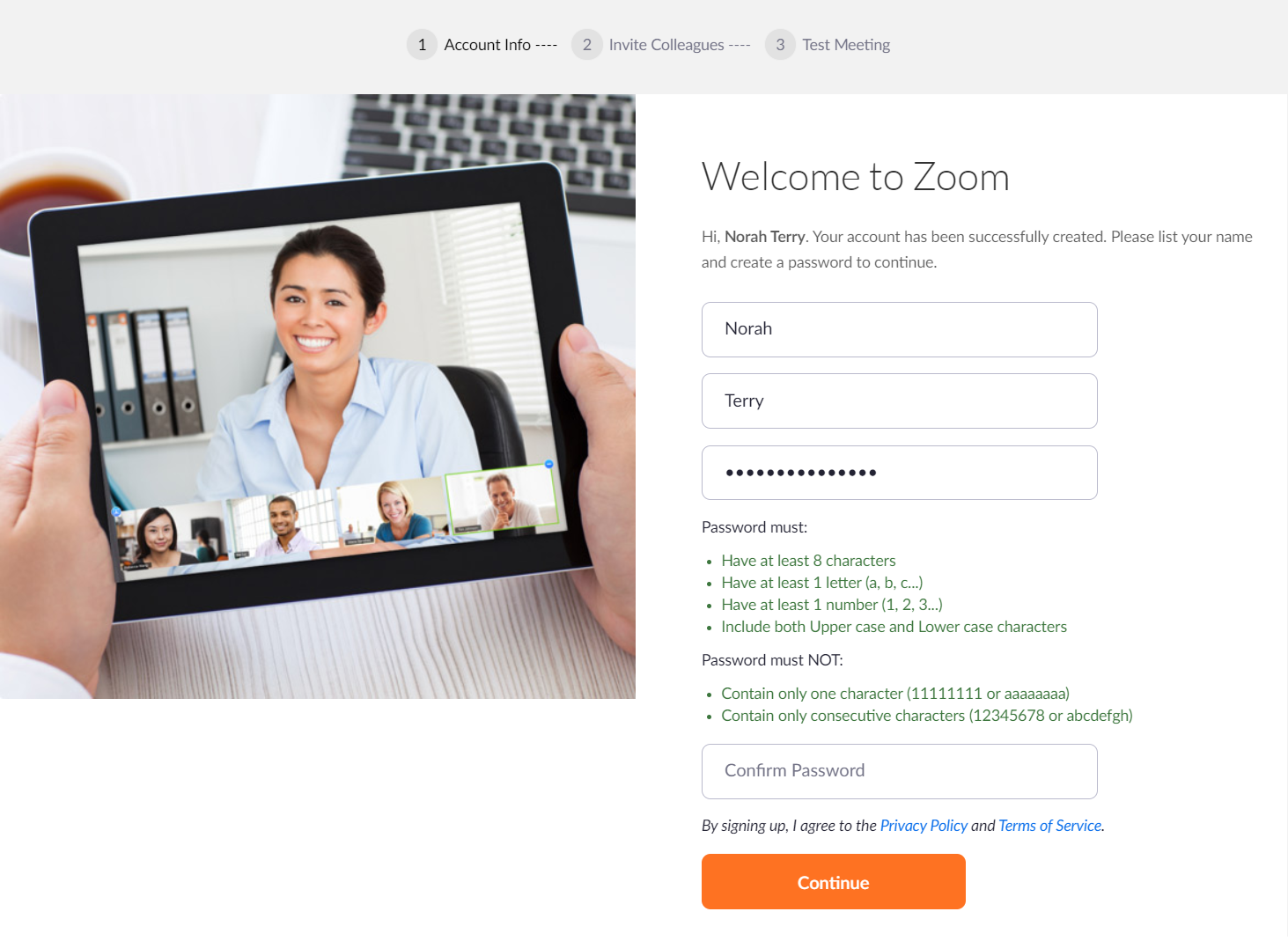
Click Continue.
Invite Colleagues: We recommend to Skip this step.
By sending out this invitation, new separate primary accounts will be created, which would require their own subscription plan updates.With our LearningSpace integration solution, you can manage every virtual room your medical training programs need from a single Zoom account.
Optional: Launch a test meeting.
You have successfully signed up for a free Zoom account.
On to the Next Step
Please continue with Upgrade your Zoom account.