Consumables without Expiration (Disposables)
Consumables without expiration date catalog entry and first-time check-in
Place your Disposable items without an expiration date in this category; their quantity decreases after check-out or increases upon check-in.
Lost or broken items can be deleted from the total quantity by Reconciliation.
Icon:

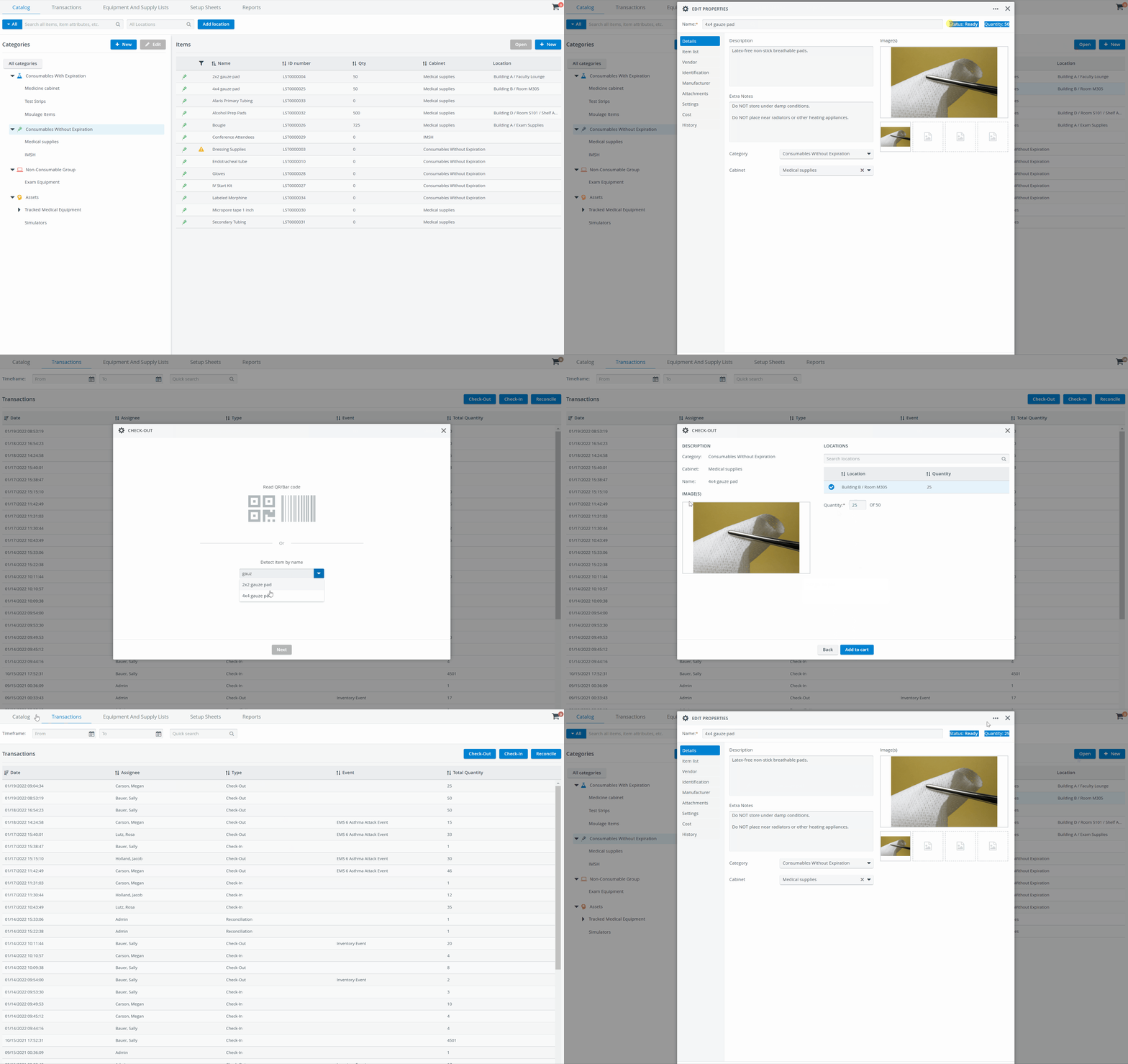
Item Properties
Details
Add a description, general information, and photos about your items in the Details tab:
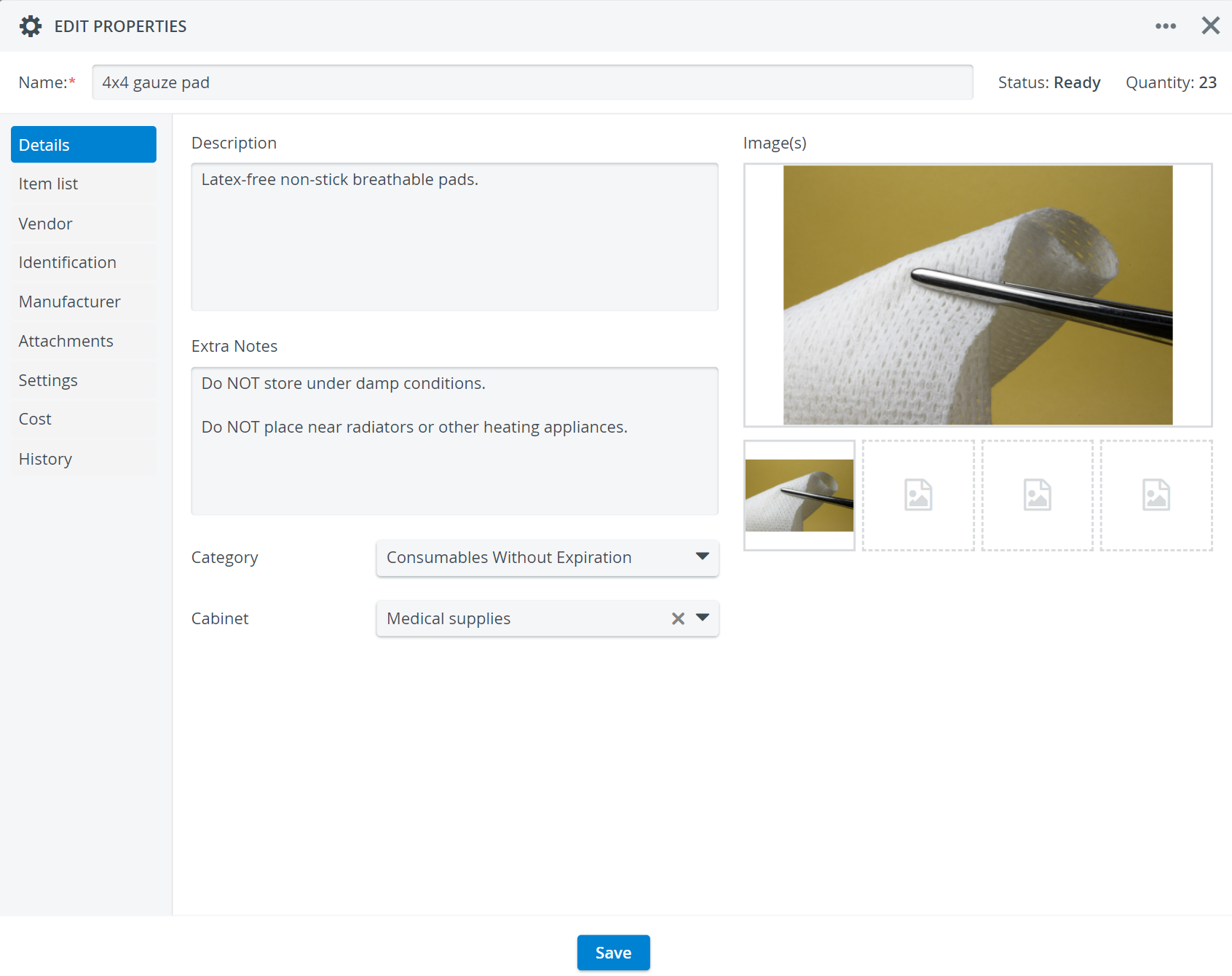
Move the item to a different cabinet with the Cabinet dropdown.
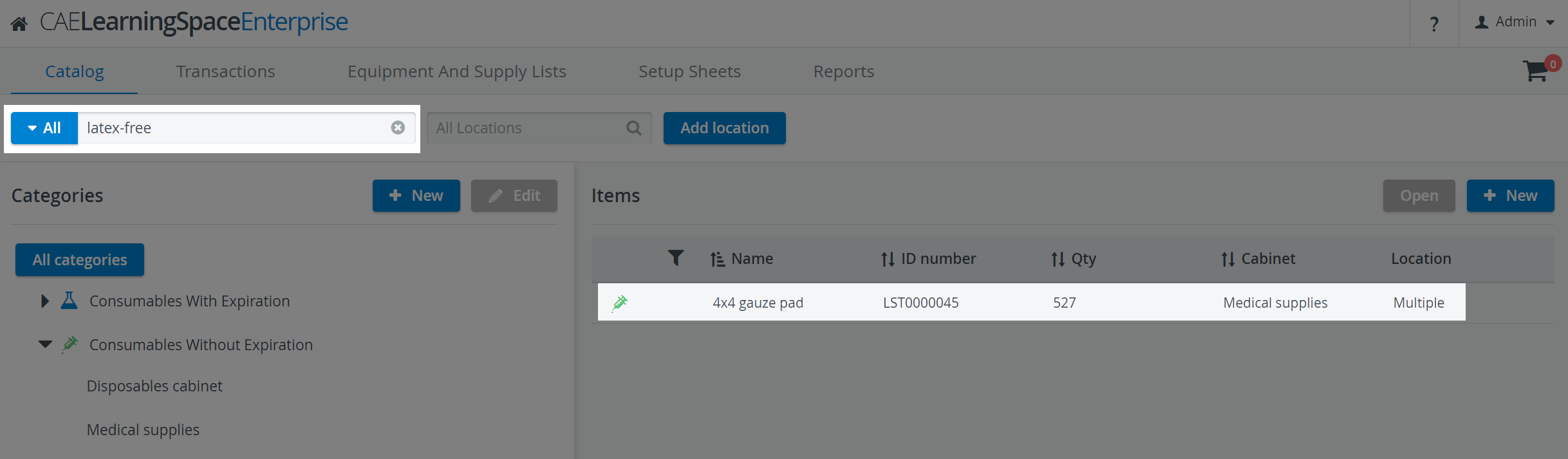
Notes added to the Extra Notes field become searchable in the global inventory search field on the Catalog page:
Item List
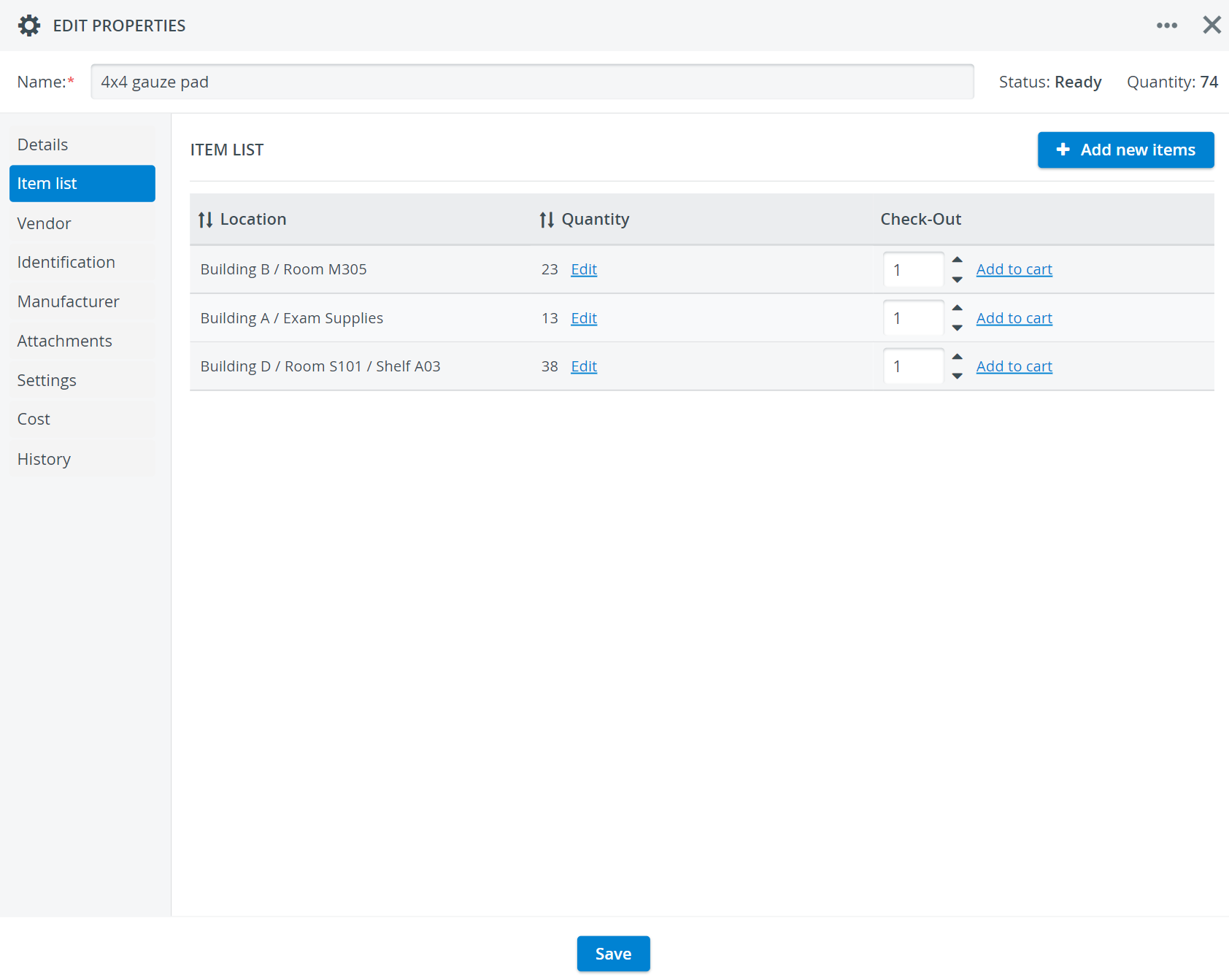
The Item List tab breaks down an item's available quantities by location.
Easy Item Check-In
Consumables without Expiration can be increased without completing the Transaction workflow step by step. However, the system will still create check-in logs to help trace back inventory movements.
There are two options available:
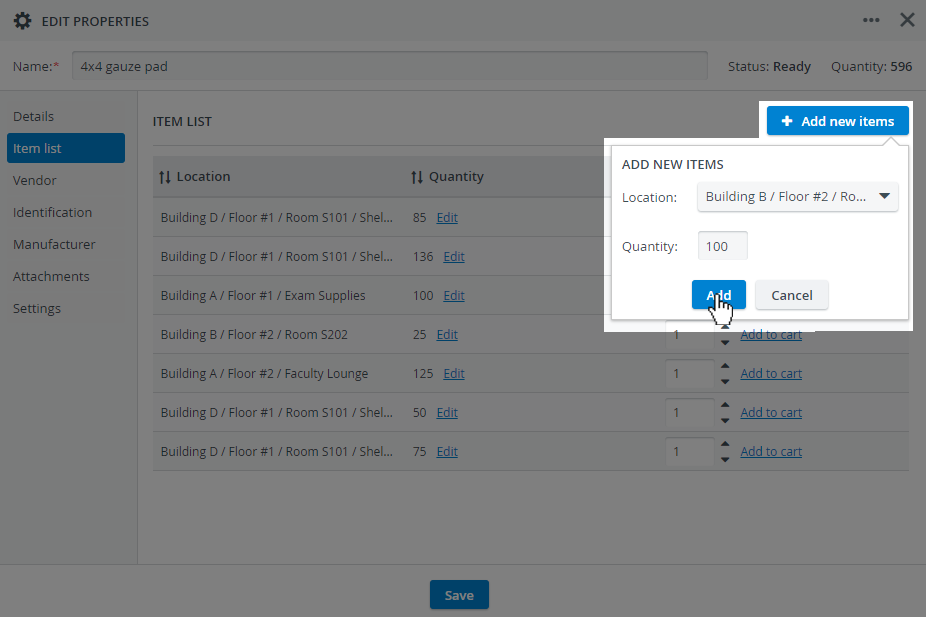
Add items to any available location with the +Add New Items button:
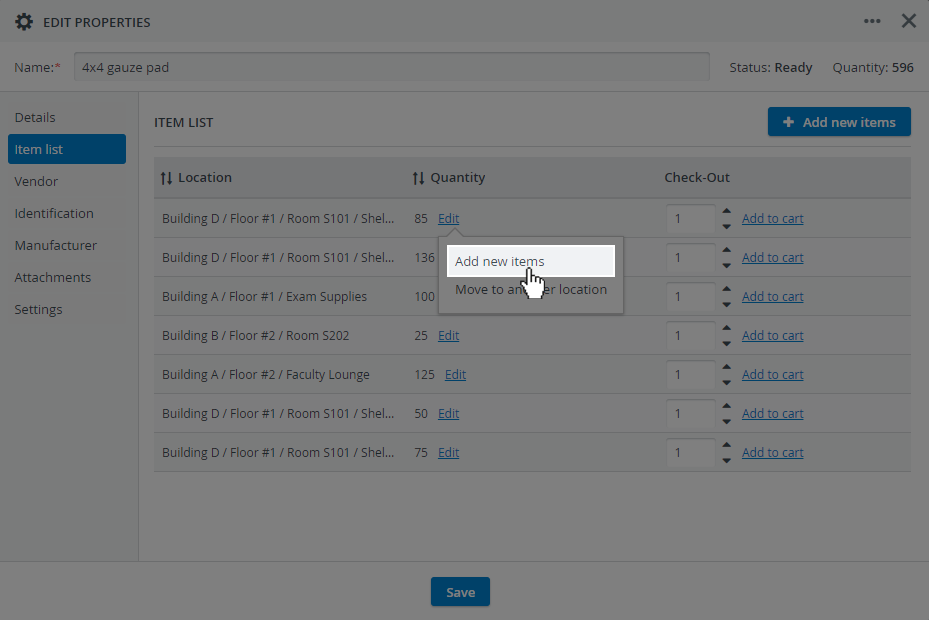
Increase the quantity at each batch or location with the Add new items option you can access via Edit:
Easy Item Transfer
Transfer quantities between locations without performing multiple transactions. Like easy check-in, the system will automatically create transaction logs for any transfer made with this method.
Access the Move to Another Location option via the Edit button included at each location:
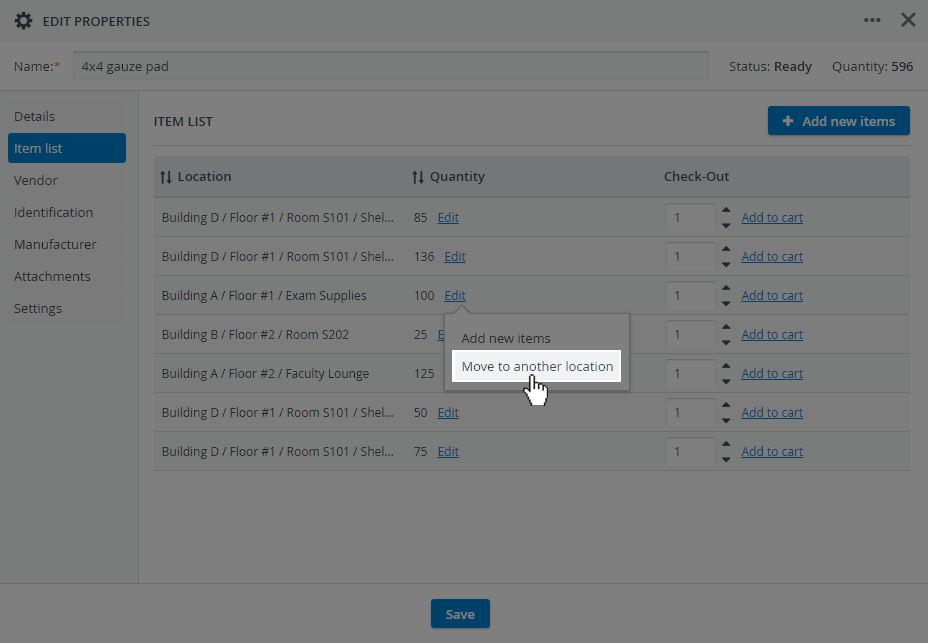
The Easy Item Transfer process creates two transaction logs in Transaction History: one for Check-out and one for Check-in.
To perform easy check-in or easy transfer, users must have the Transaction Assignee privilege activated in their user profile. If they do not have it, the Edit option will stay inactive.
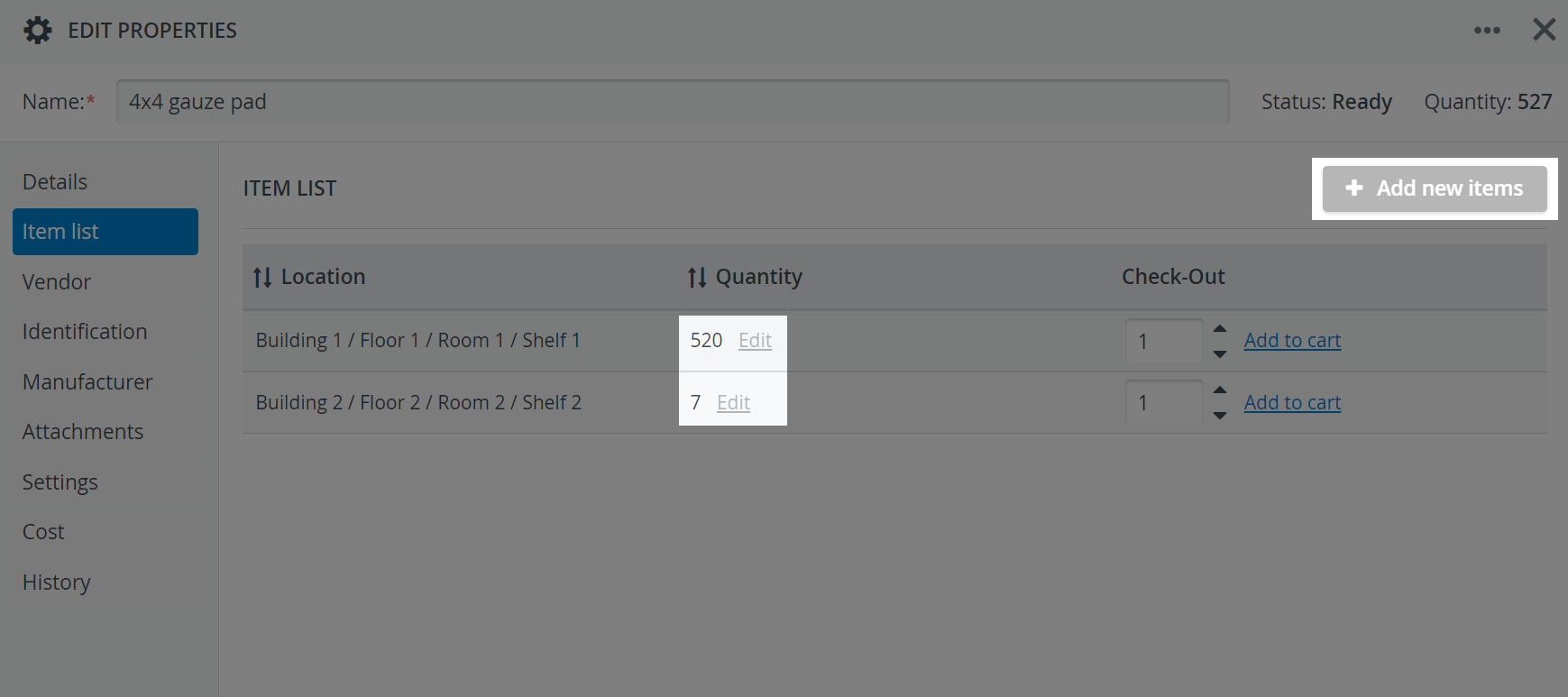
The + Add new items button is unavailable for users without the Transaction Assignee privilege.
Easy Item Check-Out
Using the Add to Cart option, you can add items to check out directly from the Item List. This will open a new cart for checkout, allowing you to continue the checkout workflow.
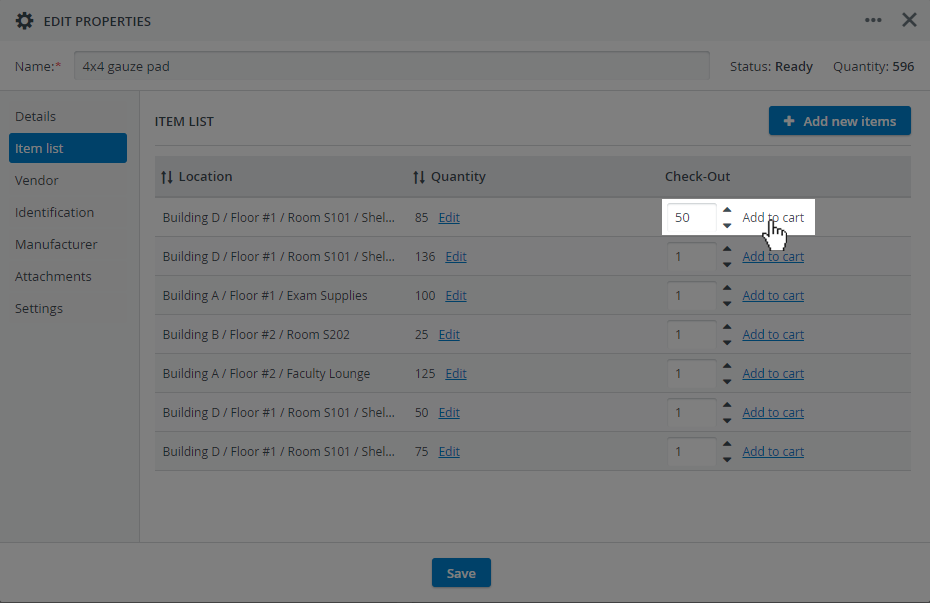
The Transaction Assignee privilege is not needed for the Add to Cart option.
Learn more about the related Transaction workflows on the Check-in Transactions page under Consumables without Expiration Check-In, Consumables without Expiration Check-Out, and Consumables without Expiration Reconciliation.
Identification
Every item, including existing items in your inventory, will get assigned a unique, searchable, system-generated ID number. You can look up items by complete or partial ID numbers in any search field.
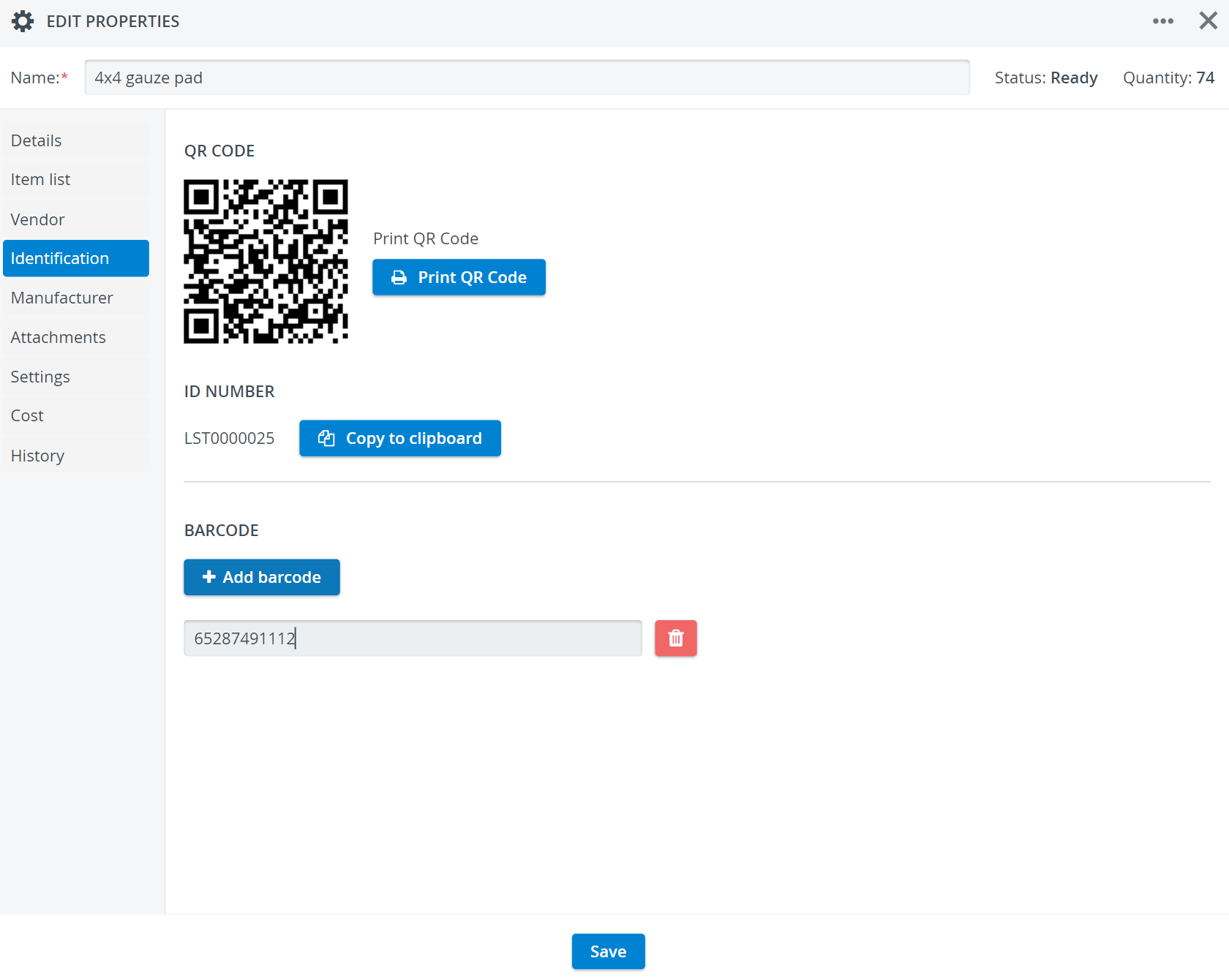
In the Consumables without Expiration Identification tab, you will find the item's QR code, ID Number, and the + Add barcode option that allows you to add one or more barcodes to your item.
Print the system-generated QR code of specific items to label your physical stock.
Apply one of the available scanning solutions to scan the barcodes on your items.
Make sure that the cursor is active inside the barcode field when scanning.
Find out more here: How to Detect Items in Your Inventory.
Low Quantity Notification Email
Define the minimum allowed amount for a Consumable without Expiration before restocking.
If the Low Amount is defined for the item, you can switch on an automatic notification email that will warn every user in the system with Inventory Manager privilege about running low on the item:
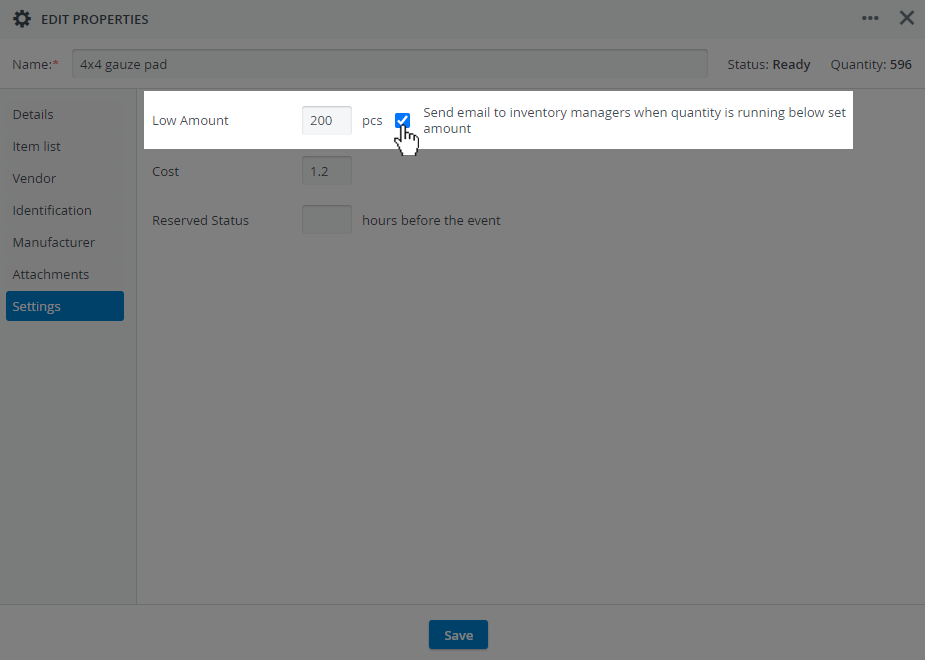
A Low amount email is only sent out when items are checked out, not when requested or reserved in a Setup sheet. Therefore, it is recommended that a Forecasting report be run before events.
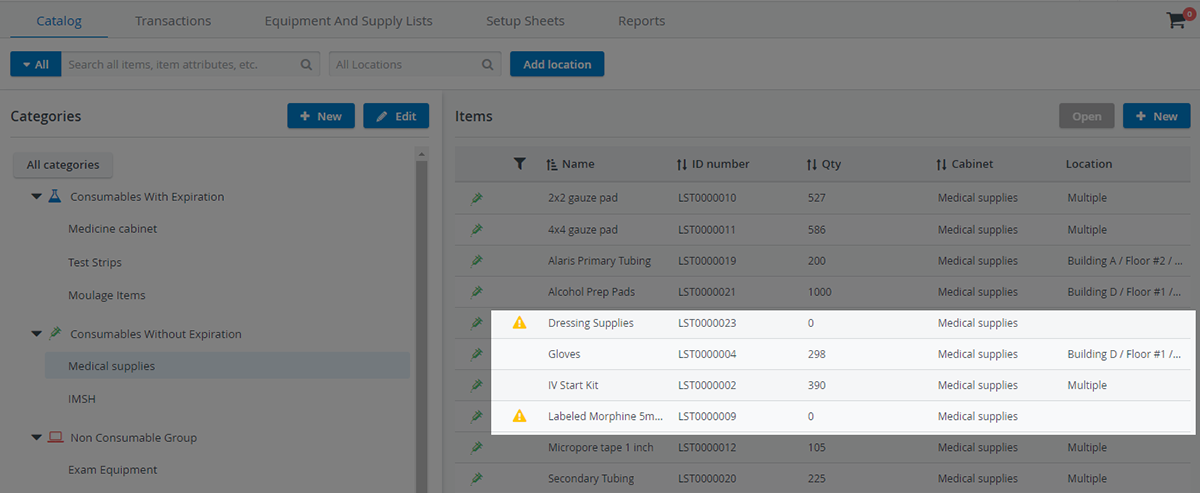
A Low Stock icon will also appear next to an item on the Catalog tab when its quantity has dropped below the defined low amount:
Costs of Consumables
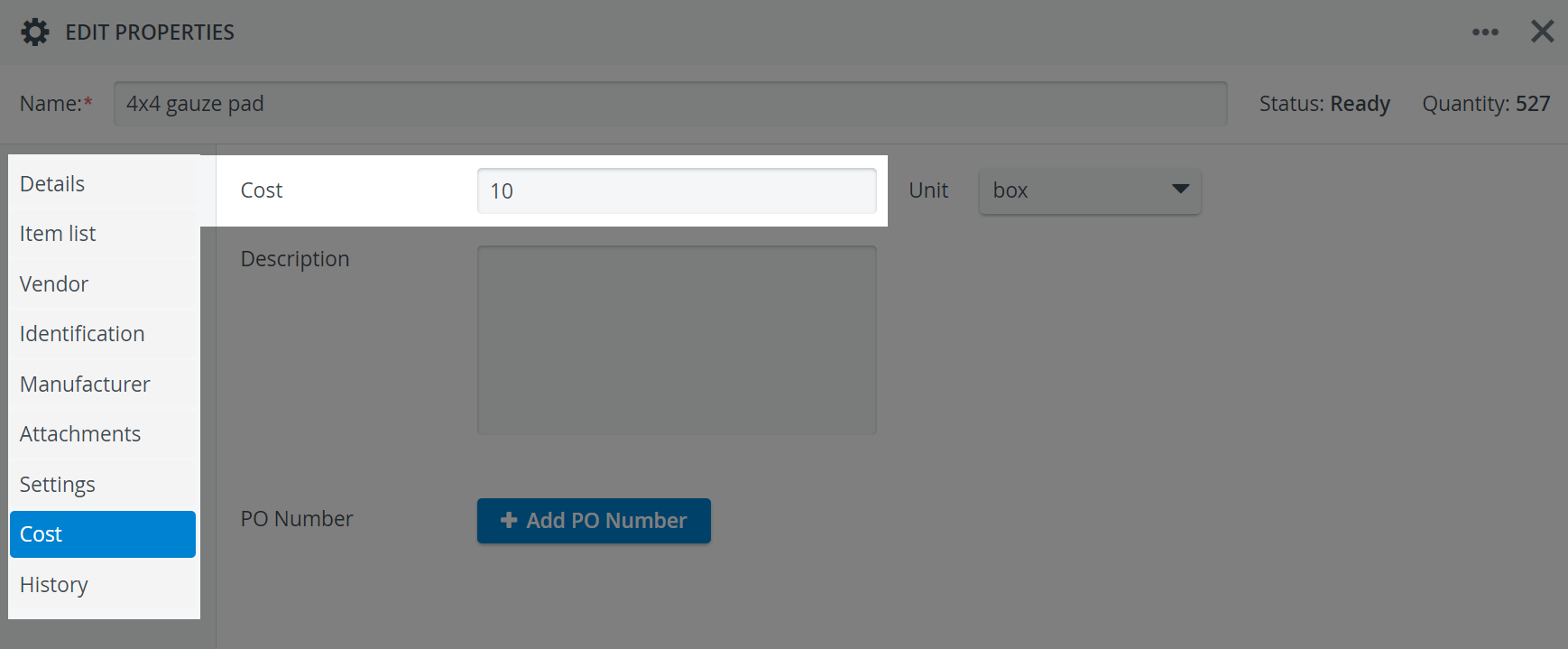
You can add the cost of a Consumable without Expiration item in the Cost field of the Cost tab. This tab also contains:
a drop-down to provide the Unit of the item
a Description field for notes
and an option to enter the item's Purchase Order Number(s) / PO Number.
After checking out Consumables without Expiration from Setup Sheets, you can inquire about the cost of items consumed during events in the Cost report:
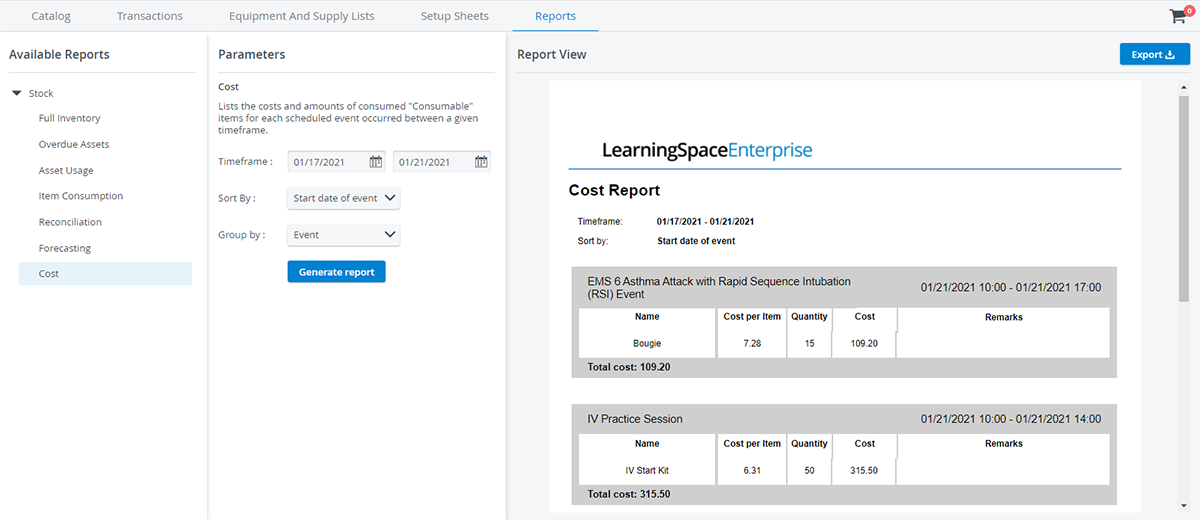
The Cost report only tracks the cost of items checked out via Setup Sheets; therefore, the cost of used-up items unrelated to events is not logged.
History
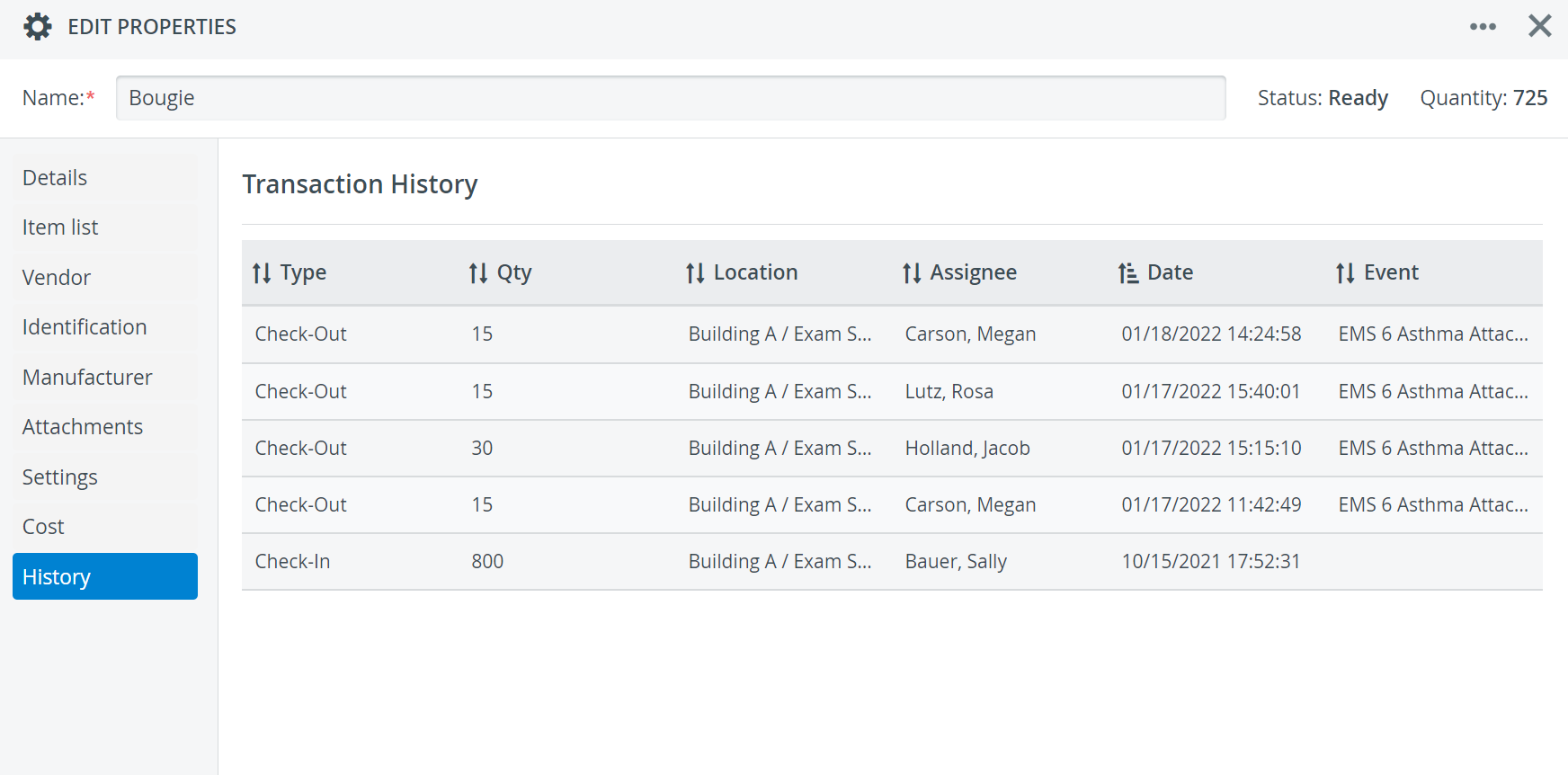
The History tab for Consumables without Expiration lists the Transaction history for an item. Each entry is timestamped and includes other important details such as:
The Type of the Transaction,
Quantity: the total number of items in the transaction,
Storage Location,
the name of the Transaction Assignee responsible for the equipment,
the title of the related Event.
Learn more about the Inventory Manager on our Inventory - How to pages, and watch the Inventory Manager Training Videos.