Connect Your Zoom OAuth Application with LearningSpace
To provide access for LearningSpace to Zoom user accounts using OAuth (Open Authorization), do the following:
Log in to LearningSpace with Admin privilege.
Go to System.
Select the Security tab.
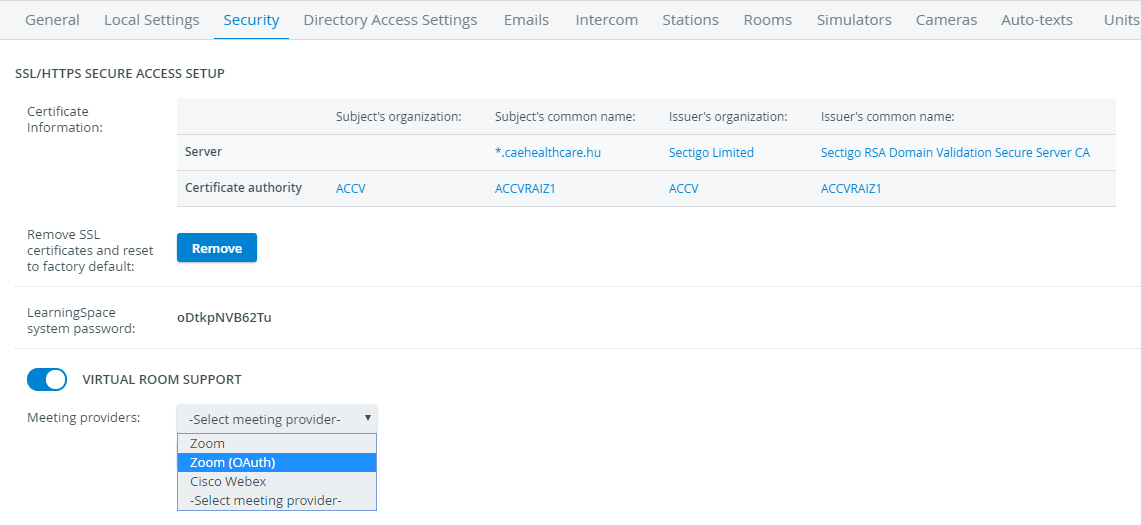
The Virtual Room Support module is at the bottom of the page under the system password.Switch on the new module to display settings.
Select Zoom (OAuth) from the Meeting Provider drop-down.
Paste the Client ID and Client secret you have copied from your Zoom OAuth application in the corresponding fields.
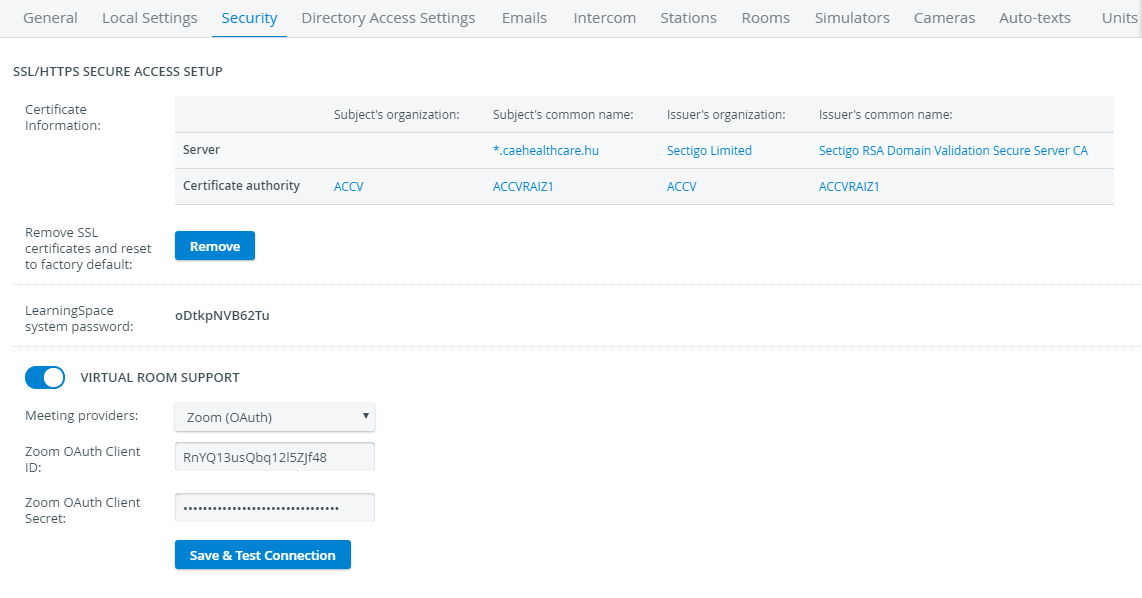
Click on Save & Test Connection to connect to Zoom.
LearningSpace informs you of successful or failed connections at the top of the page.
On to the Next Step
Continue to the next page to set up virtual rooms.