Connect Your Smartphone
Continue with the setup until you have scanned some items and detected users in the Inventory module to determine if this solution is the right fit for your training center. Apply the Barcode to the PC's free license: The free plan—at the time of this guide's publication—offers 300 scans per month from 1 connected smartphone.
Learn more about current offers on the software provider's website.
Download the Barcode to PC to Your Smartphone
Download the Barcode to PC application to your smartphone from the Play Store or App Store.
Open the application on your smartphone.
If your smartphone and server device use the same network, your smartphone should seamlessly connect to the server device running the Barcode to PC 'server'.
When you first use your smartphone as a scanner, you need to decide whether to use QR codes or barcodes for identification in the future.
For QR codes, an #LS Prefix must be set (for the 'Barcode to PC scanning application' ) for the devices to function correctly.
See How to Set up the #LS Prefix for your Scanner.Even if your computer has a wired connection, your smartphone should automatically connect to the device as long as both are connected (wired or wirelessly) to the same internet access point.
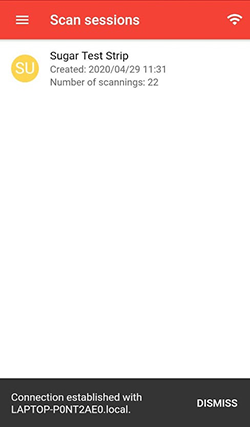
Tap on the signal in the top right corner to display further details:The desktop application also notifies you about your connected device:
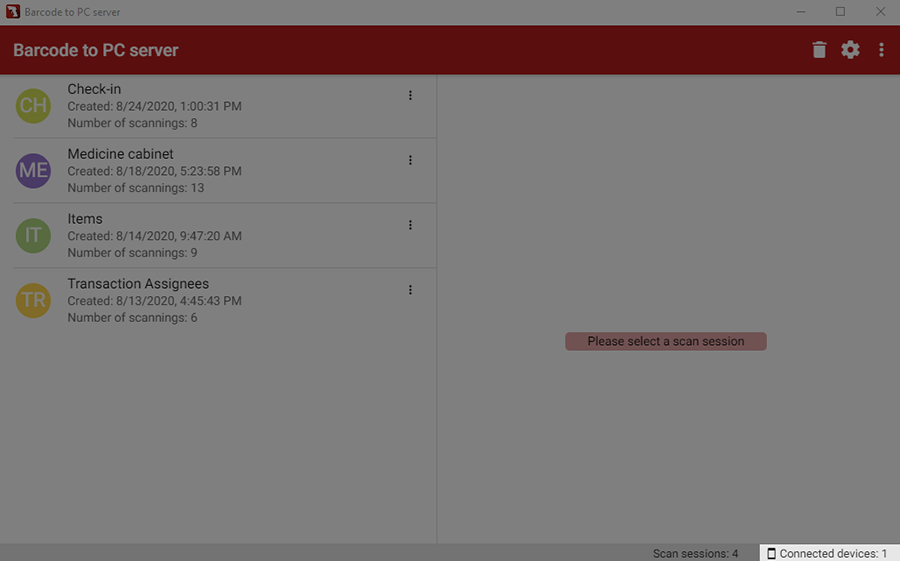
Continue to this page to scan QR codes and items in the Inventory module.
If the signal in the top right corner is blank, your smartphone has not connected to the desktop application yet:
Possible causes of connection problems
The smartphone application's version does not match the desktop application's version.
Solution
To avoid version incompatibility issues, leave Enable automatic updates switched on in the Info tab.
According to the provider, at least the first numbers of the smartphone and desktop versions should be the same. For example, the v3.0.0 smartphone version is compatible with the v3.2.0 desktop version.
Your server computer is not discoverable.
Solution
Refer to the guide featured on the Barcode to PC's website to make your computer discoverable on trusted networks.
Server Computer Has a Wired Connection
Inside Network & Internet settings, select Ethernet from the side menu.
Your firewall is blocking the smartphone application.
Solution
First, add the Barcode to the PC server executable in the firewall exceptions, and allow connections on TCP port 57891 and UDP port 5353. Then follow the steps in the firewall settings guide on the Barcode to PC website.
Opening Port 5353 UDP Is Not Necessary
According to Barcode to PC's FAQ, allowing connection to port 5353 UDP is not essential. If you do not accept connections on this port, you must manually add the server to the smartphone.
Find out how to add the server manually here.
By tapping on the signal, you can view connection details and further options for manual pairing.
QR Code Pairing
In case port 5353 UDP is not opened on your server computer, connect the server manually by scanning the app pairing QR code included in the menu:
Click on the menu icon in the top right corner
.
Click Pair the app with the QR code to access the QR code you need to scan:
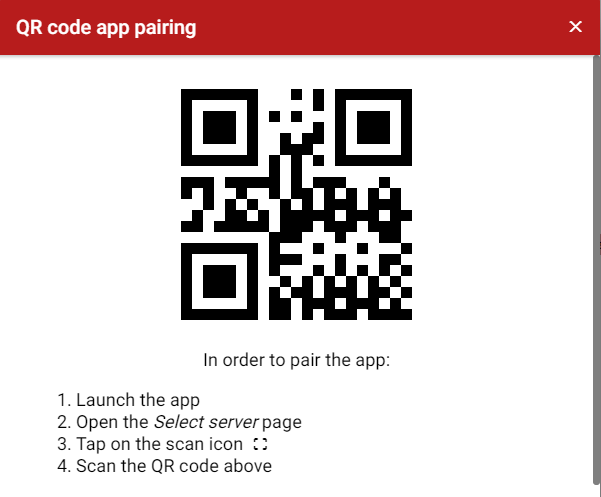
Tap the QR Code Pairing button on the Select server page of the smartphone application.
Allow the application to access your smartphone's camera.
Scan the QR code you have just opened in your desktop application.
Pairing by IP Address
In case port 5353 UDP is not opened on your server computer, connect the server manually by providing the IP address of your server computer:
Find your IP address (see the official Windows support article).
Tap the + Add Server button on the Select server page in the smartphone application.
Enter your computer's IP address.
For QR Code #LS, the Barcode to PC scanning application MUST be configured in order for the devices to function correctly.
Do you still have trouble connecting your smartphone to the desktop application? Find out more on the product's FAQ page.