Check-Out Transactions
The Check-Out process in the Inventory module is performed whenever someone picks up consumables, available non-consumables, or assets from a storage location. The transactions are tied to a Transaction assignee to track items on loan.
This page walks you through the Check-out workflows of each item category.
Basic Check-Out Process
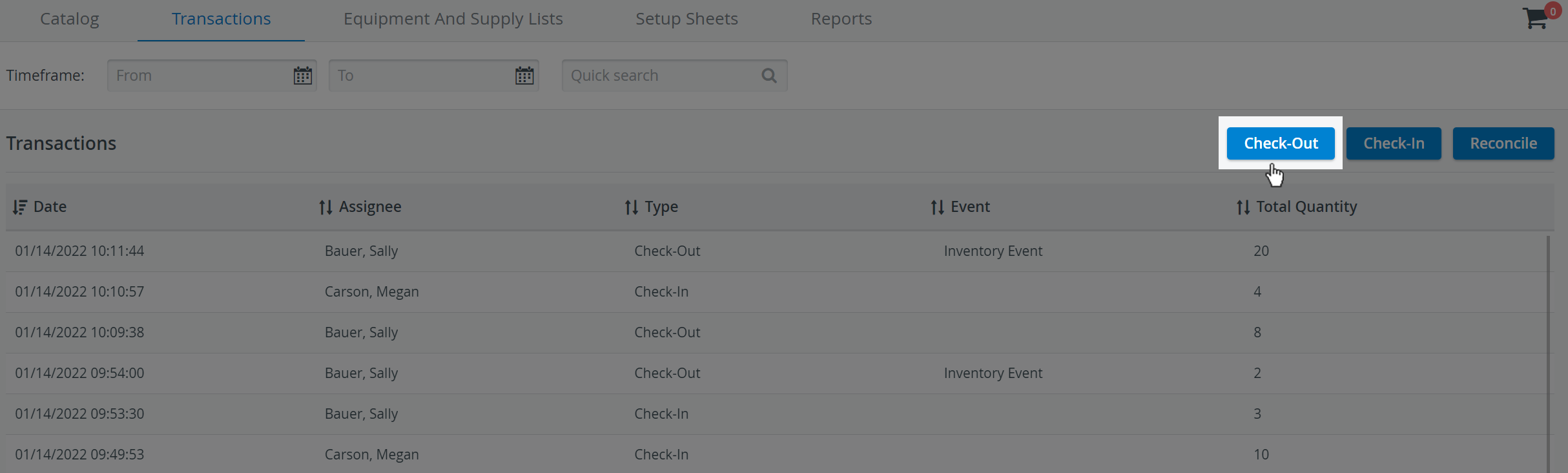
To check out an item, click the Check-Out button in the upper-right corner of the Transaction list.
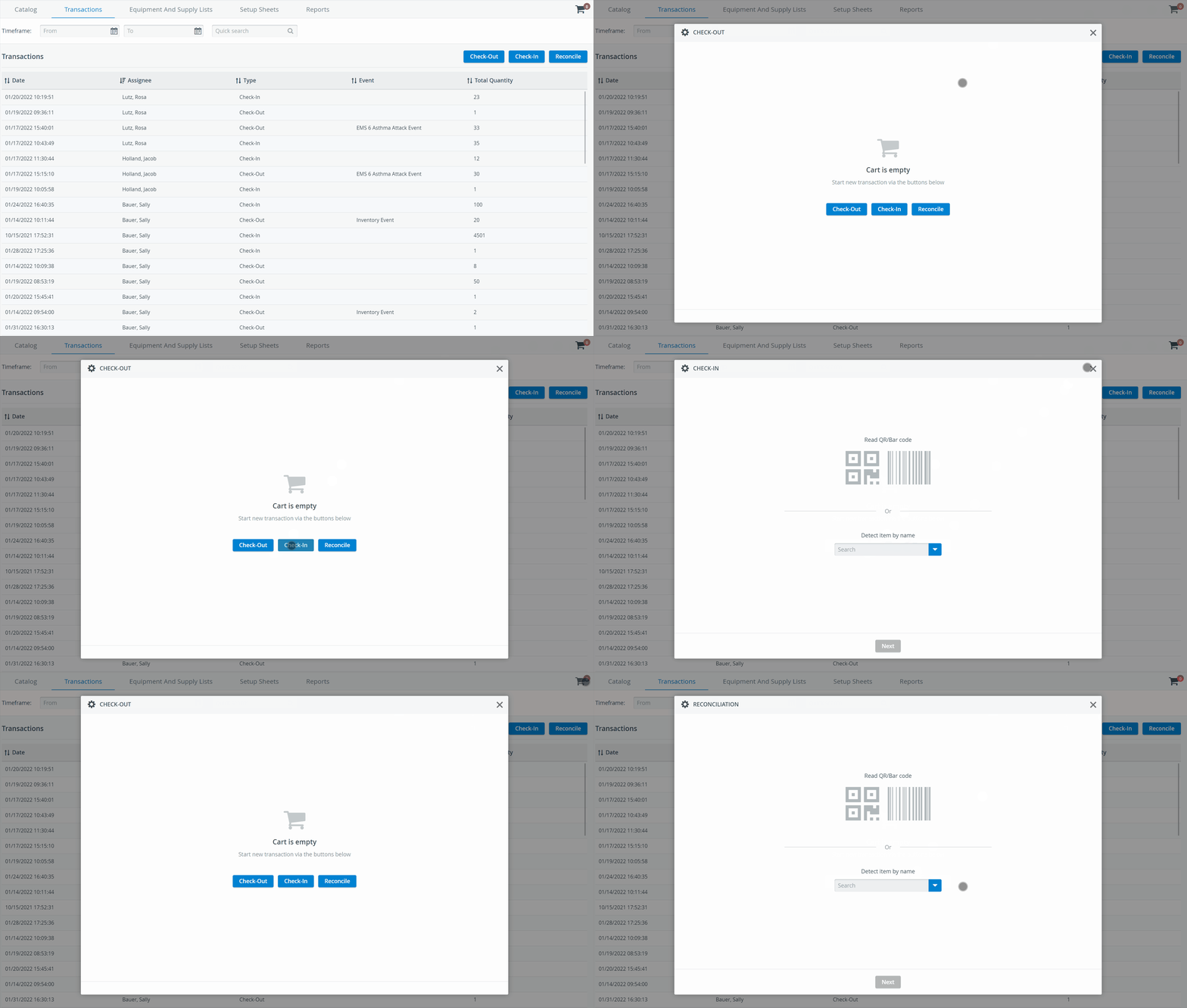
Check-out transactions (but Check-In and Reconciliation likewise) can be initiated by using the Cart icon in the upper right corner of the Inventory module:
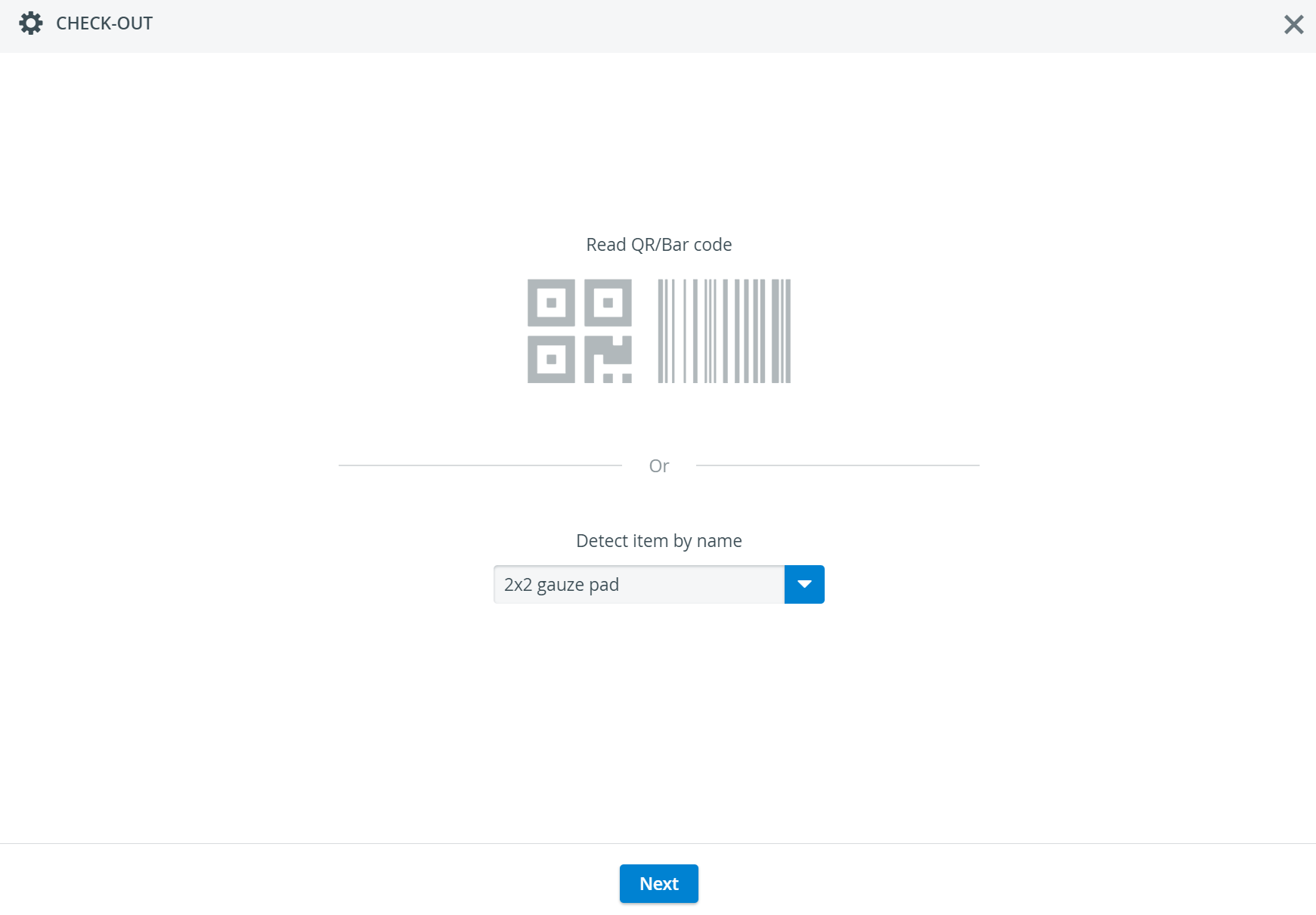
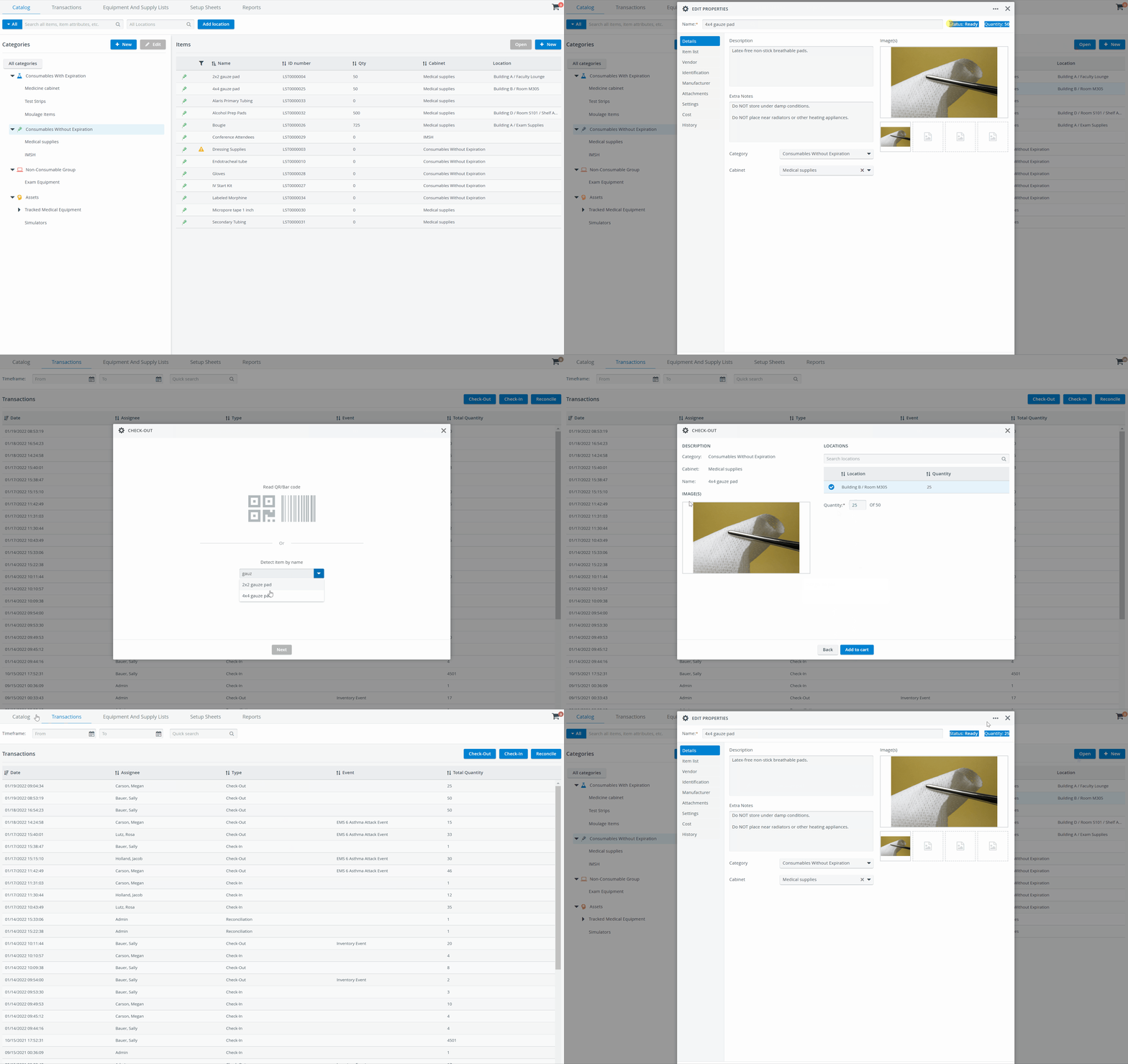
Detect your item as the first step of any Transaction workflow. Use your barcode scanner or start typing your item's name.
You can only look up items previously registered in the Catalog. Learn more on the How to Detect Items in Your Inventory page.
Step-by-step guides to the Check-out process for each item type
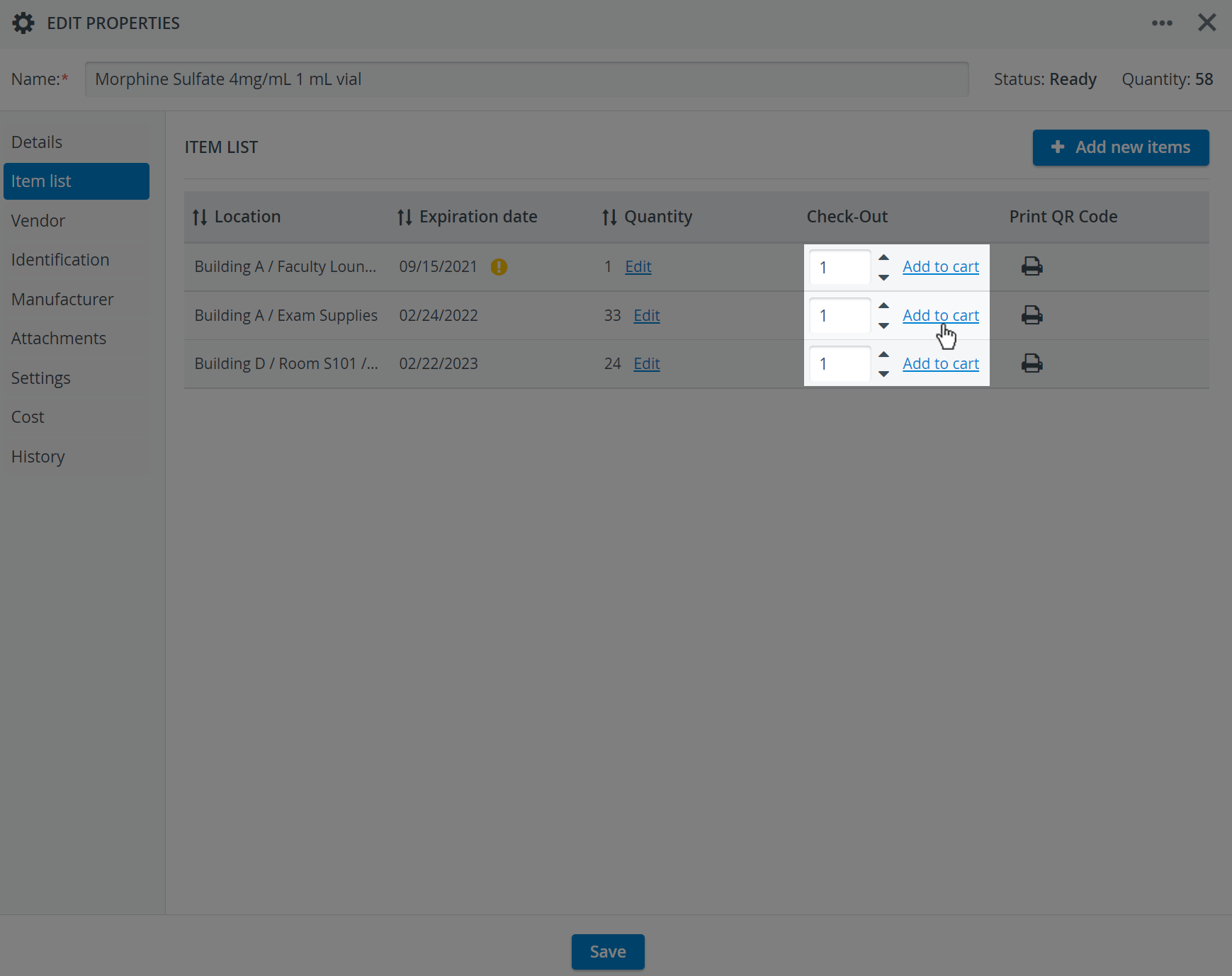
You have the Add to cart option available within the Item list for each item type. With this option, you can prepare the items in this set for checkout with a single click.
Consumables with Expiration Check-Out
While following the basic Transaction processes, Consumables With Expiration items can be checked out by identifying their batches.

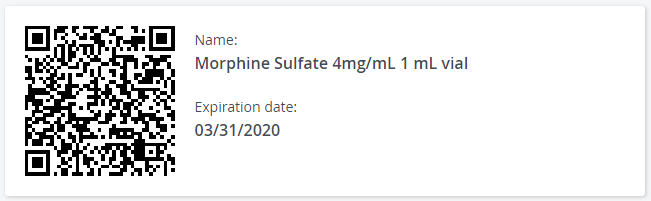
Identify the batch you are about to check out: when your transaction assignee is there to pick up supplies from your storage room, use your barcode scanner to scan the QR code on the physical item, or enter the expiration date from the item's QR code label to identify your batch.
Select one of the locations where you want to check out the item.
Enter the item quantity.
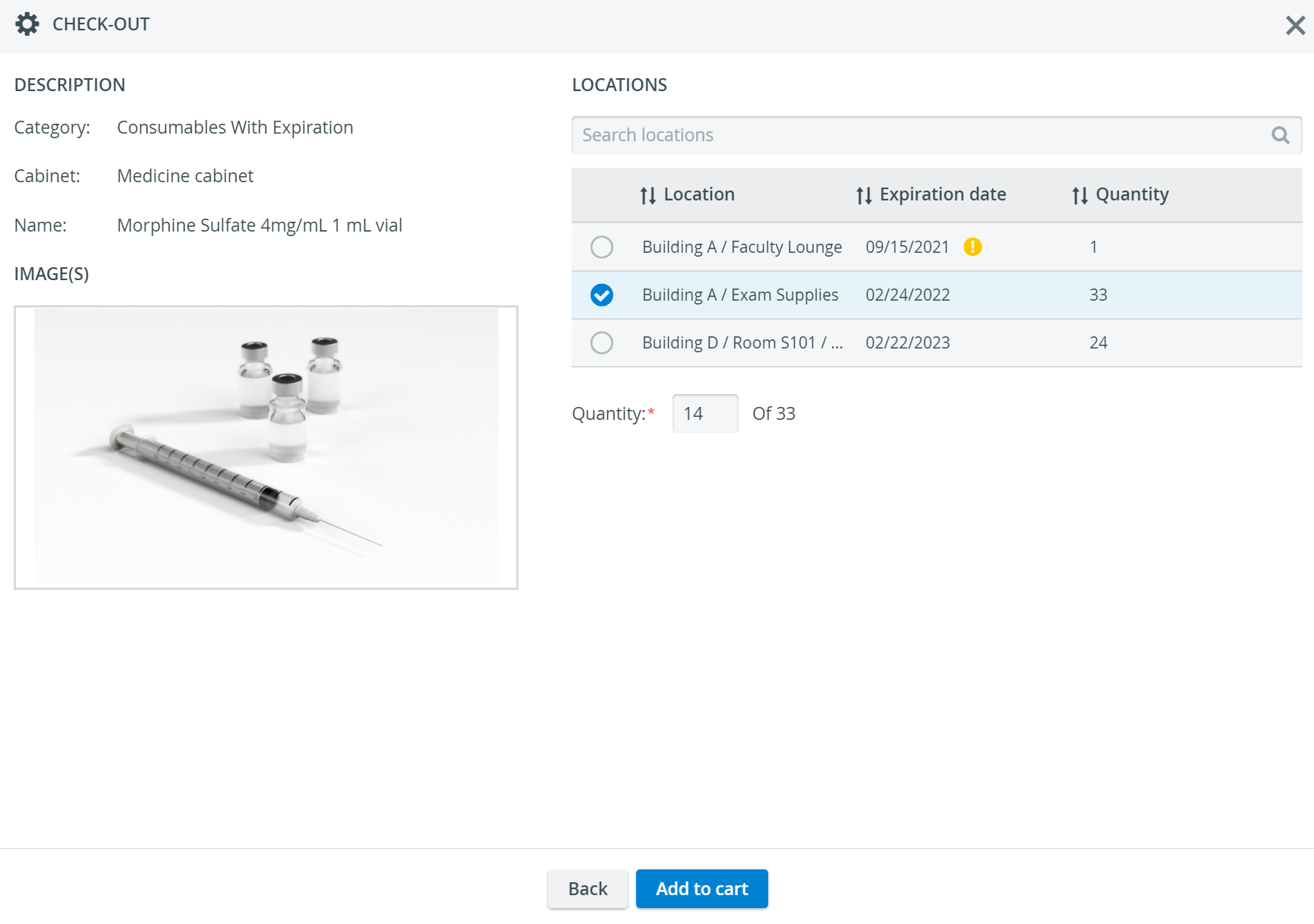
Continue with Add to Cart to create a new cart or add your items to an existing cart.
The Back button returns you to the item detection step if no cart is in progress. If you add an item to an existing cart, you will be taken to the Transaction Summary page.
Learn How to Finalize Your Transaction in the Cart here.
Consumables without Expiration Check-Out
Select one of the locations where you want to check out the item.
Enter the item quantity.
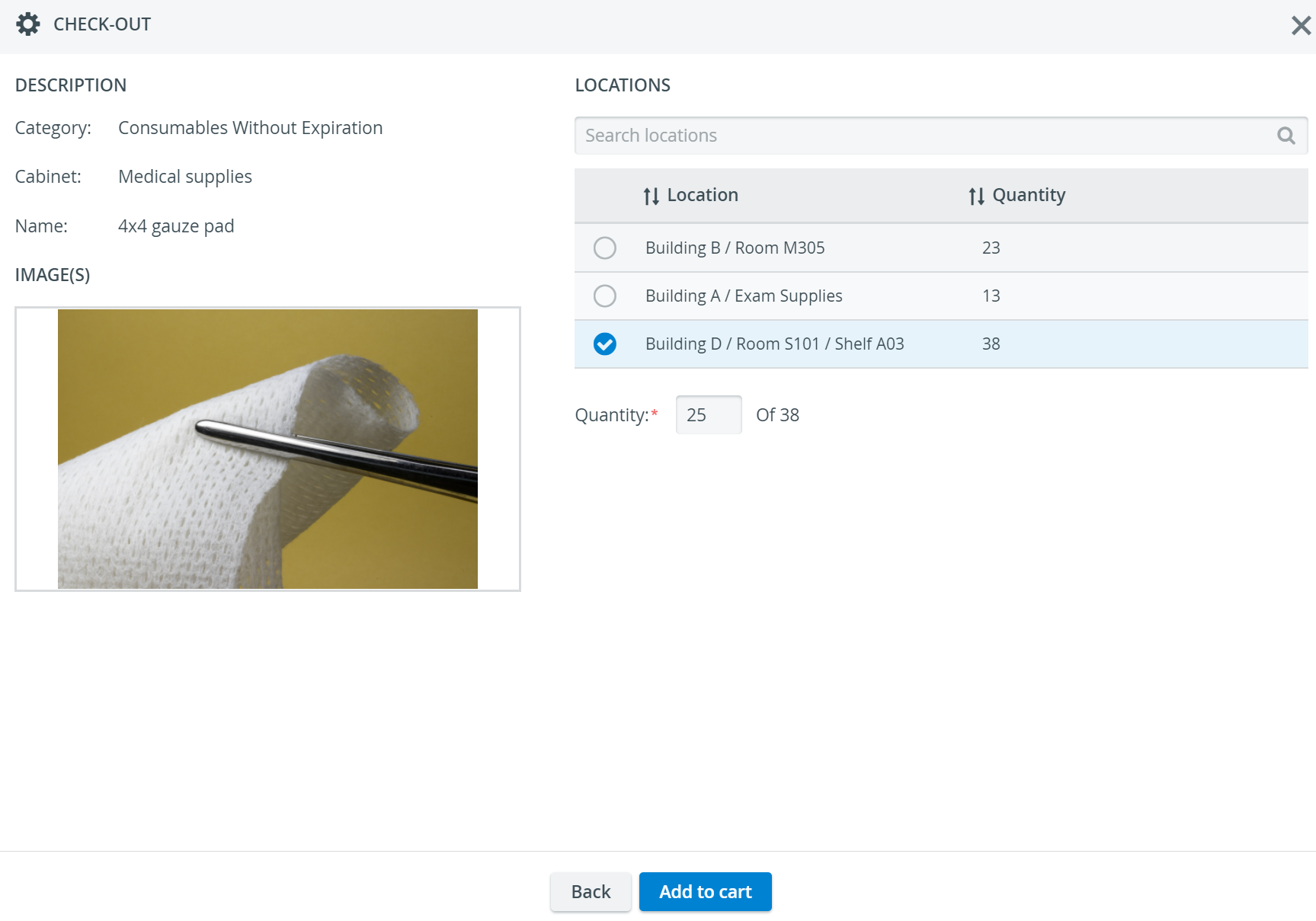
Continue with Add to Cart to create a new cart or add your items to an existing cart.
The Back button returns you to the item detection step if no cart is in progress. If you add an item to an existing cart, you will be taken to the Transaction Summary page.
Learn How to Finalize Your Transaction in the Cart here.
Non-Consumables Check-Out
There is only one way to check out Non-Consumable items: to loan them to the Transaction assignee in charge. All you need to do is follow the basic Check-out workflow and then continue with the following steps:
Select one of the available locations from which you want to check out the item.
Enter the item quantity.
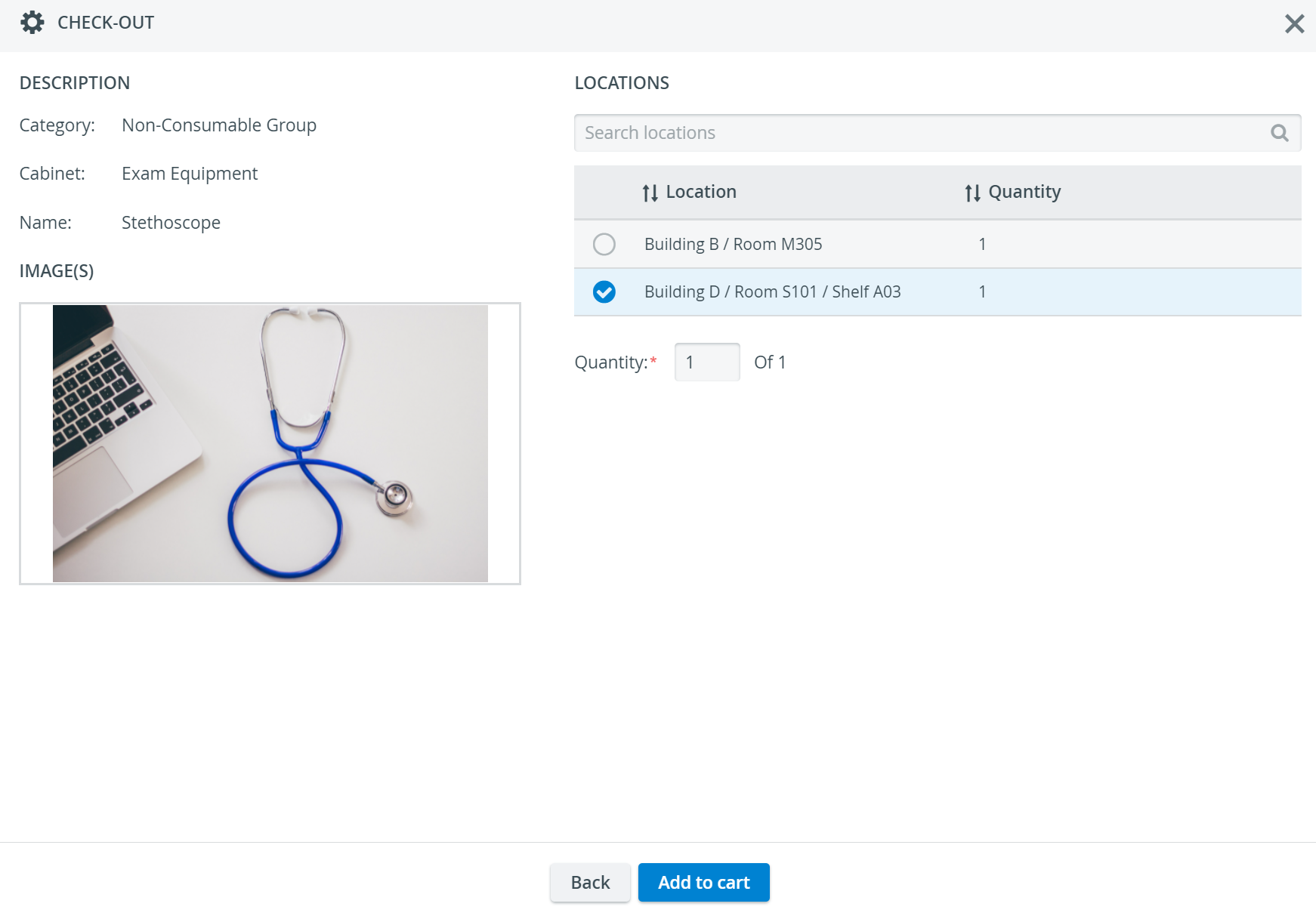
Only the ready quantity decreases upon check-out. If you open the item for editing, you can check how many items remain in stock after the transaction.
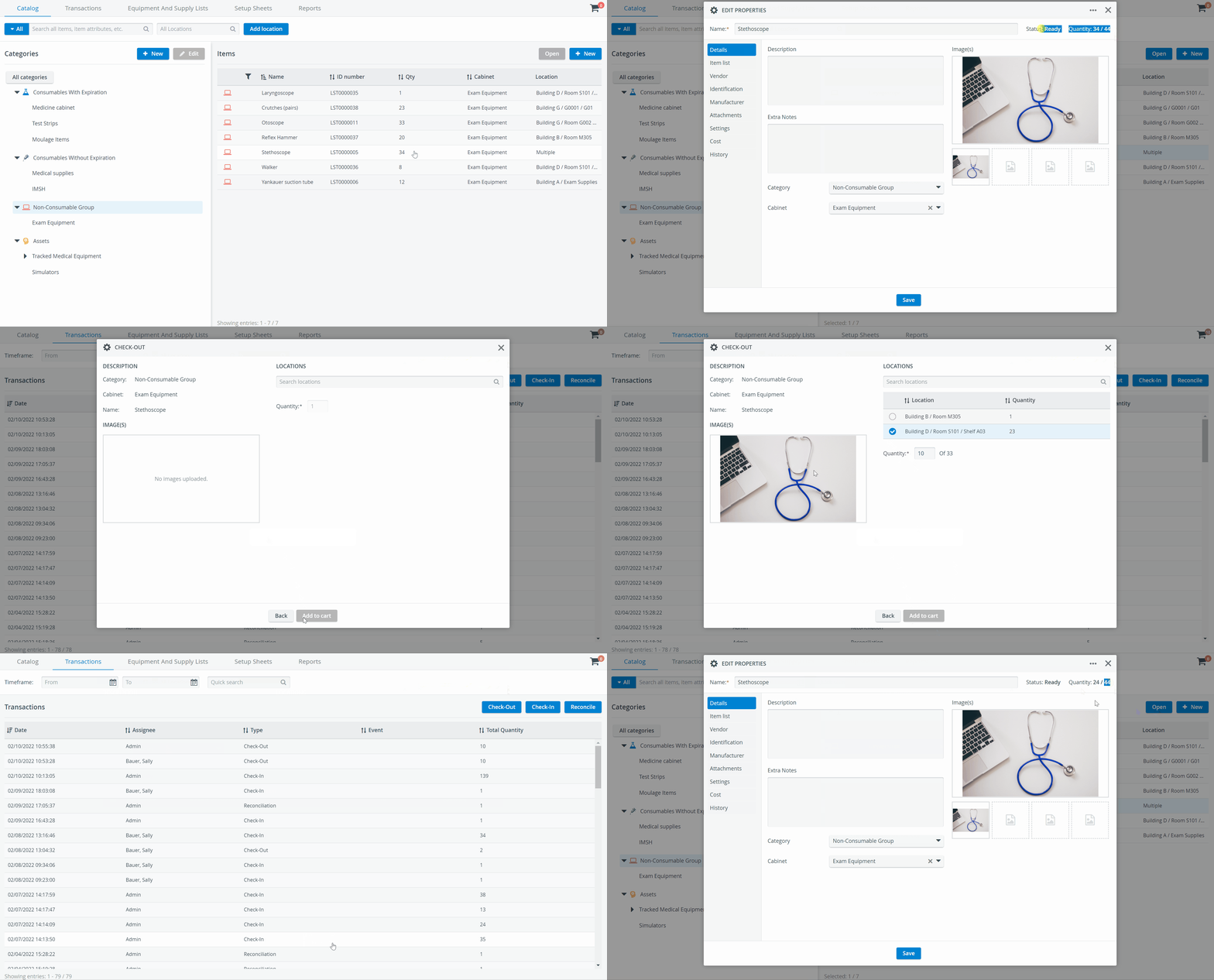
How to Decrease the Total Quantity of Non-Consumable Items
Once you have checked Non-Consumable items into your Inventory, you cannot decrease their total quantity by checking them out, because checked-out Non-Consumables are "on”.
When some of your supplies go missing from your storage location and are not returned, or you want to dispose of some of them, follow the Reconciliation process.
Continue with Add to Cart to create a new cart or add your items to an existing cart.
The Back button returns you to the item detection step if no cart is in progress. If you add an item to an existing cart, you will be taken to the Transaction Summary page.
See the How to Finalize Your Transaction in the Cart page for more info.
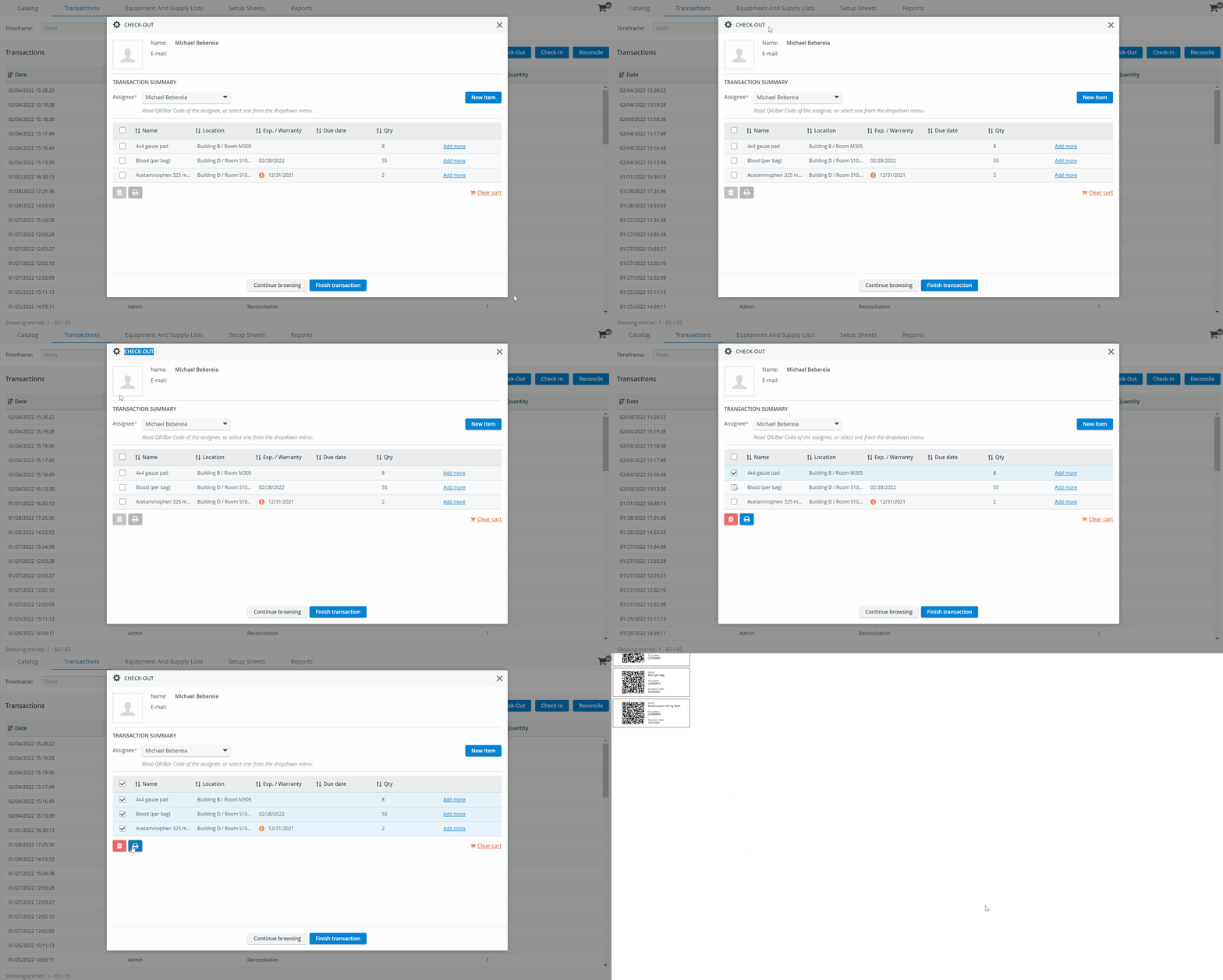
Batch print the QR codes of multiple items in one go while you are carrying out a Check-Out transaction:
Scanning Functionality
The Inventory module is designed to handle barcode and QR code scanning to facilitate transaction assignment registration and item detection during transactions. Recommended barcode scanning solutions
Complete the Check-in using the Finish transaction option. For more information, see the How to Finalize Your Transaction in the Cart (Transaction Summary) page.When using the Continue browsing option to leave the Inventory module, the contents of the Cart will be lost.
Asset Check-Out
Checking out an asset is essentially loaning it: you must complete the basic check-out process.
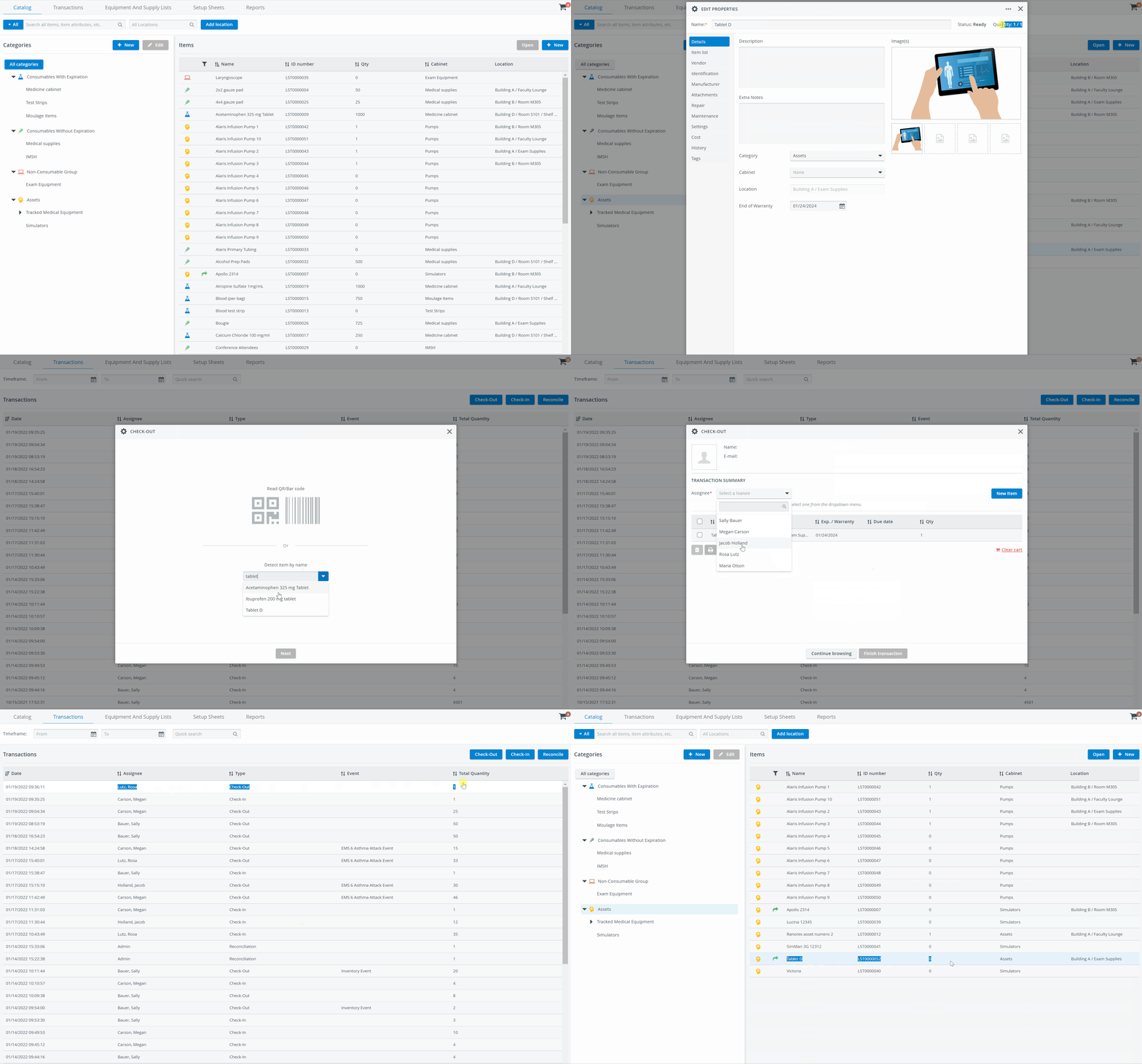
When you check out an available asset from Inventory, its quantity changes to 0/1, indicating that the asset is currently out, and its status changes to On Loan:
The On-Loan status is indicated by a green arrow in front of the asset in the Items list on the Catalog.

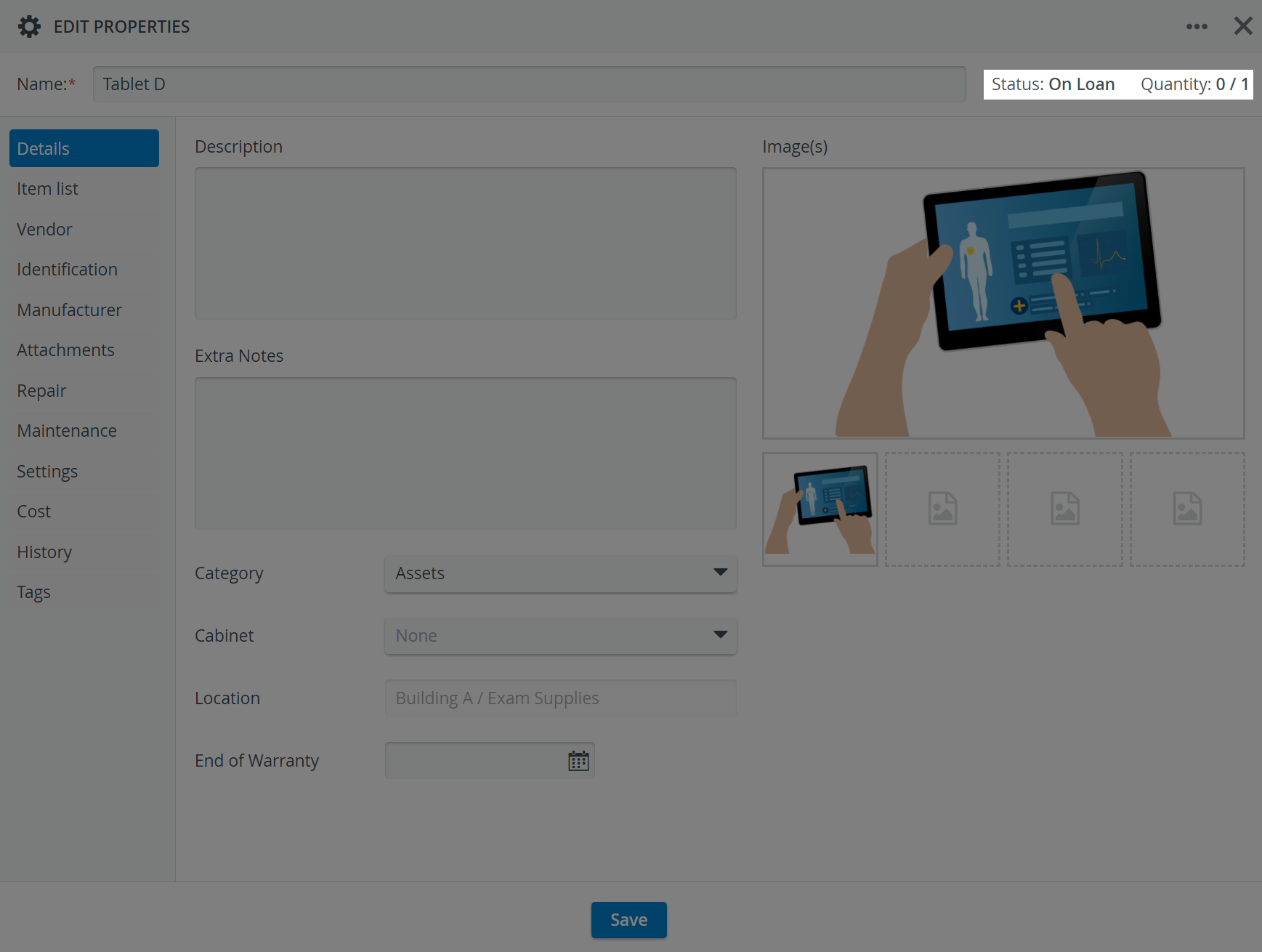
There are no mandatory settings when checking out an asset: the system automatically loads the item's location and quantity.
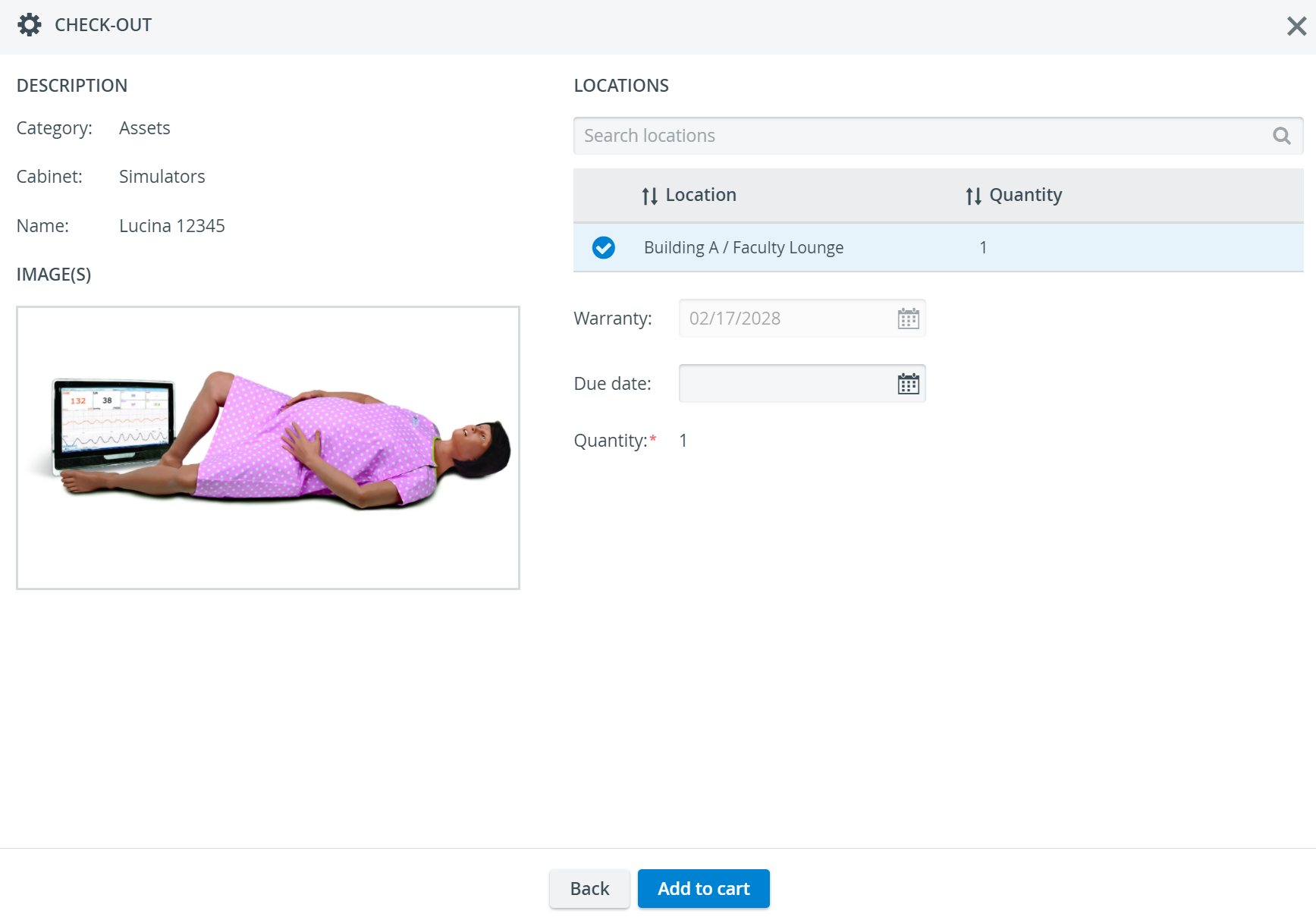
The Due Date field allows you to set an expected return date for an asset before checking it out (optional):
The Transaction Assignee of the check-out transaction will be notified by email to return the asset on time. The expected return date will also appear in the asset's History tab.
If an asset is not returned by its Due date, it will appear in the Overdue Asset report.
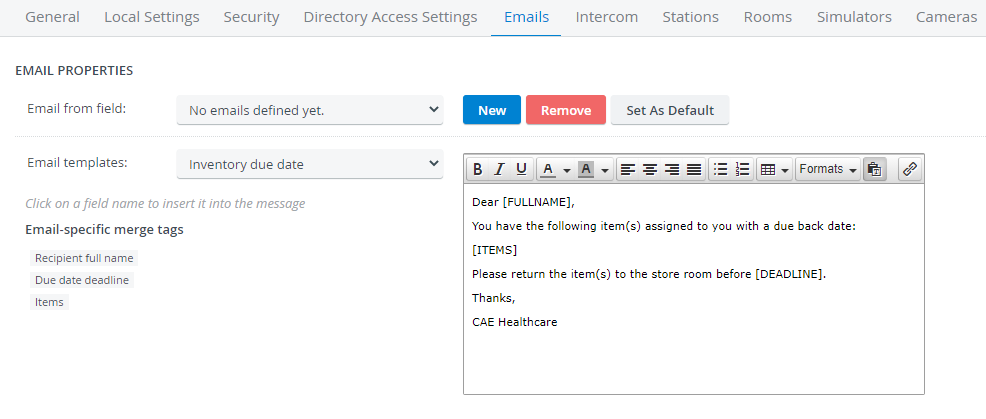
The Transaction Assignee responsible for the asset will receive a Due date notification email before the expected return date is up:
1 hour before the expected return if the Due Date is within 2 days
24 hours before the expected return if the Due Date is over 2 days
The Due date notification message sent to assignees can be set up in the Emails tab in the System Manager:
Continue with Add to Cart to create a new cart or add your items to an existing cart.
The Back button returns you to the item detection step if no cart is in progress yet. You will land on the Transaction Summary page if you add the item to an existing cart.
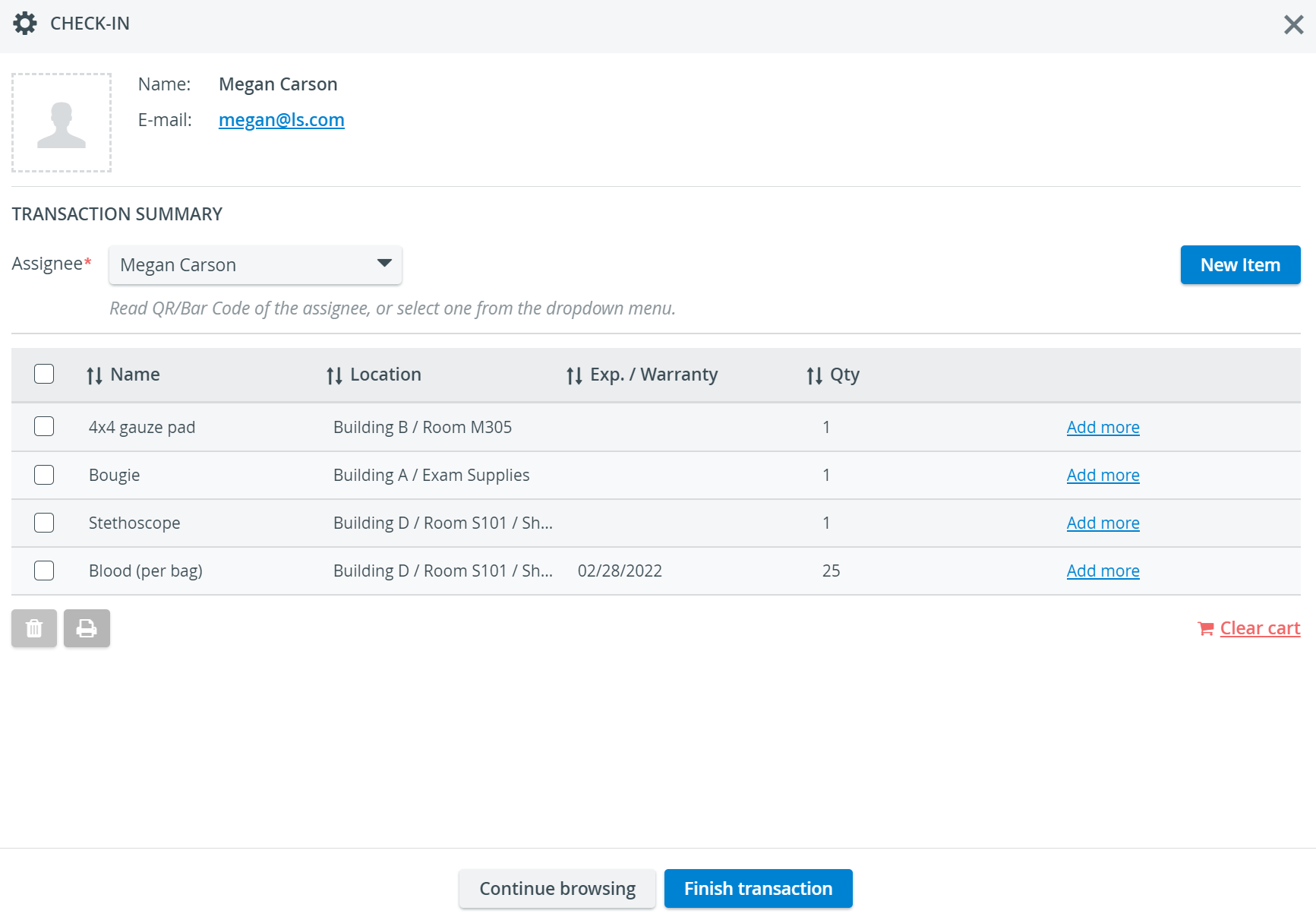
On the Transaction Summary page, you have several options to continue with:
With the Clear Cart option, you can delete all items in the cart.
With the Continue browsing option (or by using the X in the right upper corner of the Check-out window) you can leave the Check-out and continue working within Inventory, without losing the content of your cart. You can return the transaction later.
With the Finish Transaction option, you can complete the checkout process.
Learn How to Finalize Your Transaction in the Cart here.
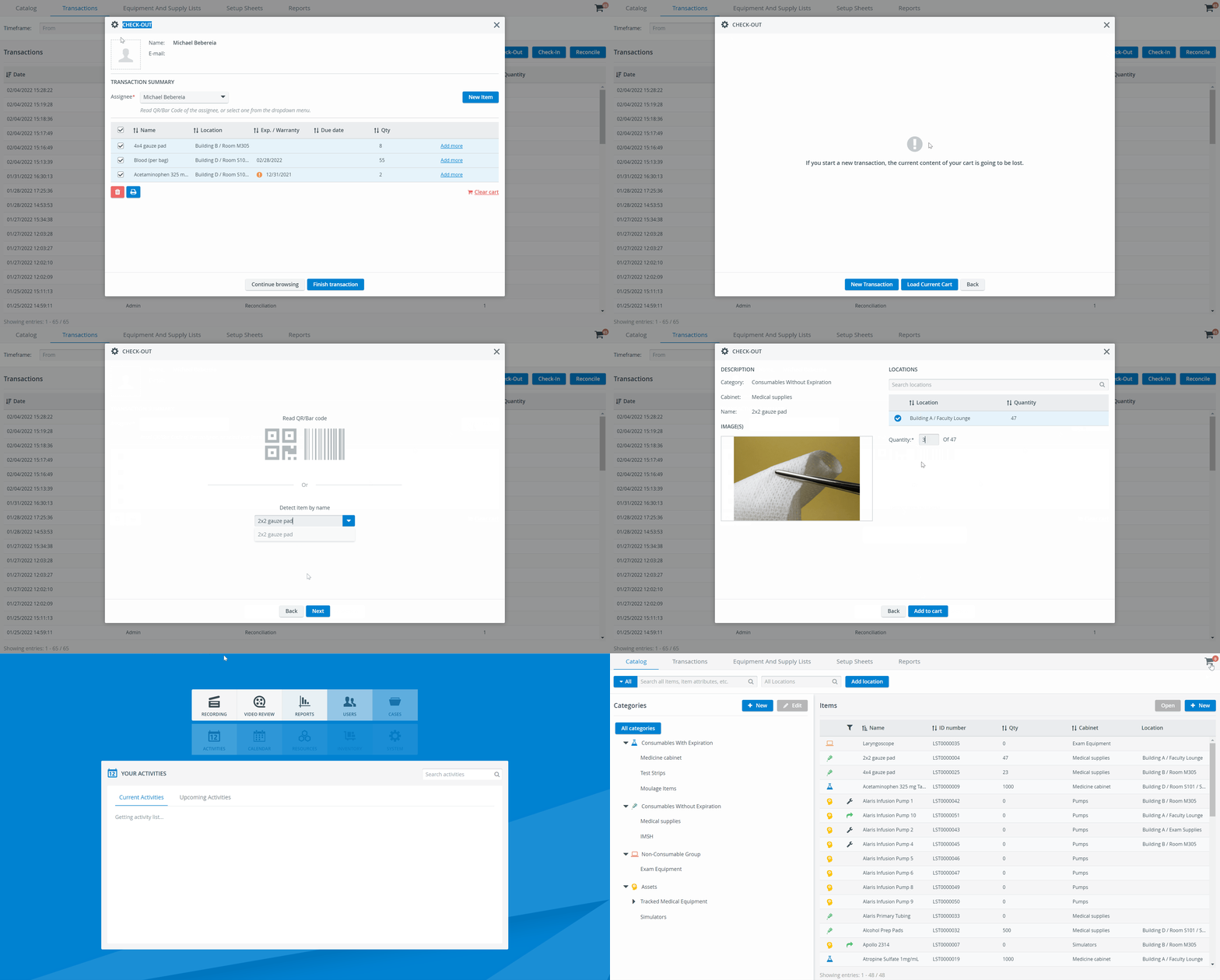
Partial Check-Out
Partial check-out allows inventory managers to check out a Setup Sheet in several stages. The users can return later to complete check-out once the remaining items are restocked or returned from loan:
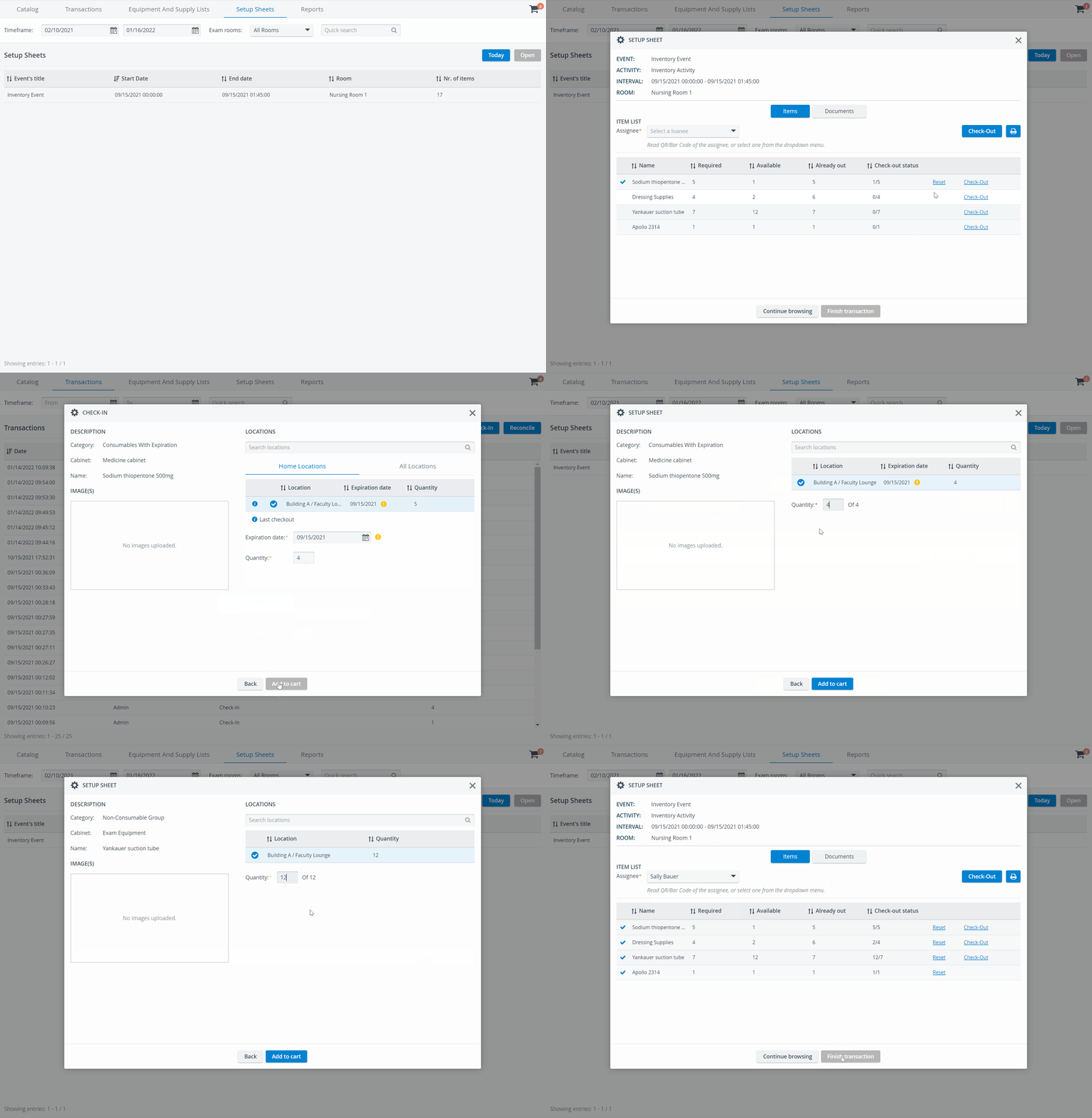
Returning required items from the loan, i.e., checking them back in, is impossible in the same browser window as the partial check-out.
If you try to start a new Transaction in the same LearningSpace session, the partially checked-out cart will be deleted: "If you start a new transaction, the current content of your cart is going to be lost."
It is advised to use a separate browser window for restocking/returning items, and then continue the checkout of the Setup Sheet.
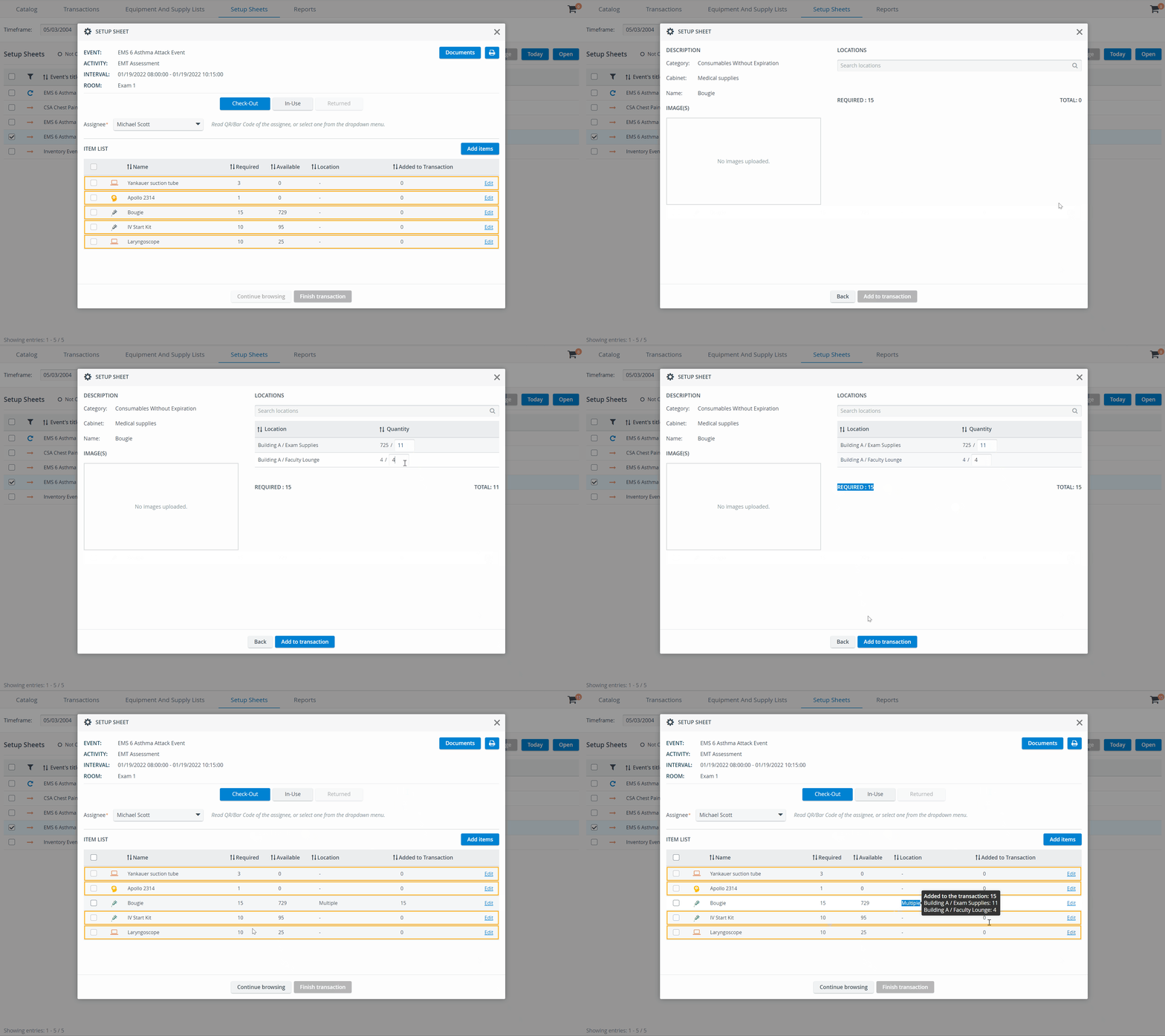
Since location selection is no longer a prerequisite in the improved transaction workflow, inventory managers no longer have to verify that every item on a Setup Sheet is stored in a single location.
Inventory managers can check out the required items on the same Setup Sheet from multiple locations:
Learn more about the Inventory Manager on our Inventory - How to pages, and watch the Inventory Manager Training Videos.