Check-In Transactions
The Check-In process of the Inventory module includes registering new consumables, non-consumables, or assets, or returning non-consumables or assets to the selected storage location.
This page walks you through the different kinds of Check-in workflows for each item category.
Basic Check-In process
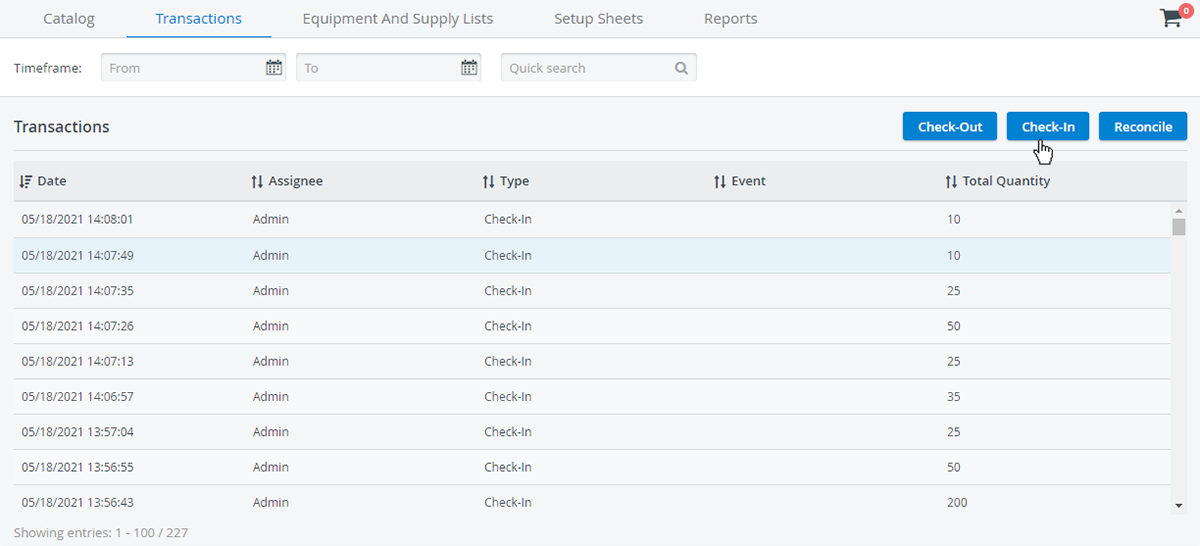
To check in an item, click the Check-In button in the upper-right corner of the Transaction list.
Check-In Transactions (but Check-out and Reconciliation likewise) can be initiated by using the Cart icon in the upper right corner of the Inventory module:
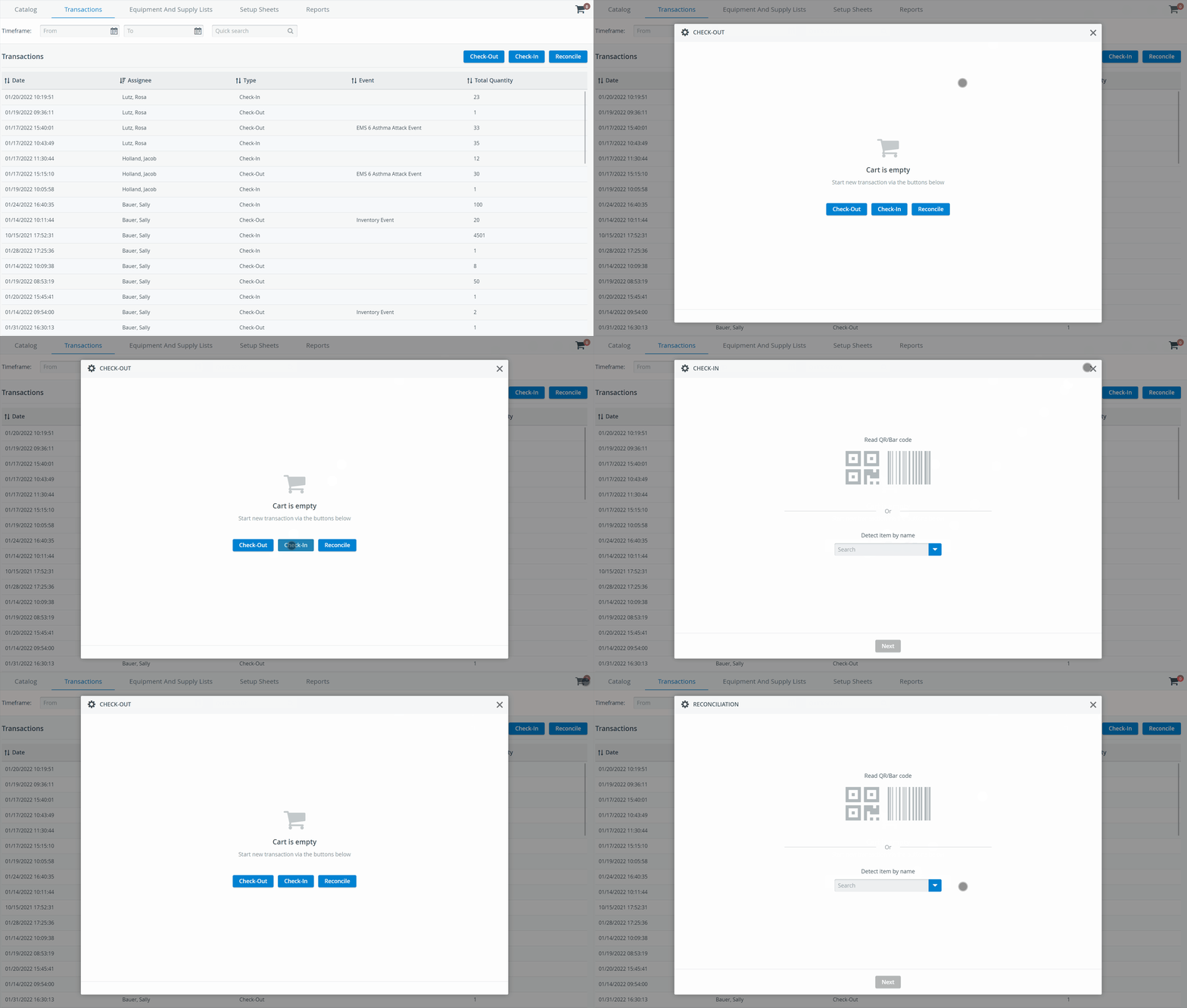
On the Check-in page, the first step in any transaction workflow is to detect your item. Use your barcode scanner or start typing your item's name.
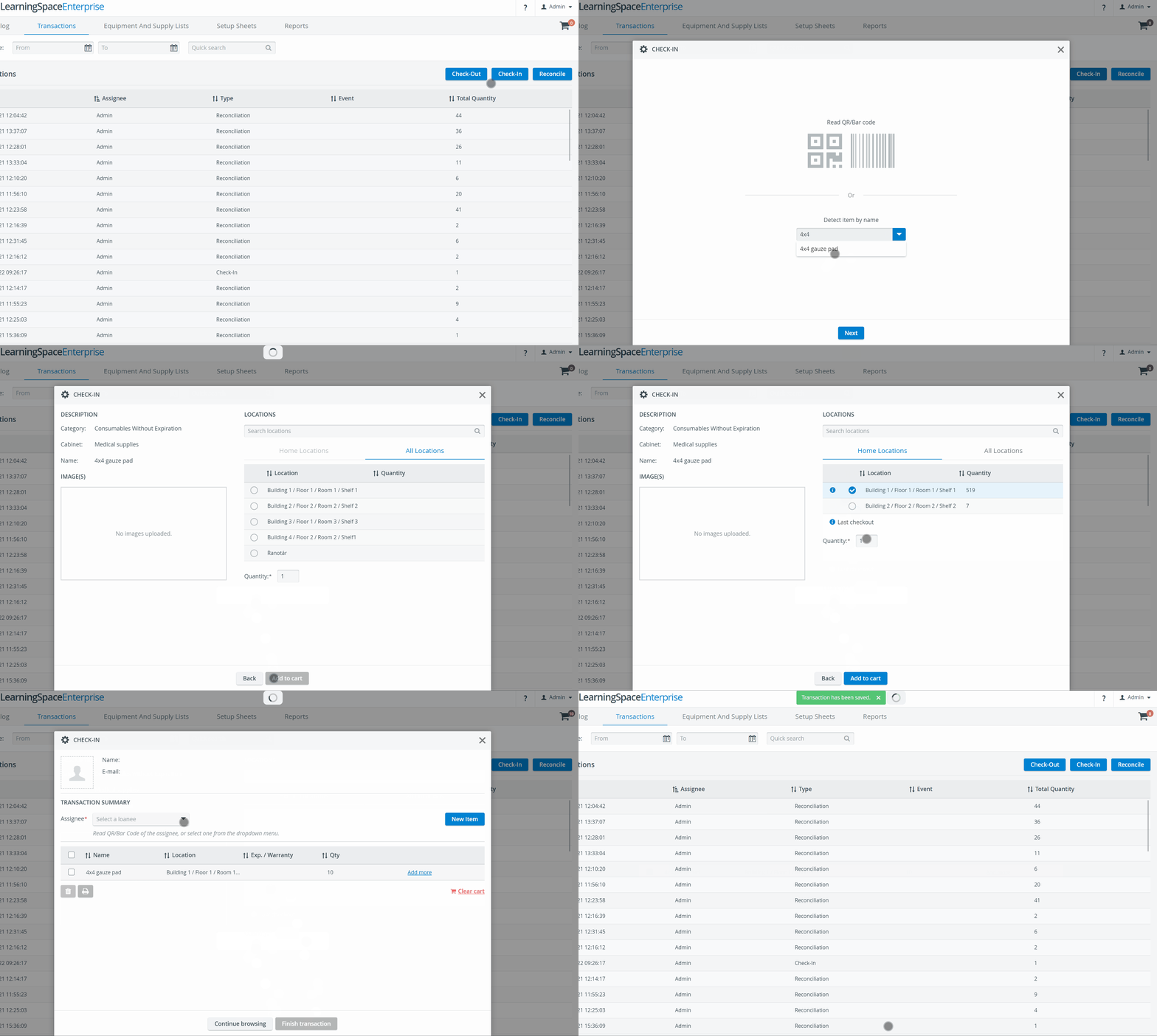
Users responsible for transactions first need to detect an item, then select a location, and place it in their cart. They are only required to select an assignee in the last step.
You can only look up items previously registered in the Catalog. Learn more on the How to Detect Items in Your Inventory page.
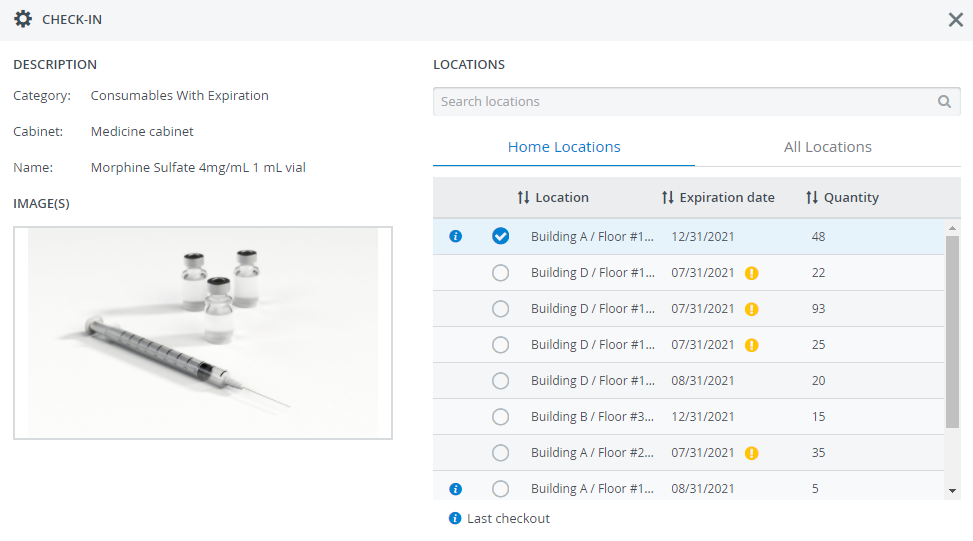
For every item category, you will land on the Home Locations tab. You can always switch to the All Locations tab to view your site's comprehensive list of locations. The Home Locations tab shows the location history of inventory items over the past 180 days. The tab shows where the item was checked out and where it is currently in stock, making it easier to select a check-in location.
Use the quick-search bar to filter locations.
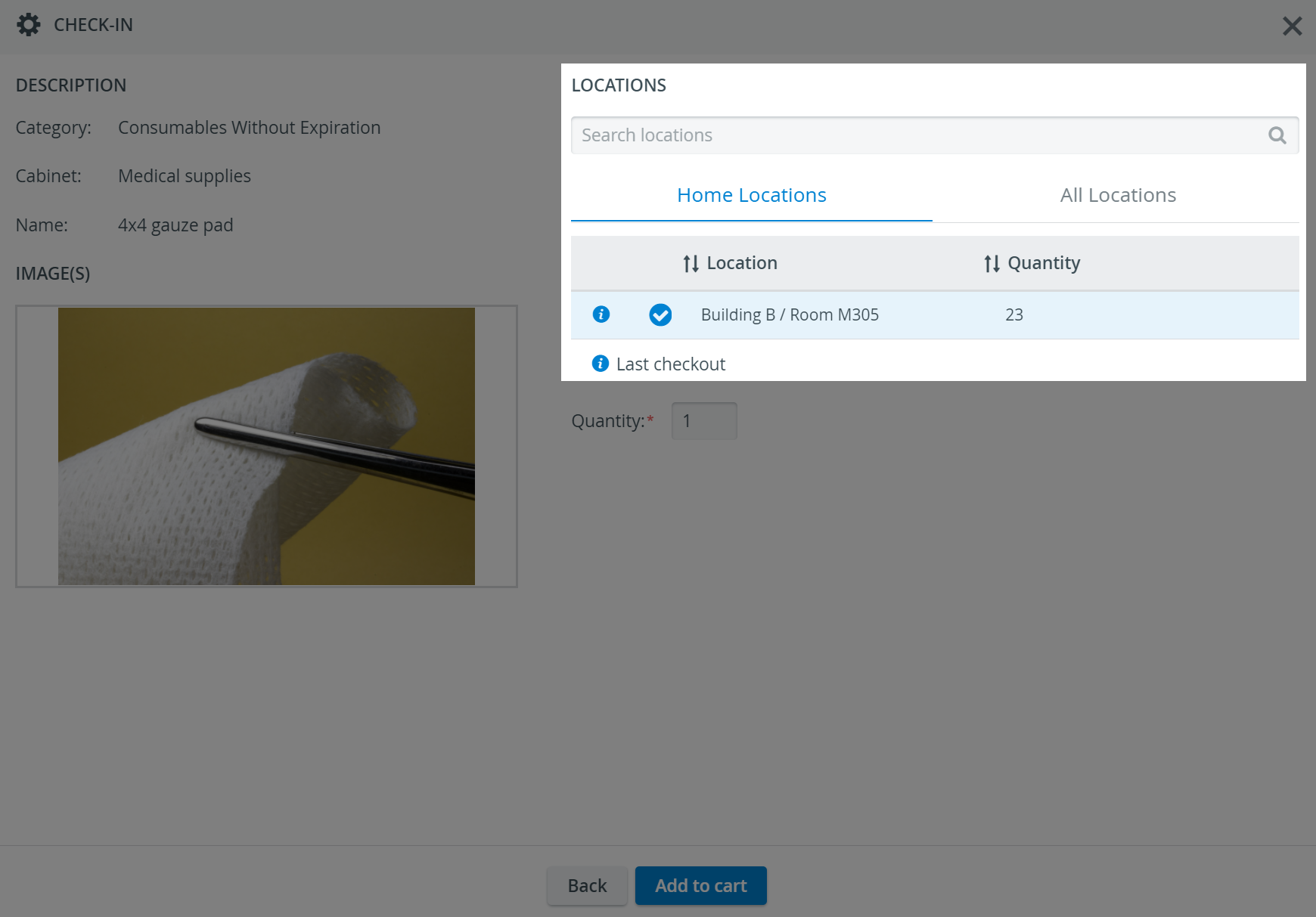
An info icon will always indicate the item's most recent checkout location.

The Home Locations tab is active only after transactions have already been performed with an item. Until that, only the All Locations tab is displayed as active.
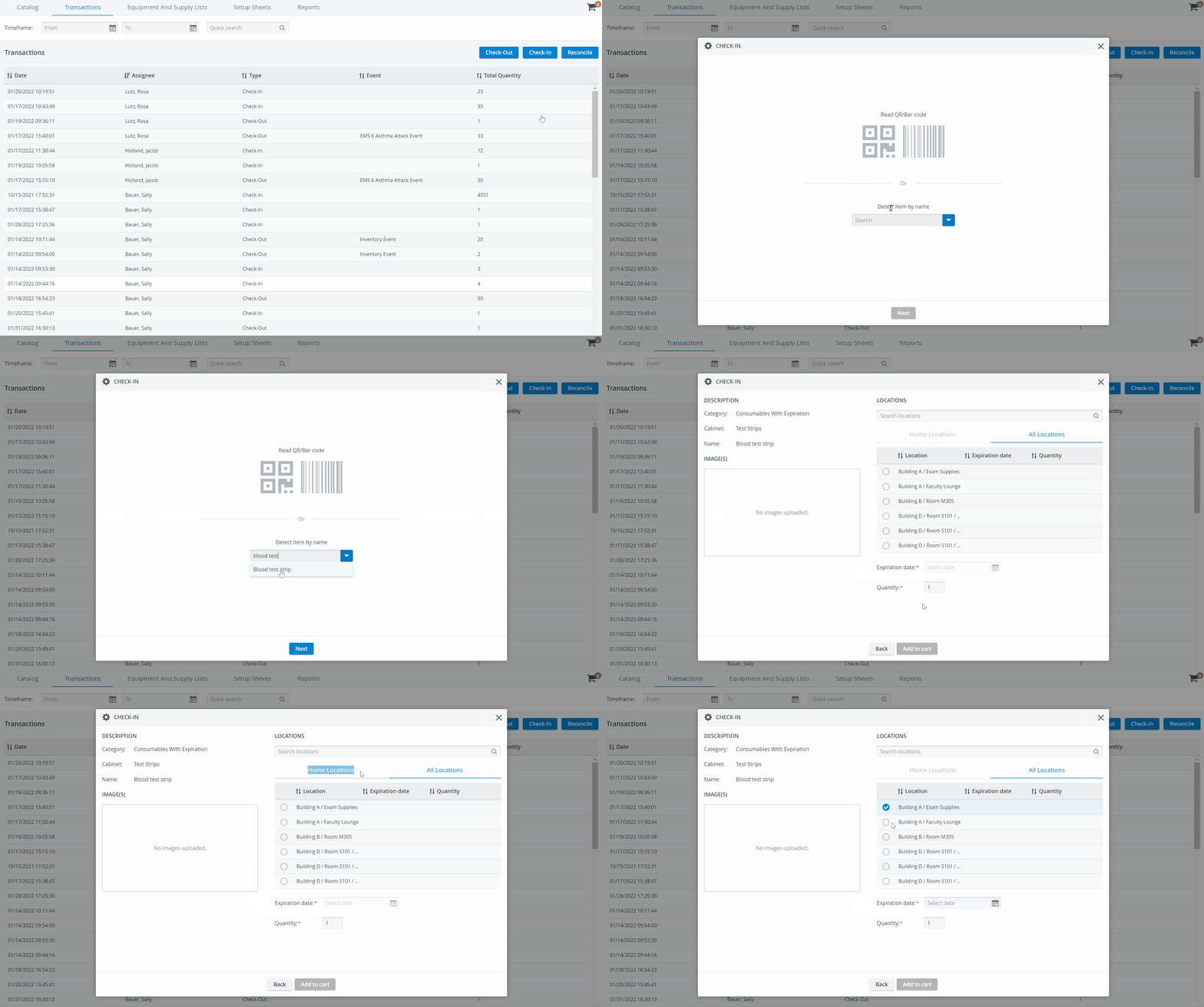
Specify the quantity of your item, then click Add to Cart.
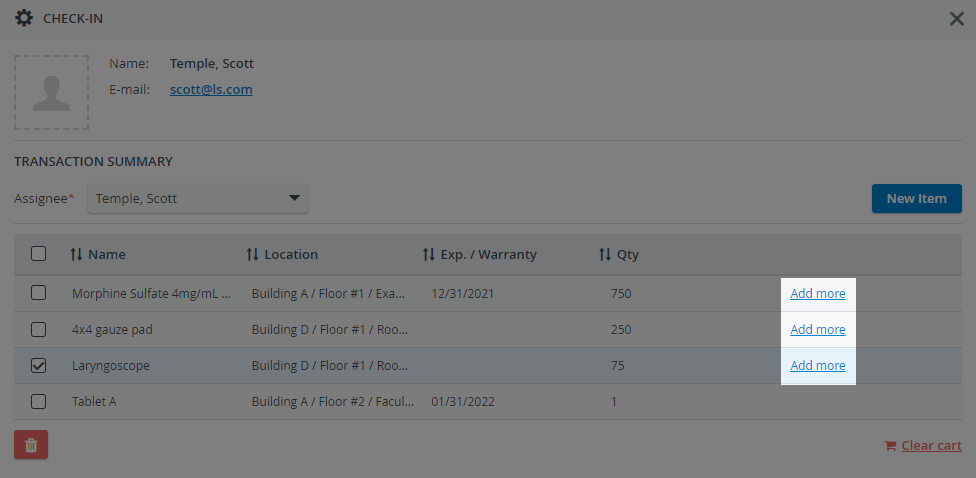
You will be directed to the Transaction summary page, where you can check in new items for any available location with the New Item button or add further items to the ones already present in the Cart with the Add More option.
Additional items can be added to any Location.
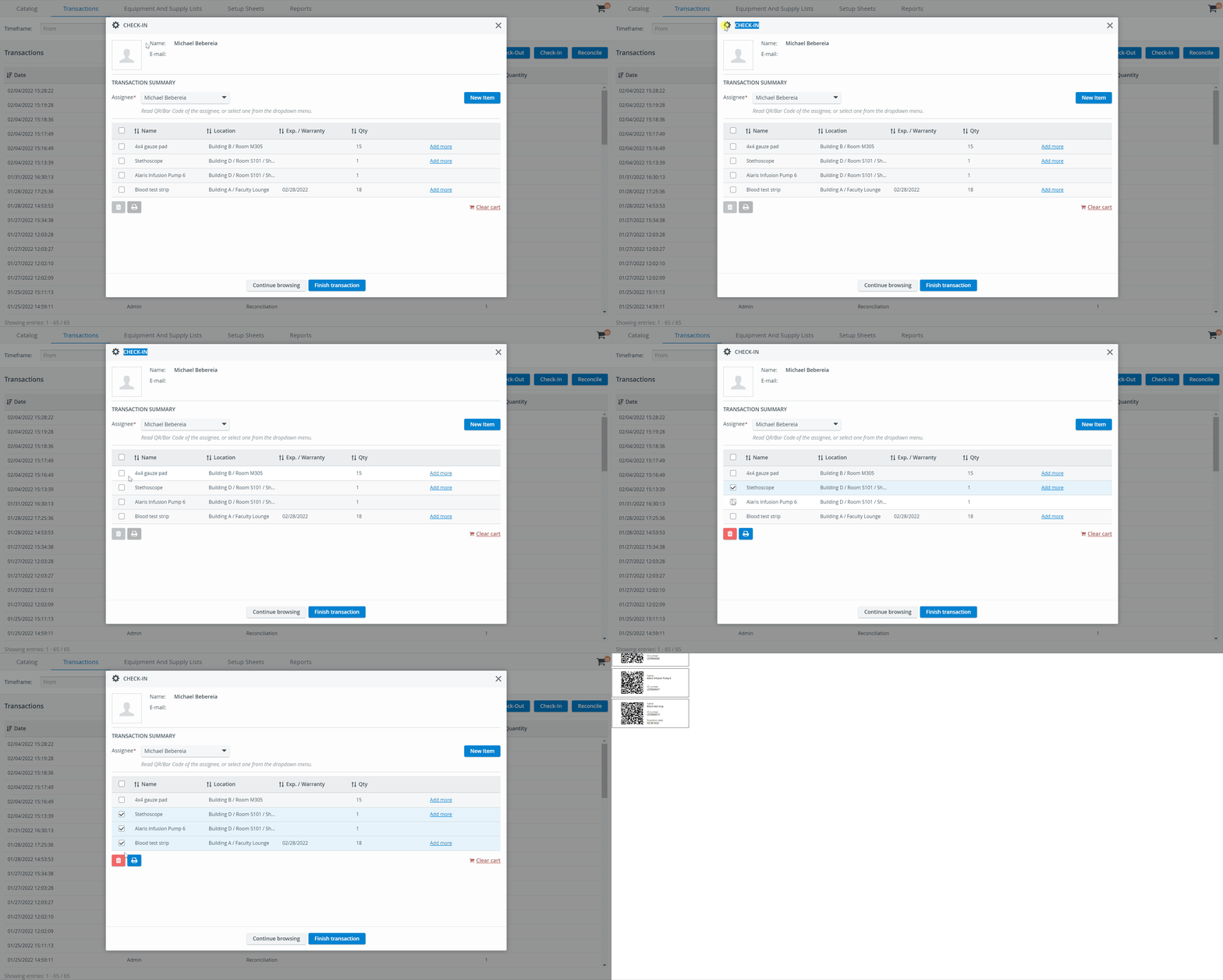
Batch print the QR-codes of multiple items in one go with the Print option while you are carrying out a Check-In transaction:
Scanning Functionality
The Inventory module is designed to handle barcode and QR code scanning to facilitate transaction assignment registration and item detection during transactions. See the Recommended barcode scanning solutions page.
Complete the check-in using the Finish transaction option. See the How to Finalize Your Transaction in the Cart (Transaction Summary) page.
When using the Continue browsing option to leave the Inventory module, the contents of the Cart will be lost.
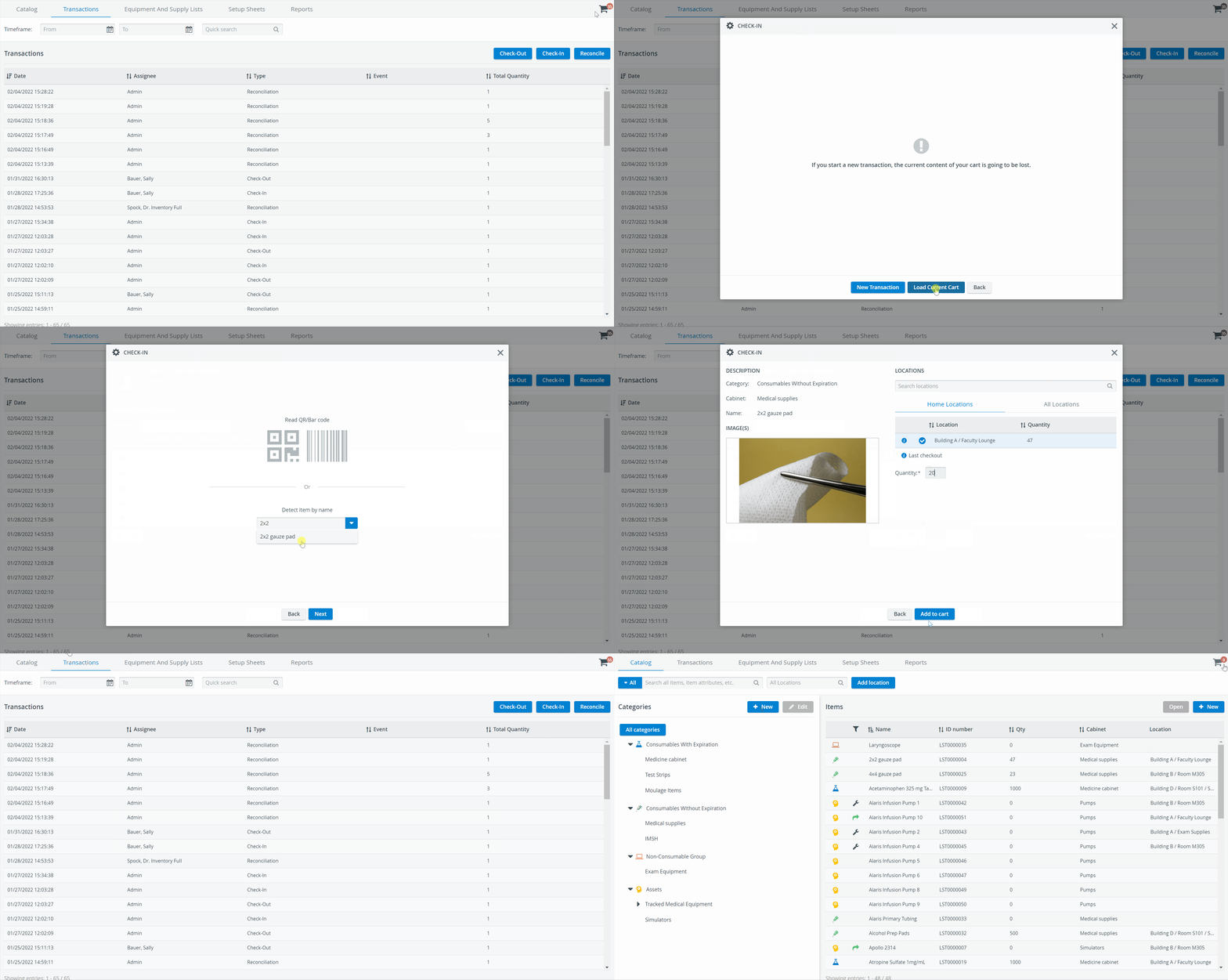
Step-by-step guides to the Check-in process for each item type
Consumables with Expiration Check-In
While following the basic transaction processes, Consumables With Expiration items can be checked in or checked out by identifying their batches.

Access the QR-Codes of Consumables With Expiration
The system will assign a unique QR code once you add a new Consumable With Expiration item batch in the Catalog tab. Then you can print and place that QR code on your physical items and check them in or out:
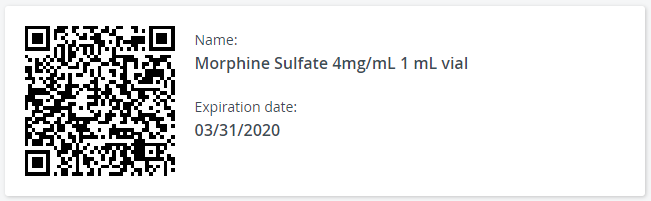
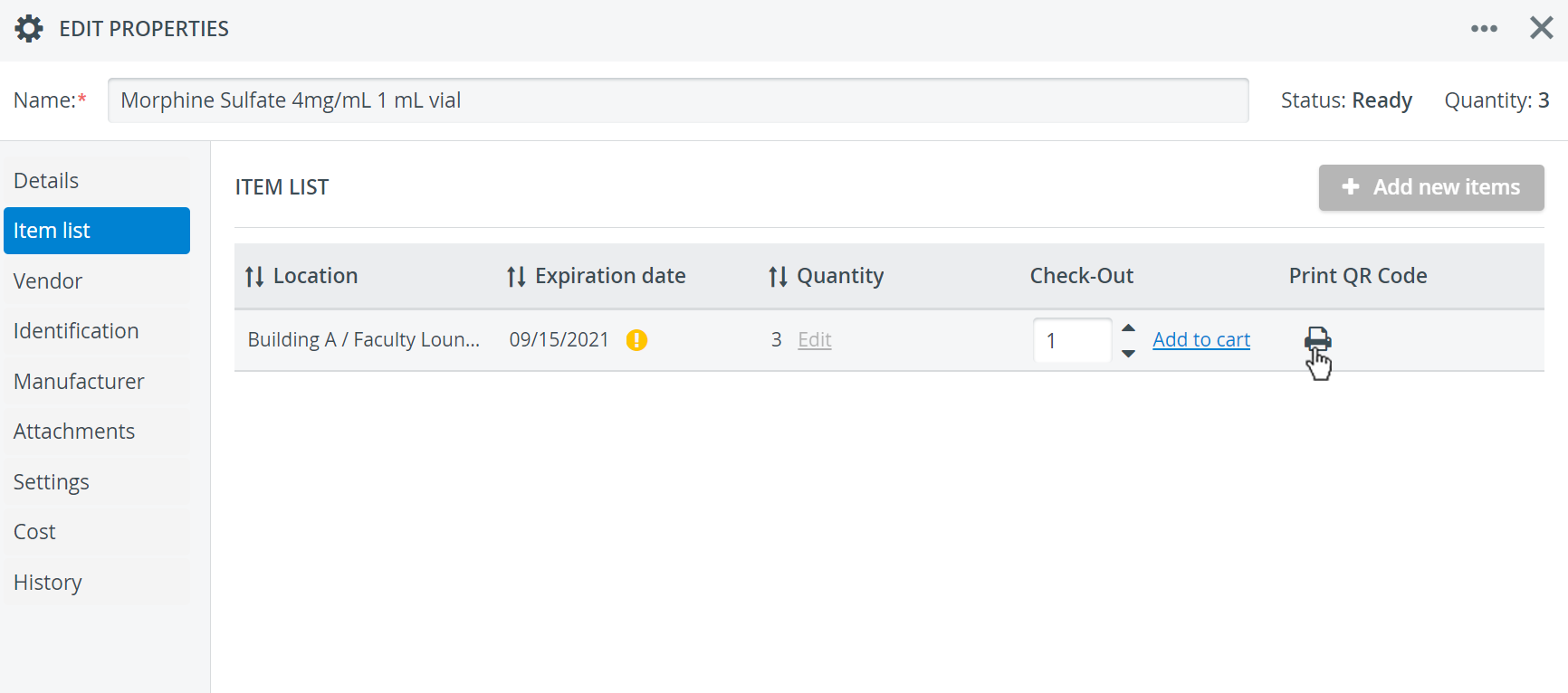
Look up batches in the Catalog tab by opening your Consumable With Expiration item for editing. Go to the Item list tab to view every available batch.
To display the QR code of the batch, click on the printer icon in the Print QR Code column:
Important
Batches with the same expiration date are listed separately in the Item list according to location. At the same time, batches with the same expiration date checked into various locations have identical QR codes regardless of location.
QR codes do not store the location of the items.
Select the location where you want to check in the item.
An info icon marks the most recent check-out location.

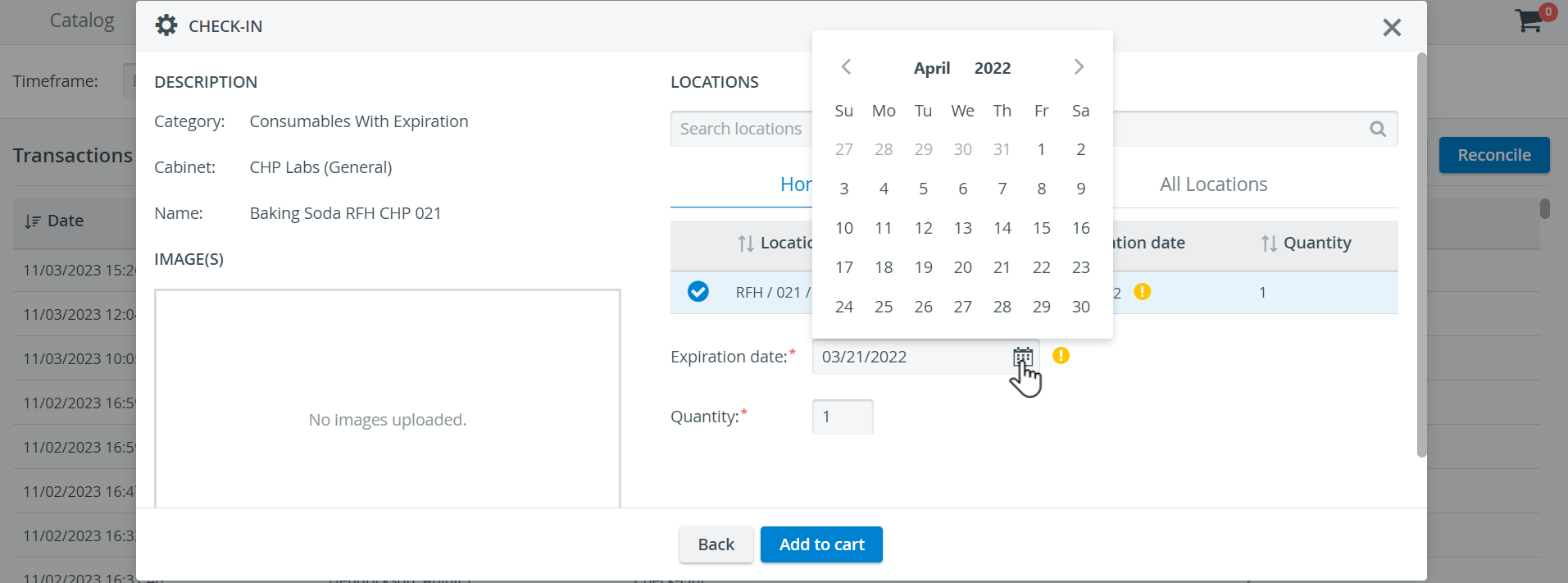
Enter the item's expiration date using the field's date picker.
When selecting a Home Location, the expiration date of the previous batch at that location will automatically populate the Expiration Date field. You can modify the date at any time afterward.
When defining a date, click the day on the calendar to save your changes.
Use your barcode scanner to scan the system-generated QR Code on your Consumables With Expiration to locate your item in your inventory and autofill its expiration date.
Enter the item quantity.
Continue with Add to Cart to create a new cart or add your items to an existing one.

The Back button returns you to the item detection step if no cart is in progress. If you add an item to an existing cart, you will be taken to the Transaction Summary page.
Easy Item Check-In
The quantity of Consumables with Expiration can be increased without executing the Transaction workflow step by step. For instructions, refer to the Easy Item Check-In page.
Learn more on the How to Finalize Your Transaction in the Cart page.
Consumables without Expiration Check-In
Select the location where you want to check in the item.
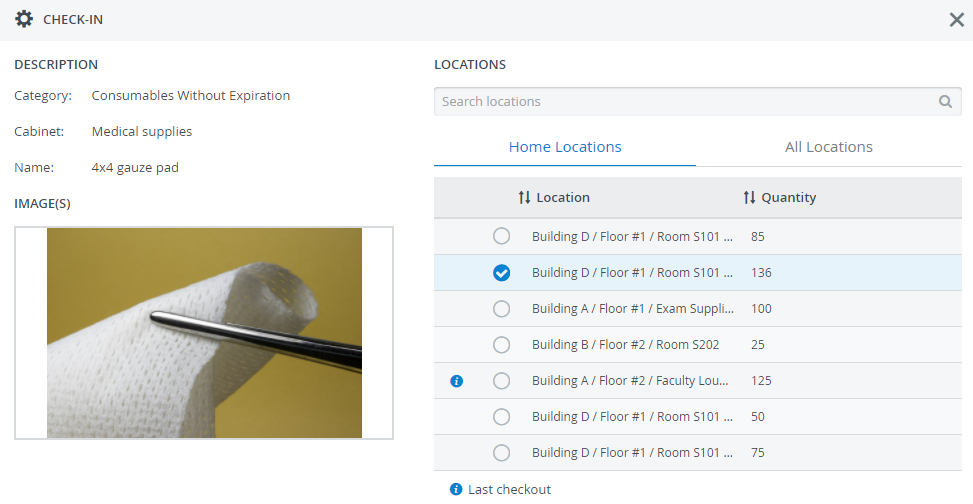
Enter the item quantity.
Continue with Add to Cart to create a new cart or add your items to an existing one.

The Back button returns you to the item detection step if no cart is in progress yet. If you add the item to an existing cart, you will be taken to the Transaction Summary page.
Easy Item Check-In
The quantity of Consumables without Expiration can be increased without completing the Transaction workflow step by step. However, the system will still create check-in logs to help trace back inventory movements.
For instructions, refer to the Easy Item Check-In page.Learn more on the How to Finalize Your Transaction in the Cart page.
Non-Consumables Check-In
The Inventory module treats Non-Consumable (Durable) items as permanent equipment: in-use items are On Loan and must be returned to stock after use ('Return from loan' option). You can also register additional quantities for an item with the New option at check-in.
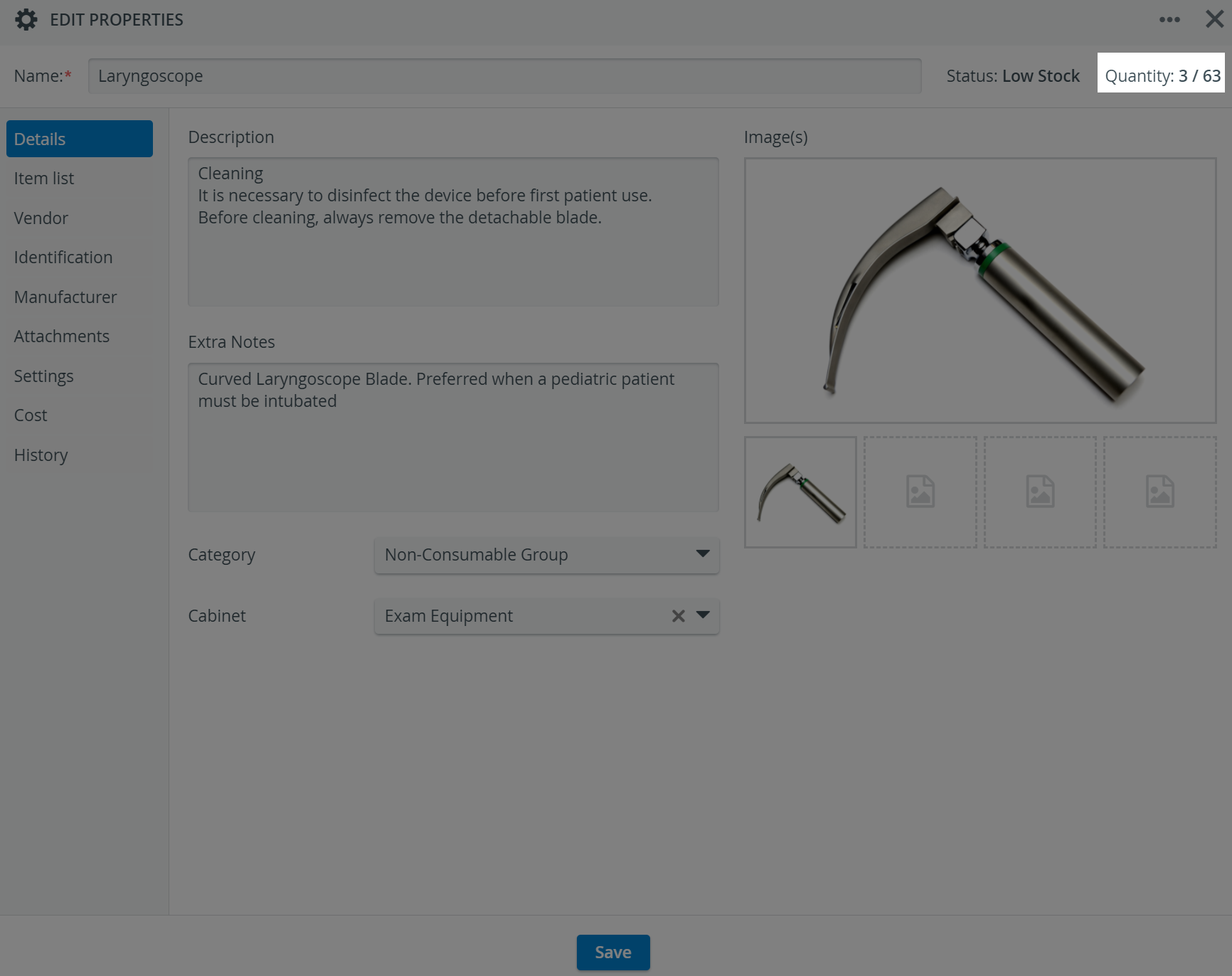
The quantity of each non-consumable item is expressed as a ratio: the amount currently in stock to the item's total amount. Lost or broken items can be deleted from the total quantity by reconciliation.
Complete the basic check-in process up to the point where you define the check-in quantity for your item. From here, there are two ways to check in Non-Consumable items:
New Item
Increase the total quantity of an item using the New option to check in new additions to your stock.
Select the location where you want to check in the item.
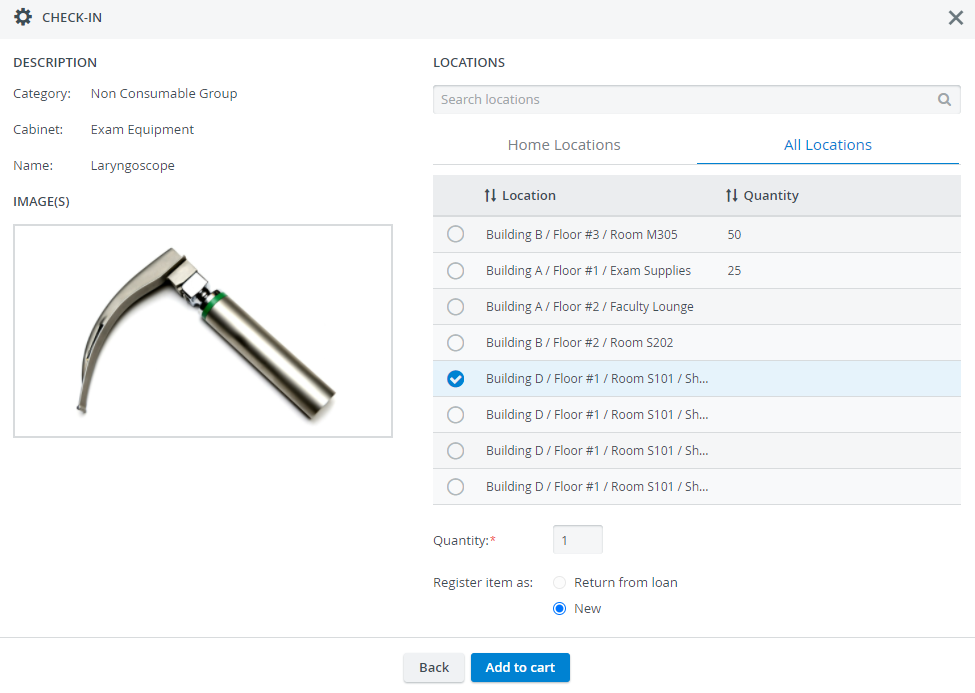
Enter the item quantity.
The total and ready quantity both increase.
Select the reason for check-in. Here, the example shows New for a reason:

The Return from loan option is inactive when there are no items currently on loan.
Continue with Add to Cart to create a new cart or add your items to an existing one.
Return from Loan
Return Non-Consumable items to stock from 'On Loan' after use.
Select the location where you want to check in the item.
An info icon marks the most recent check-out location.
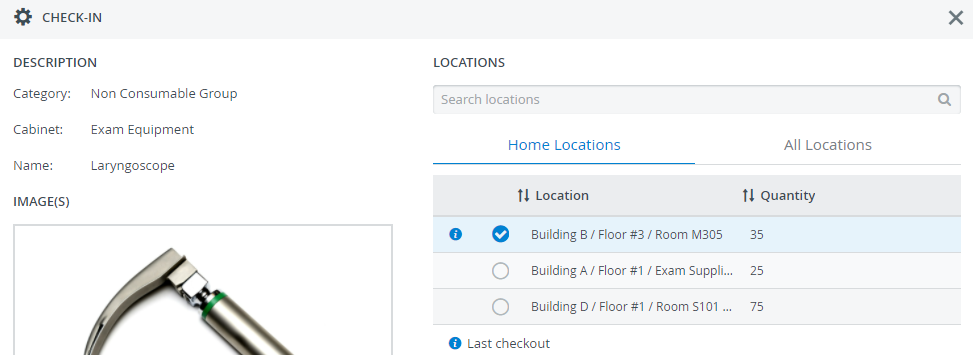
Select Return from Loan as the reason for check-in.
Enter the item quantity.
Only the ready quantity increases by the number of items checked in.

The quantity field warns you if the number of returned items exceeds the number on loan. The system does not allow for returning more items than are currently out on loan:

Continue with Add to Cart to create a new cart or add your items to an existing one.
The Back button returns you to the item detection step if no cart is in progress. If you add an item to an existing cart, you will be taken to the Transaction Summary page.
Easy Item Check-InThe quantity of Non-Consumables (Durables) can be increased without executing the Transaction workflow step by step. For instructions, refer to the Easy Item Check-In page.
Learn How to Finalize Your Transaction in the Cart here.
Asset Check-In
Register a New Asset
Assets can only be registered individually to keep track of their whereabouts and follow their lifecycle with the utmost precision.
Before checking in new assets, their quantity is 0/0. After you check in an asset, its quantity changes to 1/1 and its status is set to Ready.
Select the location where you want to check in the asset.
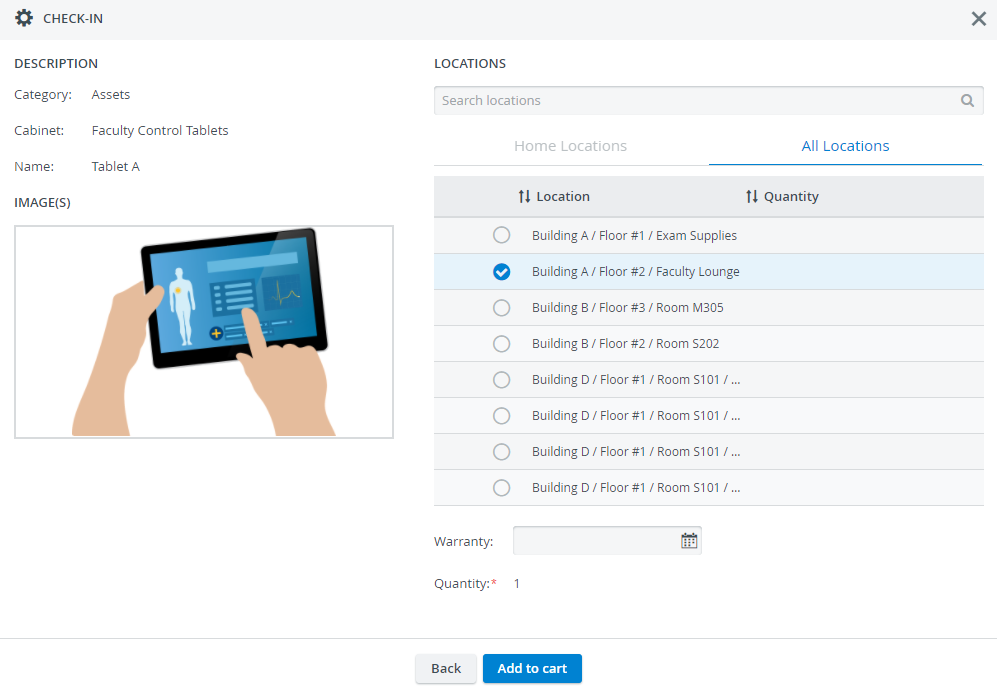
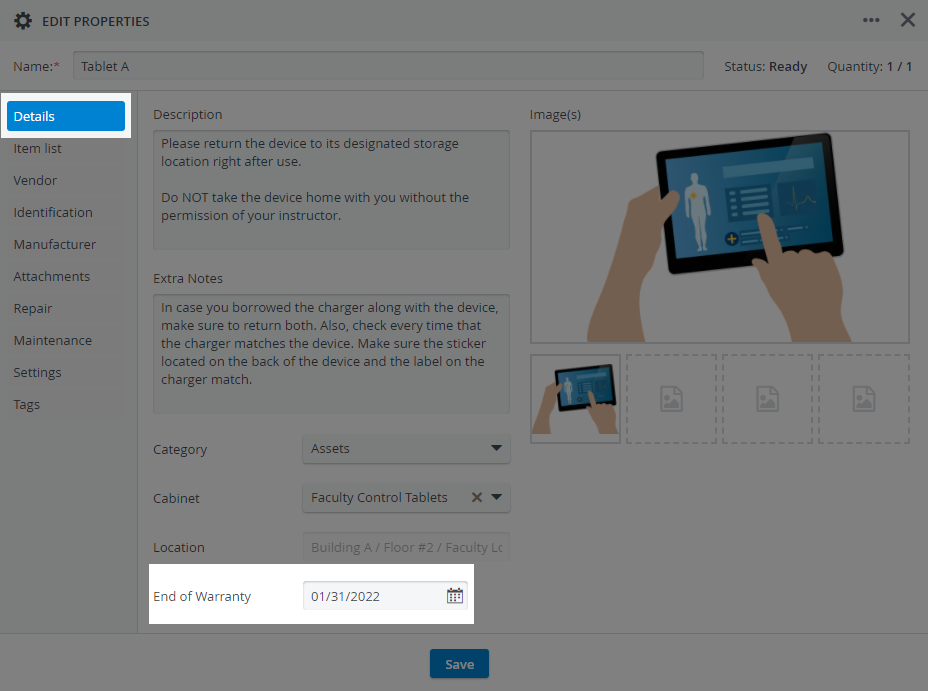
After you detect an asset, you must also include the item's warranty when checking it in.An asset warranty can also be added to the Asset Details tab at any time.
Continue with Add to Cart to create a new cart or add your items to an existing one.

The Back button returns you to the item detection step if no cart is in progress. If you add an item to an existing cart, you will be taken to the Transaction Summary page.
Return an Asset
When you check out an available asset from Inventory, its quantity changes to 0/1, indicating that the asset is currently out, and its status changes to On Loan:
The On-Loan status is indicated by a green arrow in front of the asset in the Items list on the Catalog.

Select the location to which you want to return the item.
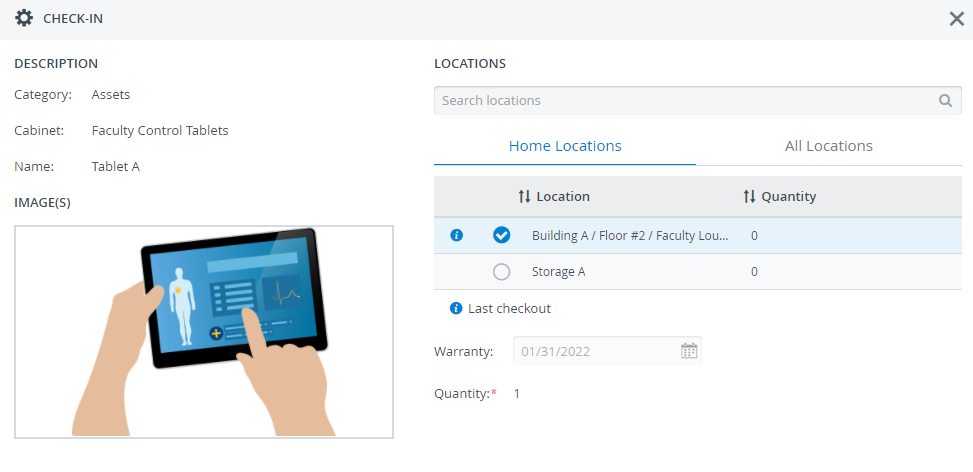
In case you have selected an asset that is in stock already or not available for some other reason, the system will inform you about the asset's exact status: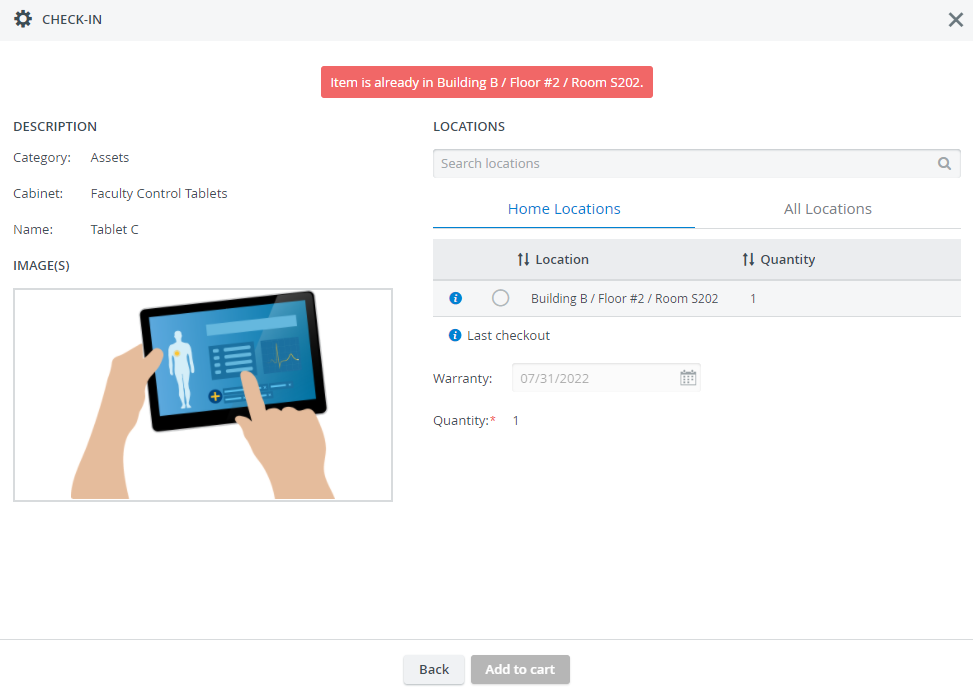
Continue with Add to Cart to create a new cart or add your items to an existing one.
The Back button returns you to the item detection step if no cart is in progress. If you add an item to an existing cart, you will be taken to the Transaction Summary page.
Learn more on the How to Finalize Your Transaction in the Cart page.
In addition to being On Loan, assets can be sent for Repair or scheduled for regular Maintenance periods. These statuses are indicated by a black wrench in the Items list on the Catalog page.
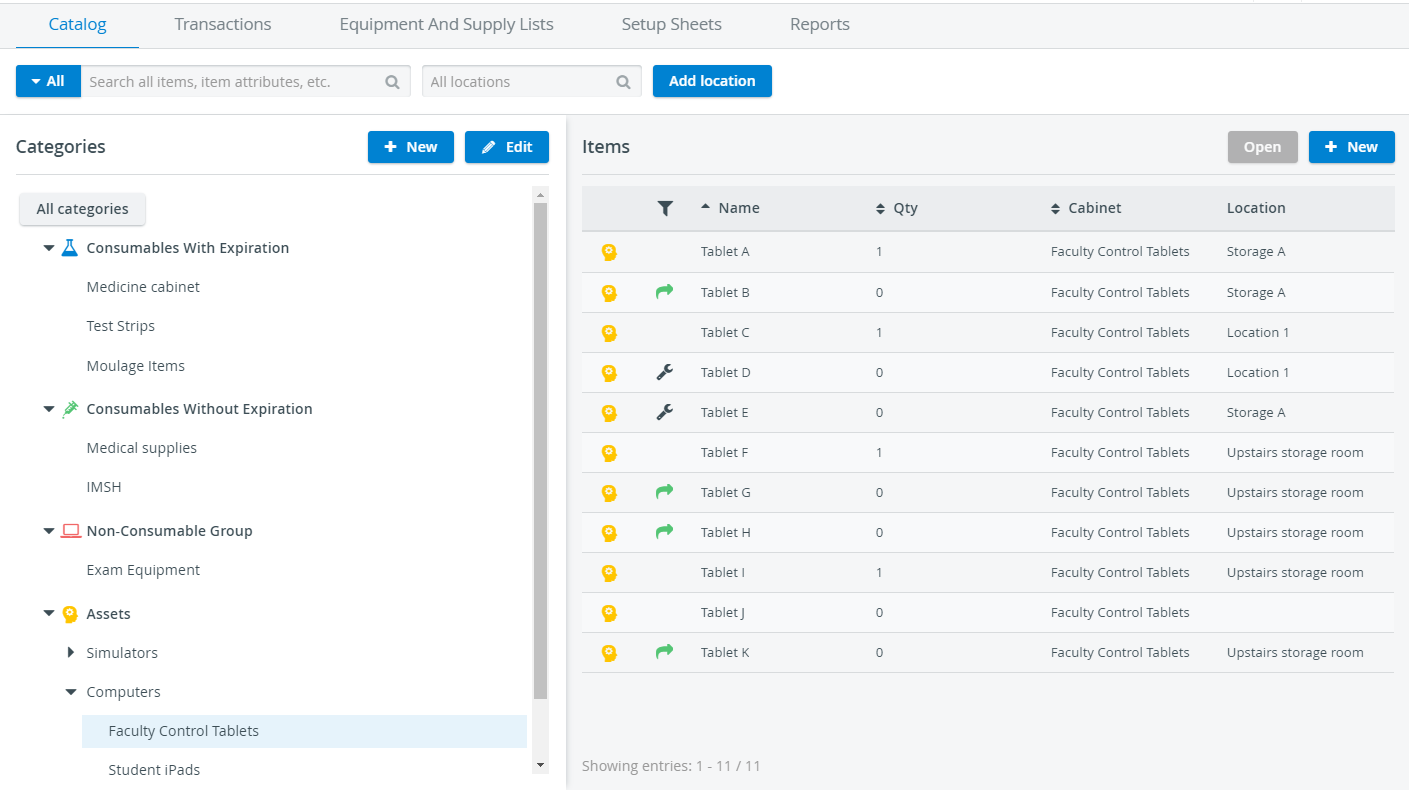
Assets under maintenance or repair cannot be checked in. To return assets from maintenance or repair, use the Set ready option.
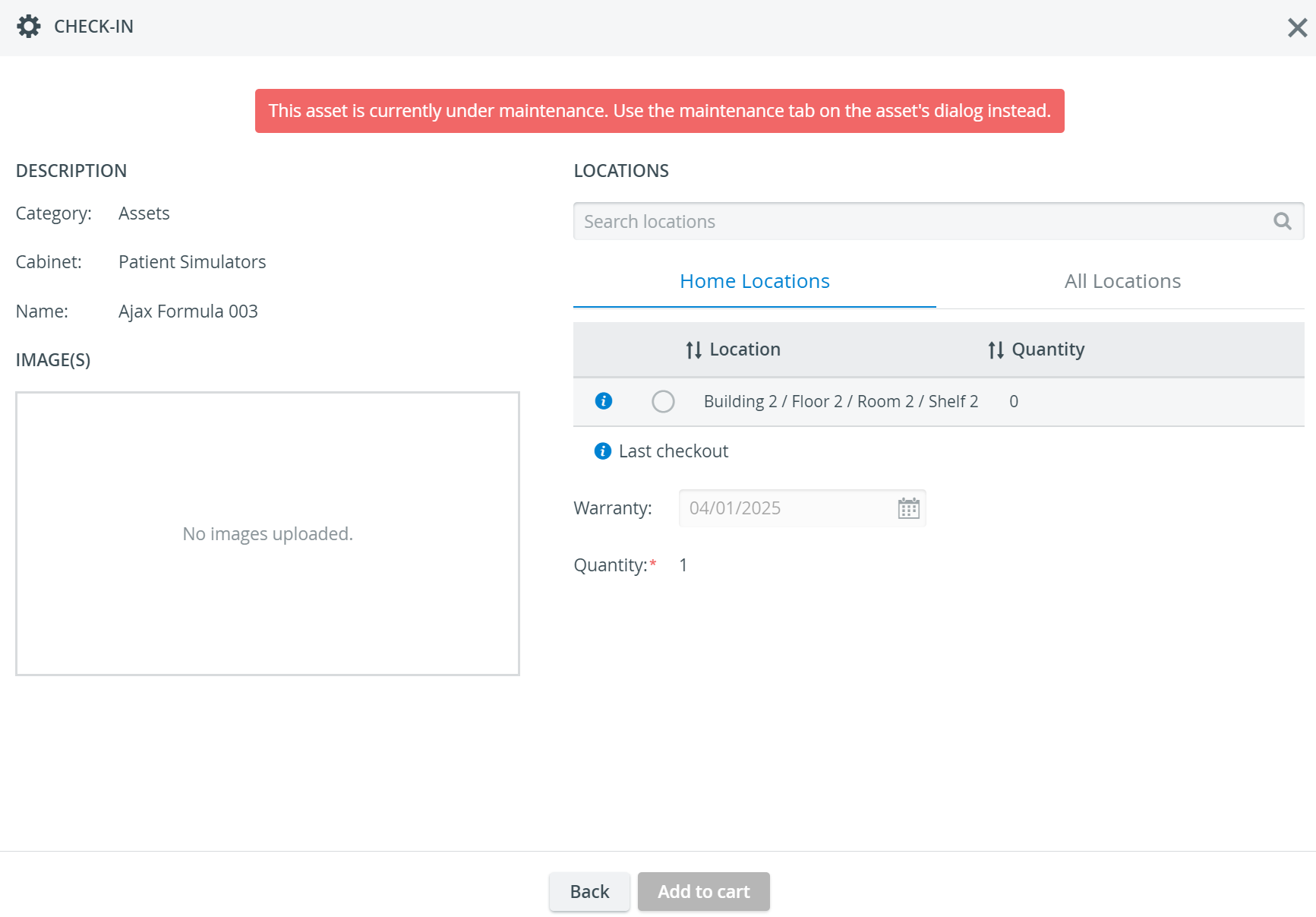
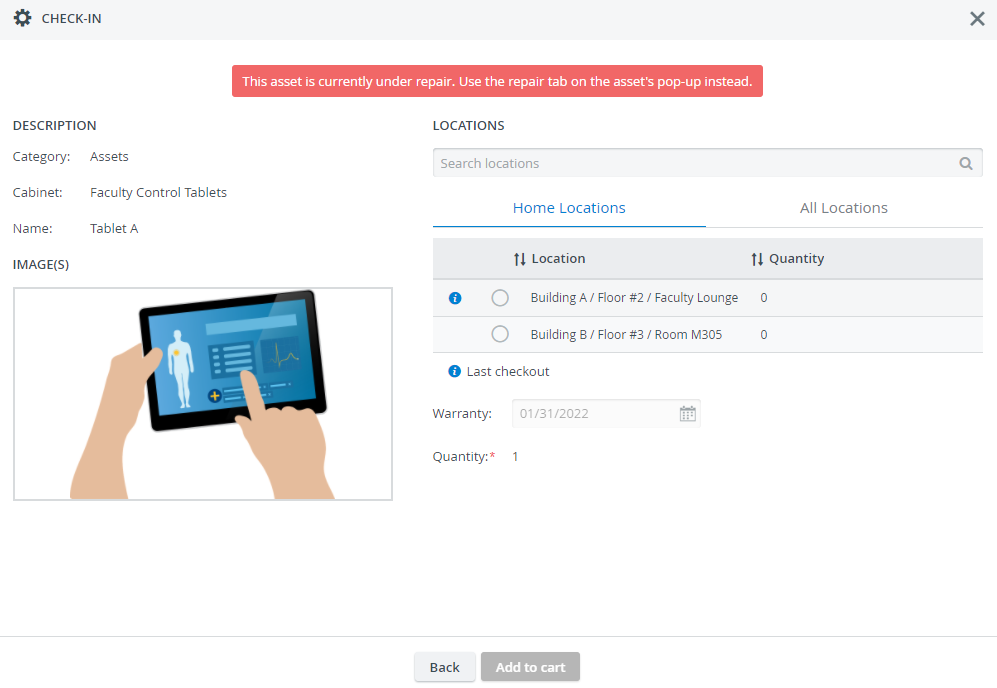
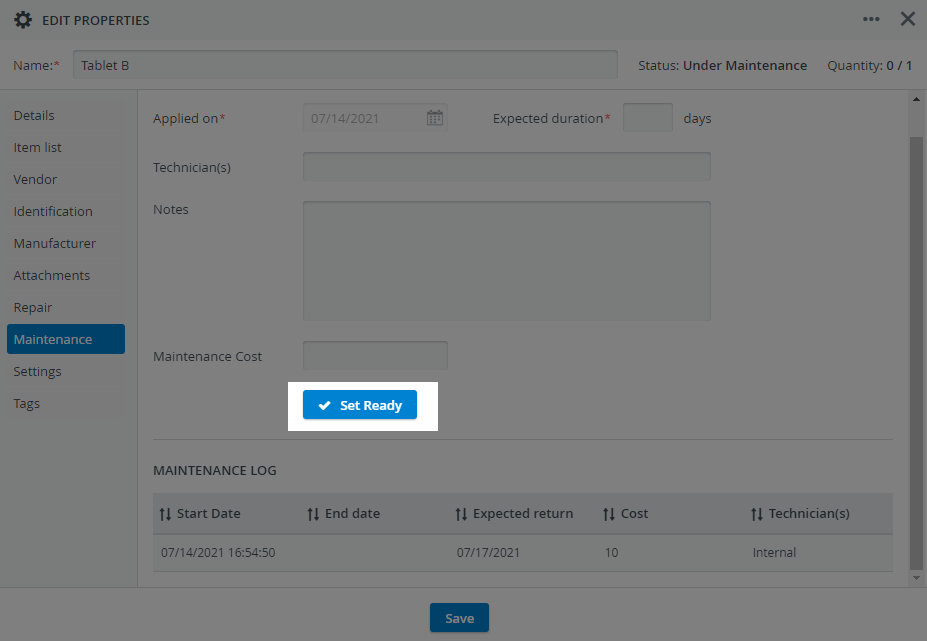
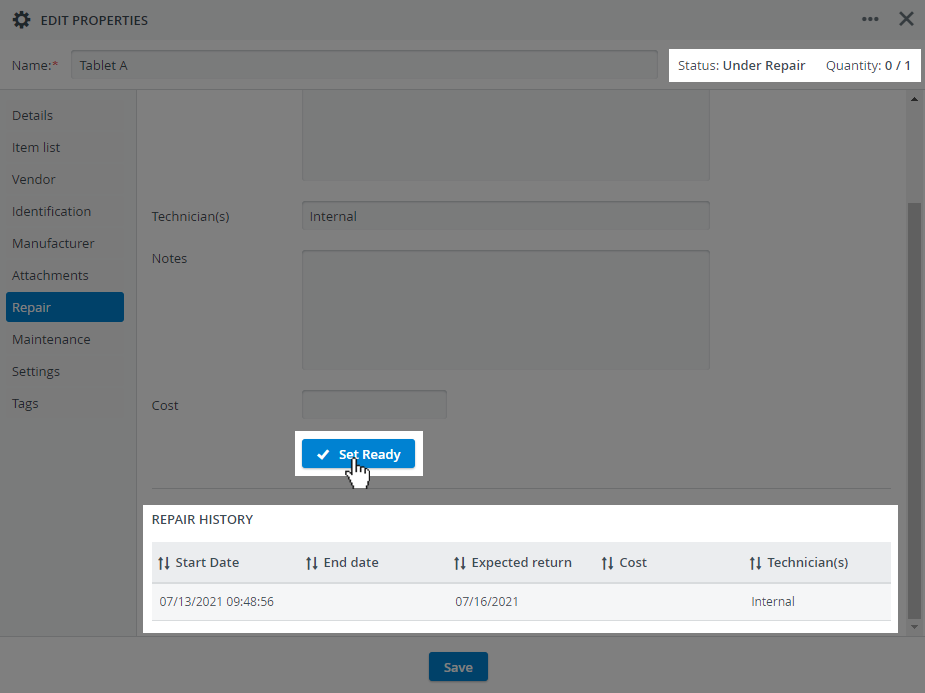
Learn more on the How to Manage Asset Repair and How to Manage Asset Maintenance pages.
Check-In through Setup Sheets
Checked-out Setup sheet items can be checked back into the Inventory after an event directly from the Setup sheet window. In this case, the items will move from the In-Use column to the Returned column.
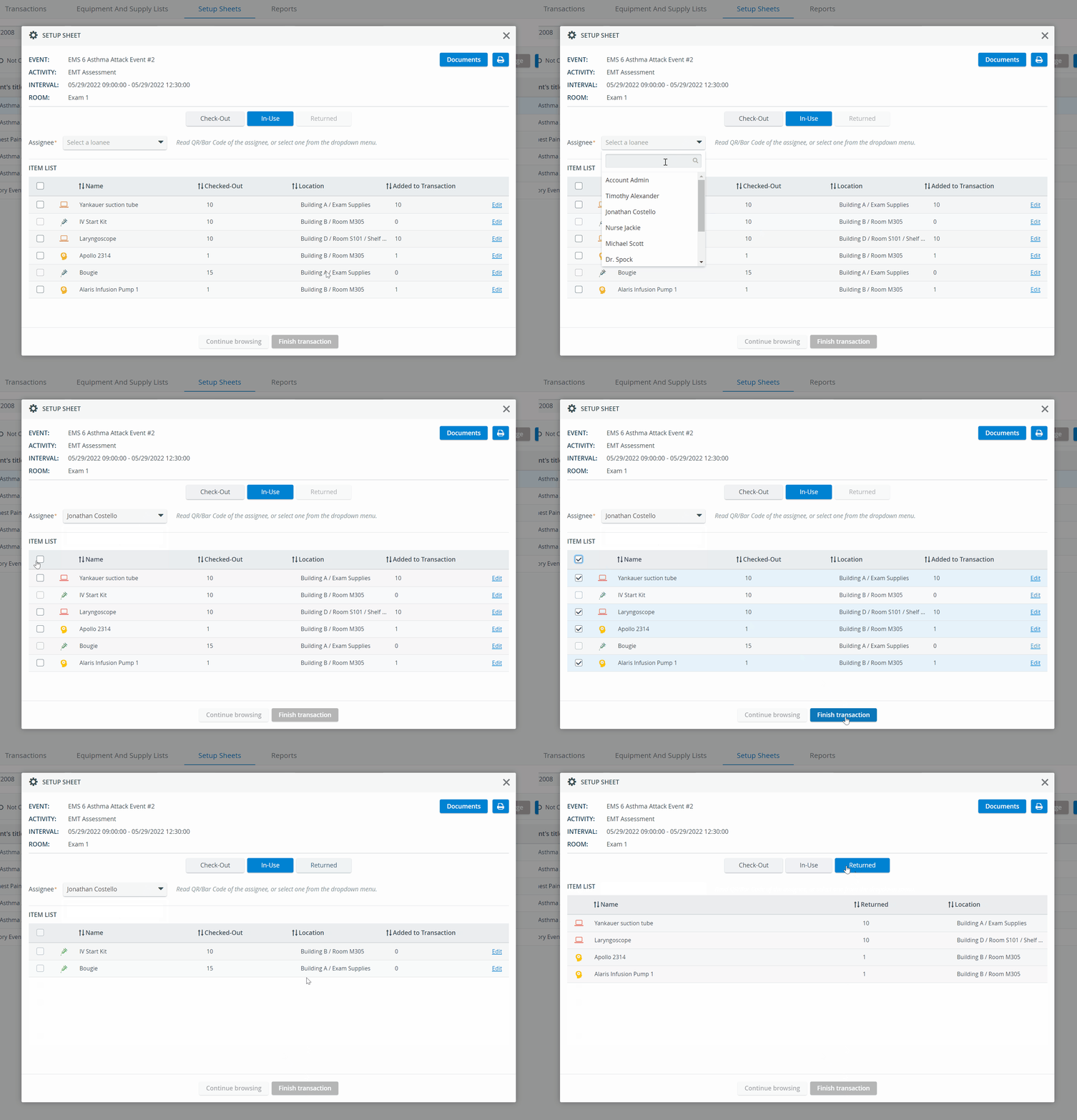
If checking back in the items of the Setup sheet through Transactions, the result of this action will NOT be visible in the Setup sheet itself.
Learn more about the Setup Sheets on our Inventory Manager and Inventory - How to pages, and watch the related Inventory Manager Training Videos.