Center Overview Layout
Center Overview (CO) is accessible only to users with Admin, Video Control (full control), Live Video, and FON Data Entry privileges.
This page
explains how to create custom tabs in Center Overview (CO)
describes the Window Layout Settings
Create Custom Center Overview Tabs
All rooms ready for recording are displayed on one tab in the Center Overview by default.
If your institution has many rooms, having all its video streams on a single tab could be overwhelming. To create cleaner layouts, users can distribute video streams across multiple tabs.
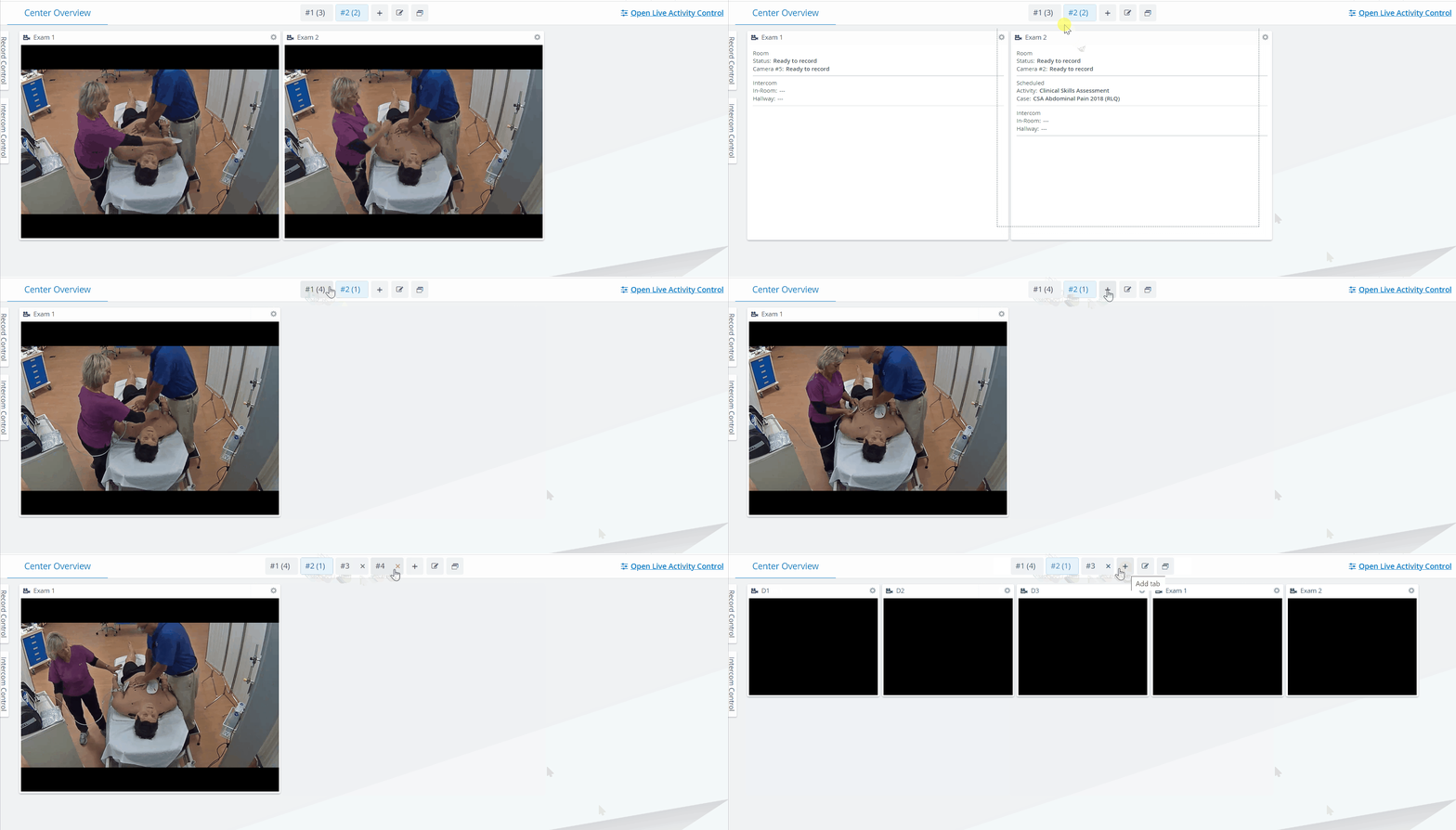
To create custom tabs, click the + on the right side of the header and drag & drop the rooms into your new tab.
Users can create multiple tabs and customize them in the Center Overview (CO). Each newly created layout will be saved in the user profile for next time, so users can return to any of their custom tabs at any time. If no longer needed, a custom tab can be deleted.
Custom tabs can be deleted after they are emptied. To empty a custom tab, drag & drop every room to another tab.
After logging into a new session and returning to the Recording module, the users resume the tab they used the last time.
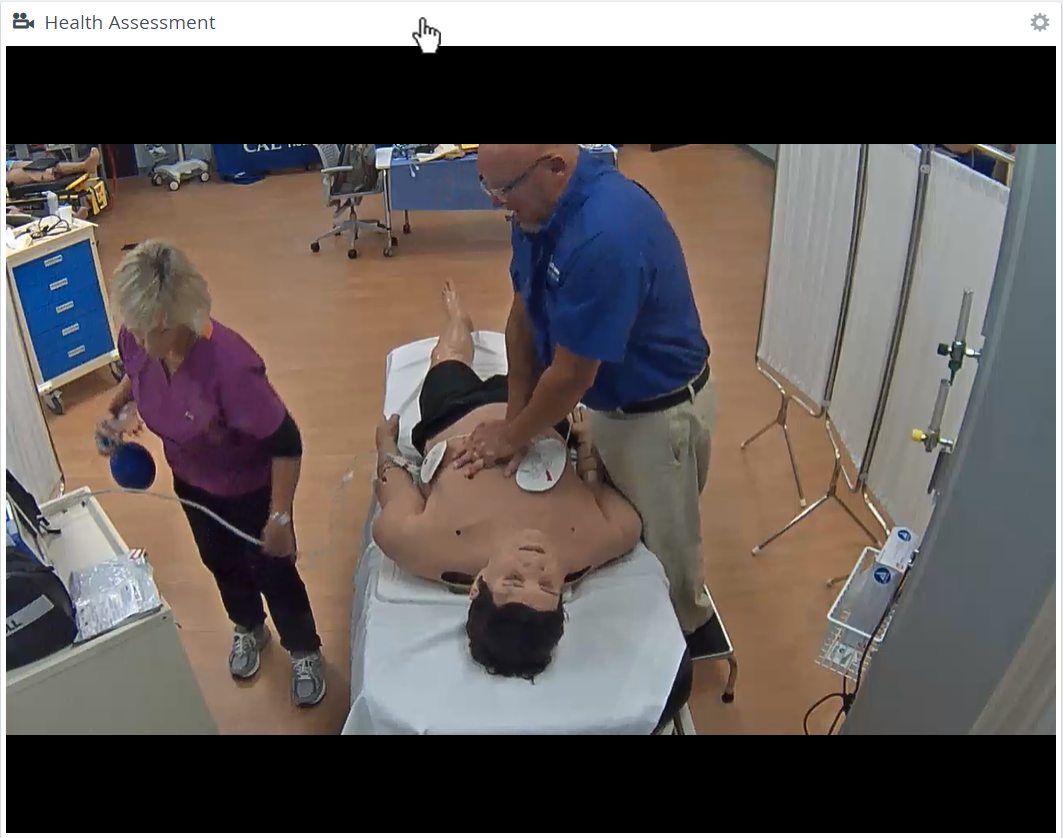
The CO can be customized by hiding or sending desired room panels to full screen: click the cogwheel in the top-right corner of any room panel, then select the respective icons.


 by clicking the audio icon in the top right corner of the camera panel.


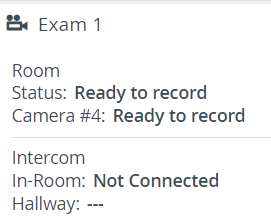
Opening Single Room View (SRV)
The Single room view opens when you click anywhere in the camera panel's header.
Window Layout Settings
By default, the Record Control and Intercom panels are minimized on the left side of the screen, and rooms ready for recording are all displayed on the Center Overview (CO).
The Record Control and Intercom panels can be opened by clicking each panel.
The layout of the Center Overview (CO) can be customized instantly with the Panel and Window visibility controls.
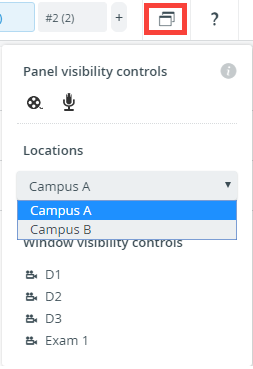
At Panel visibility controls, click  to open the Record Control panel or

Filter room panels by location with the Locations drop-down. Click on rooms to display or hide them in the Window visibility controls.
For more information, go to the Recording - How to pages.