Cases of Sessions
Add a Case inside a Session to find Standardized Patients of specific traits and skills and send requests to these SPs.
The selected Cases within a Session - identical to the Cases created by the Case manager - correspond to appointments to which you can invite SPs.
Click the +Add Case button.
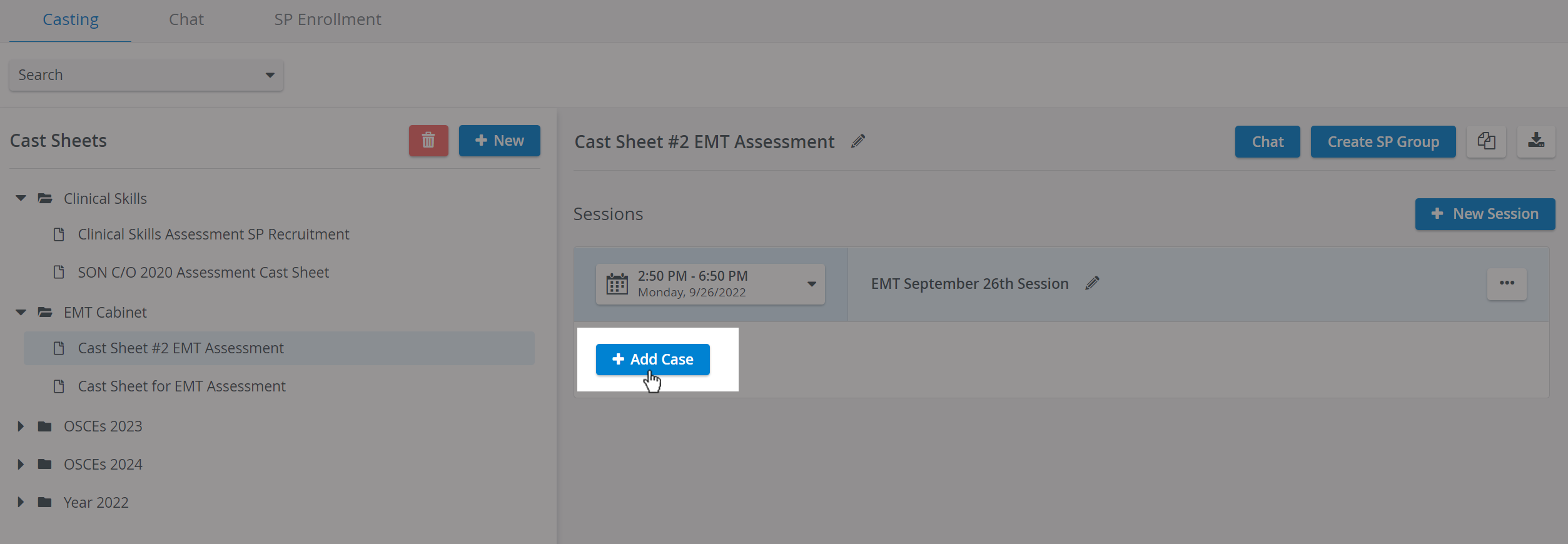
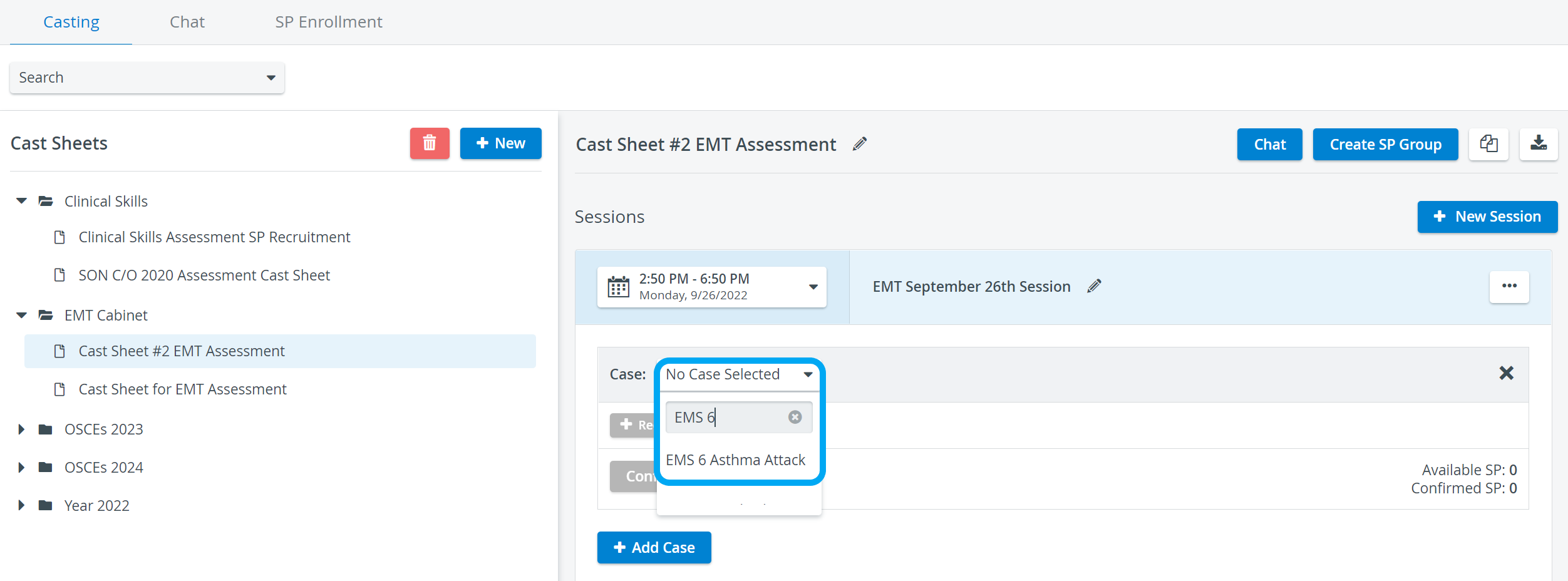
A drop-down will list all existing Cases available in your LearningSpace system.
Select a Case to be performed by the SP during the encounter within the Session.
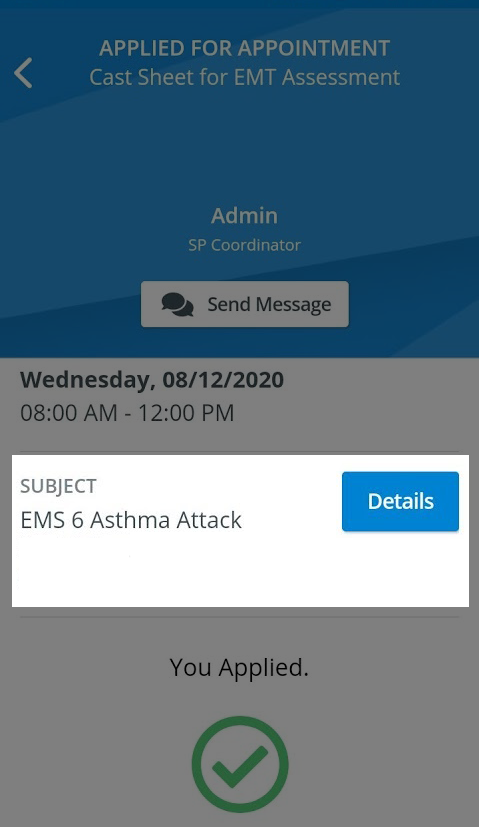
The selected Case will appear as the subject of the appointment requests SPs will receive in their SPA Mobile application:
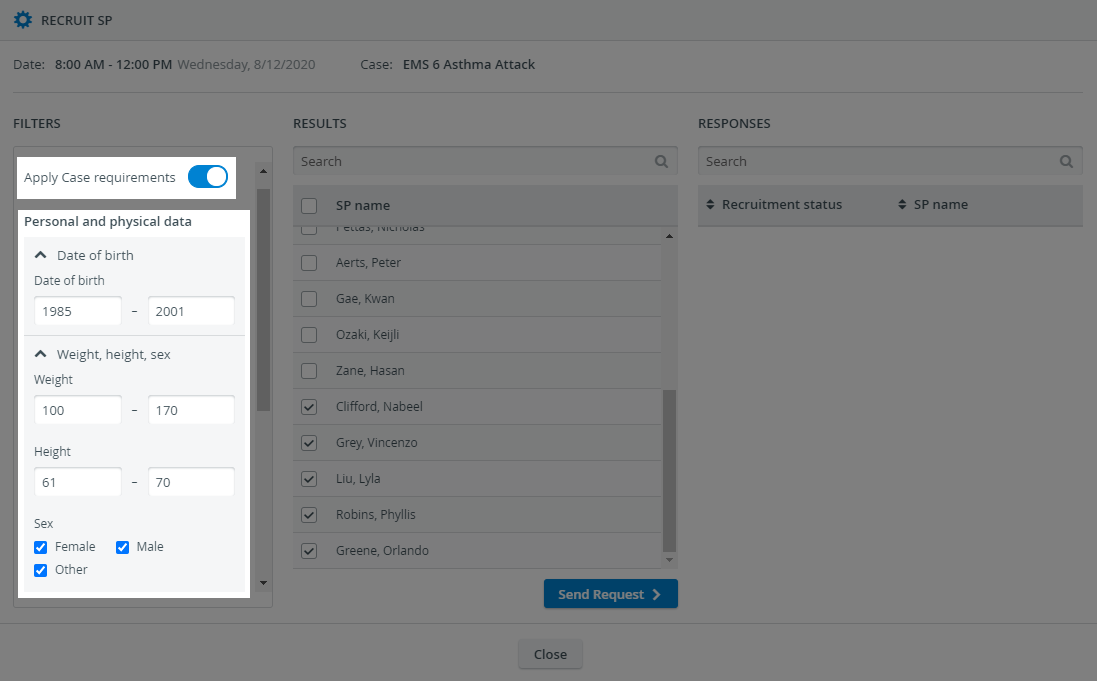
Adding a Case to a Session, you can import its requirements to simplify the SP Recruitment process.
When searching for the right fit for your patient scenario, you can auto-fill the search criteria in the Filter column on the Recruit SP tab:
If you do not want to add a specific Case to the Session, select the Custom Subject option from the Case drop-down.
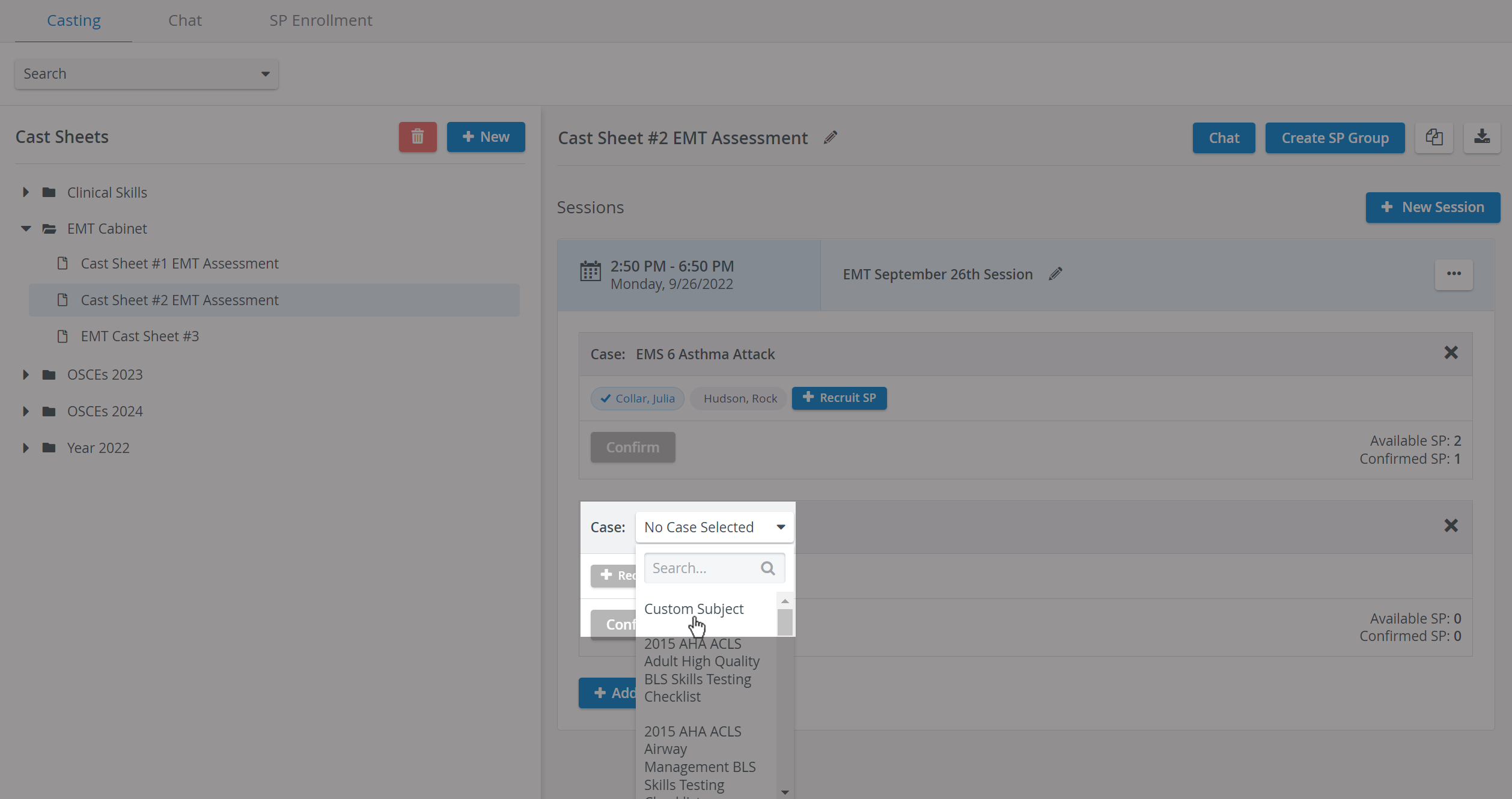
You can select only one "Custom Subject" item from the subject list, but this option is available in every Case drop-down.
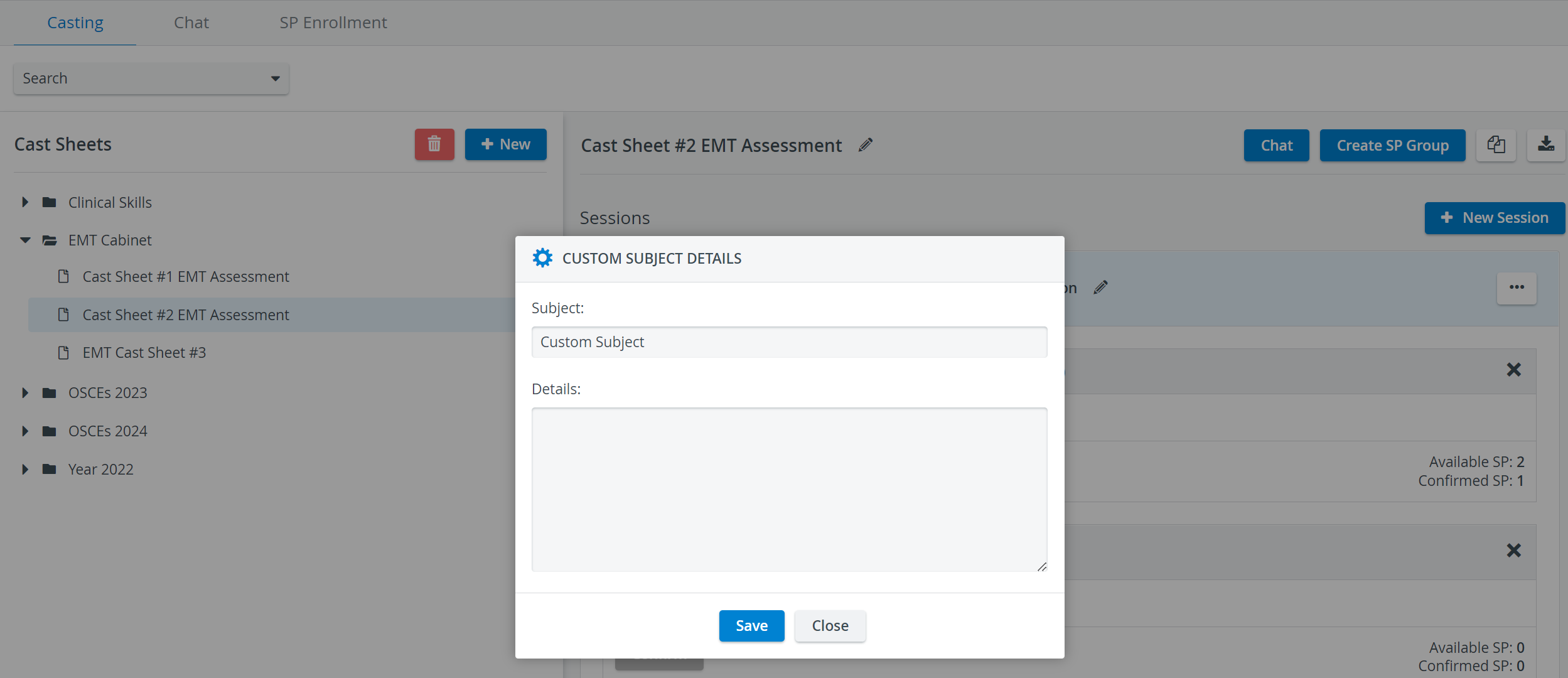
When using the Custom Subject feature, the Case Requirements option cannot be selected.
Conflicting Dates
If an SP confirms multiple Cases scheduled for the same date and time, the system shows a warning message in both the SPA Mobile Application and on the Casting tab of the LearningSpace SPA module.

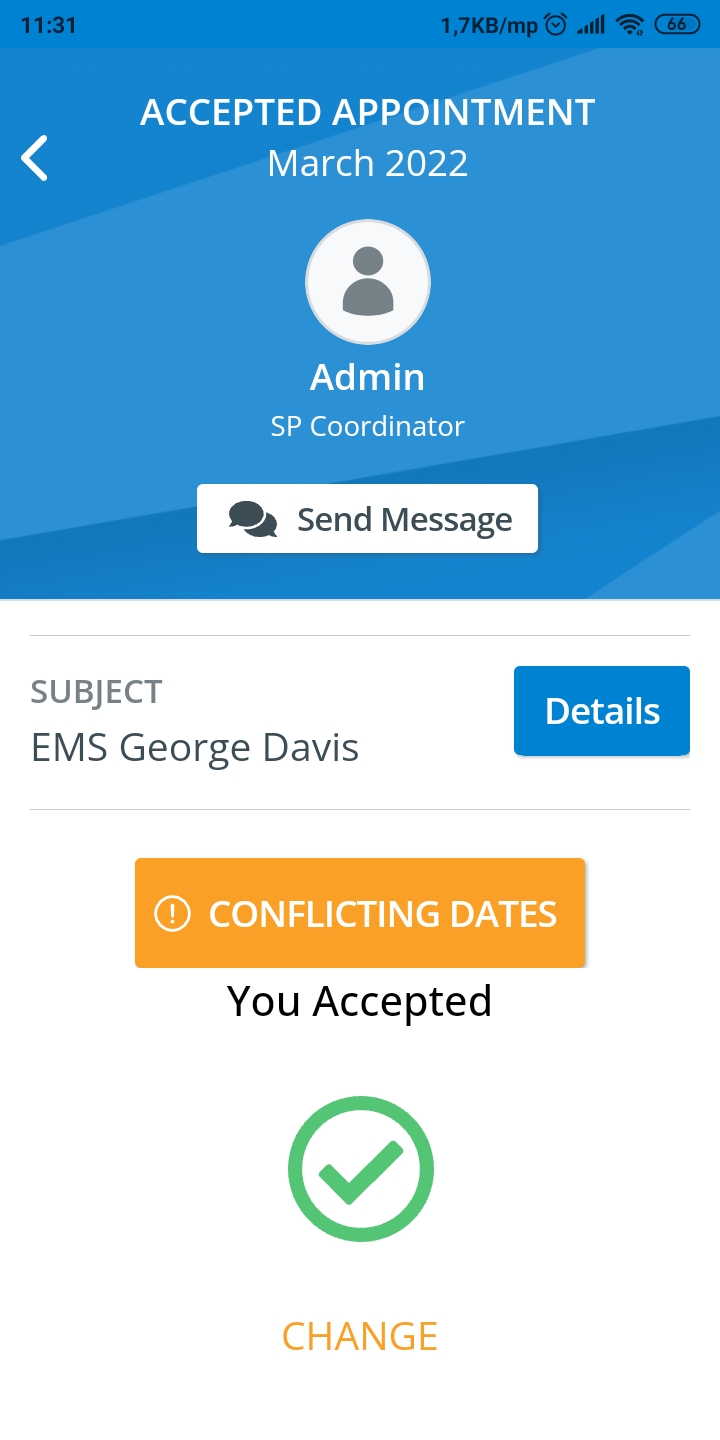
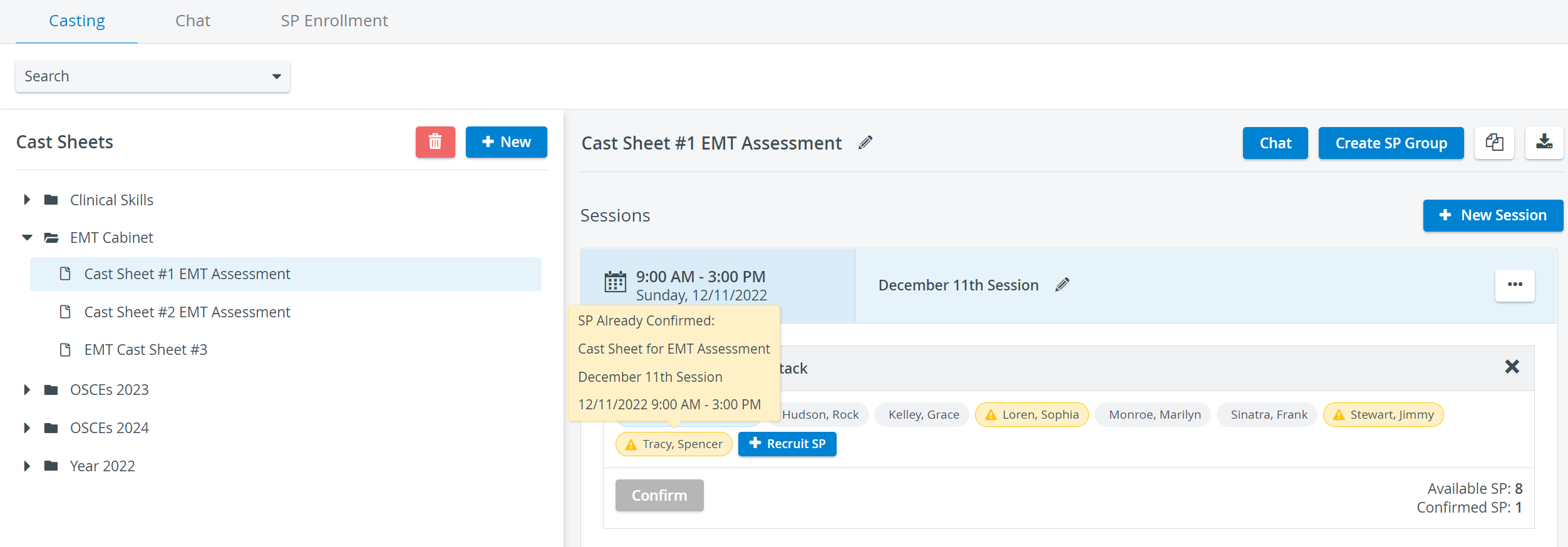
Withdraw confirmations for conflicting dates, as described on the How to Withdraw Confirmed Status from Standardized Patients page.
For further information, visit our Standardized Patient Administration and Standardized Patient Administration - How to pages.