Cameras tab
Cameras Tab Content
The Cameras tab contains the list of available cameras, DCUs, and DAKs (Digital Audio Kits/speakers) - within a specific LearningSpace system.

For more details on connecting cameras, see How to Connect Cameras.


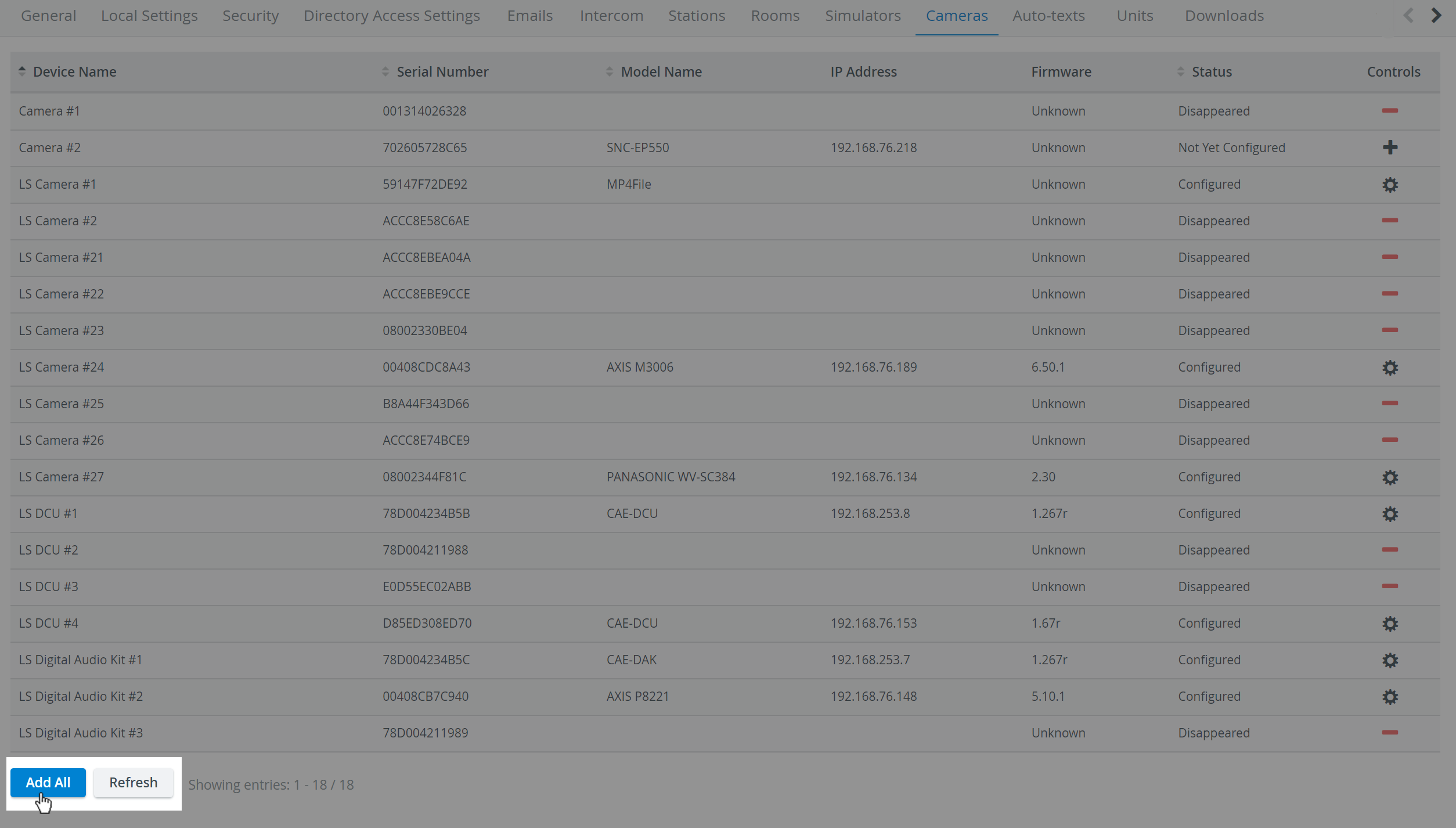
The Controls cogwheel in each row of a configured camera prompts the Camera Settings window to open, where the following settings can be specified.
Camera Settings
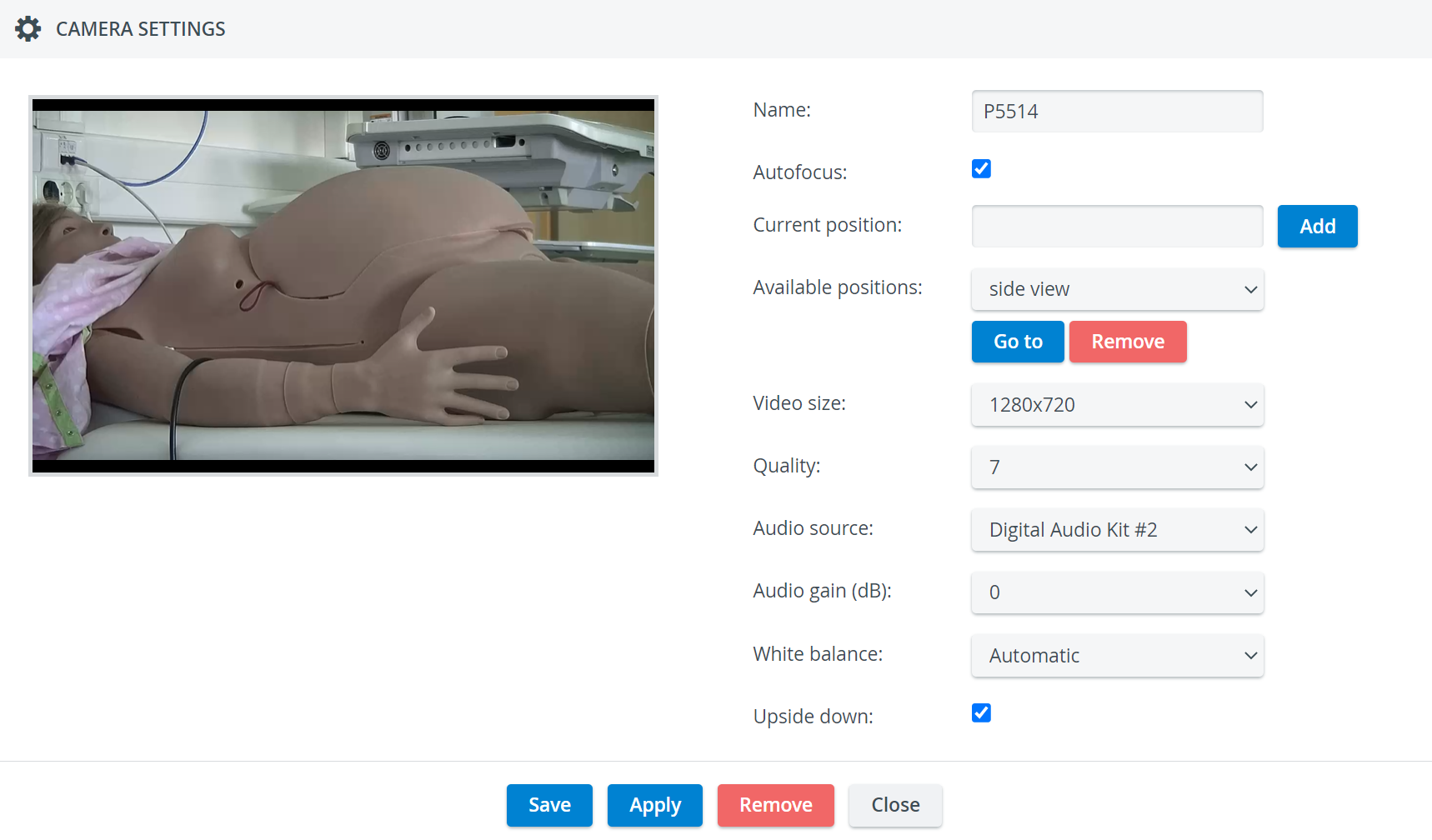
Name - camera name for distinction
Autofocus - only for PTZ cameras: when checked, the focus is set automatically when using pant-tilt-zoom
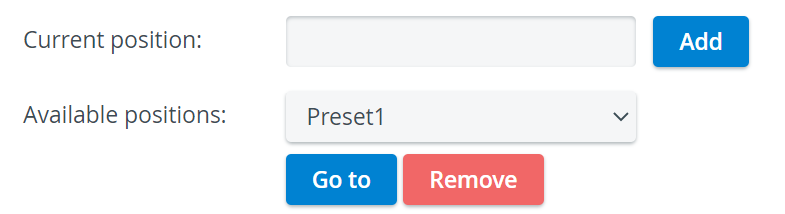
Current position - only for PTZ cameras: a preset position that can be saved by typing in a title and then clicking the Add button
Once a new position is added, the 'Available positions' drop-down appears with a Go to and a Remove button, activating or deleting the selected position respectively.
Video size - resolution of the camera feed
In LearningSpace Single Room View, the sizing of camera streams might not be optimal (an additional black bar/stripe might be visible at the upper and lower edges of the screen) with a 4:3 video size (aspect ratio). Therefore, the recommended ratio is 16:9 (e.g. 1280x720).
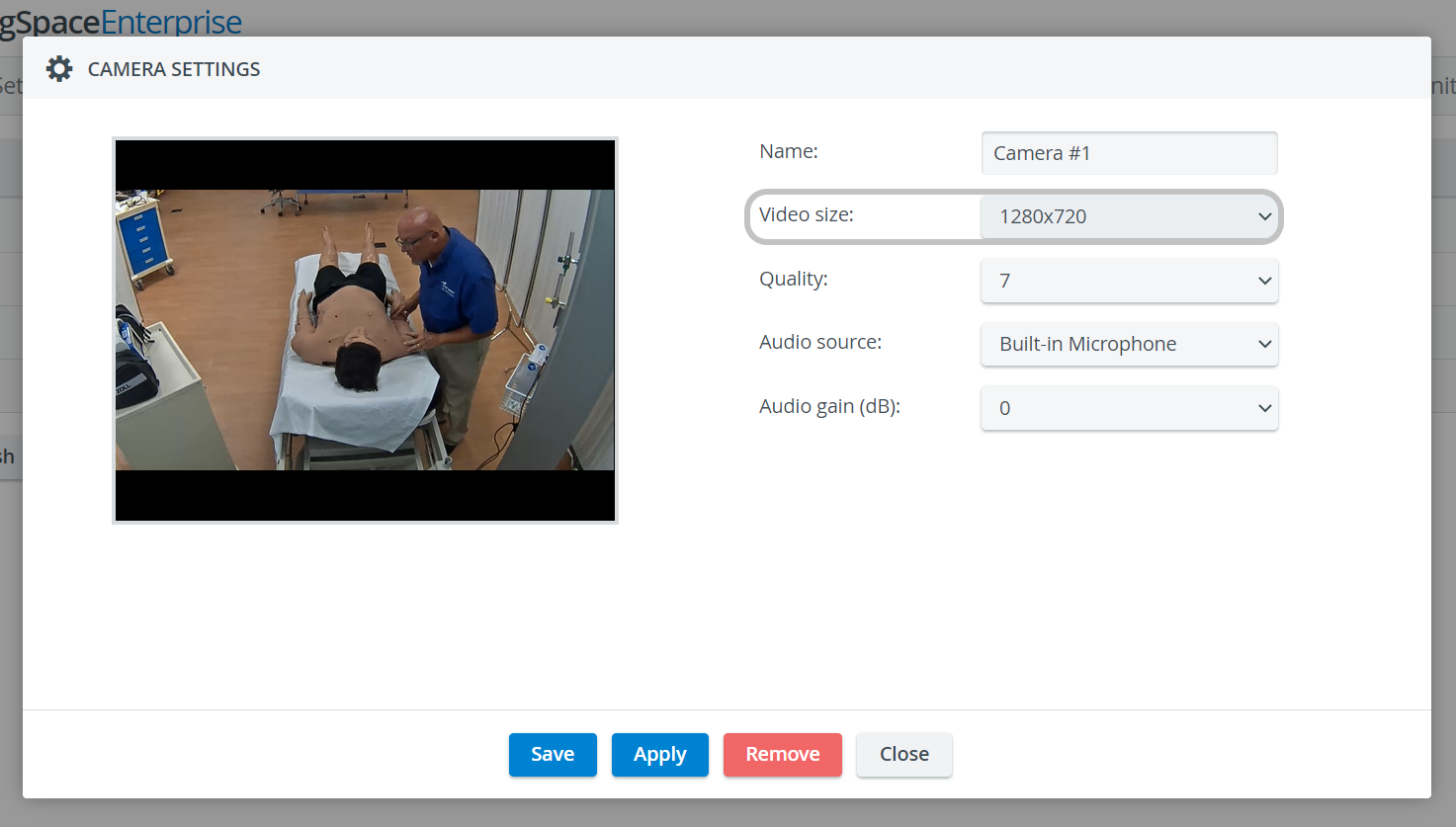
Quality - the quality of the camera image on a 10 scale (the lower, the worse the camera image, but the smaller the recording size accordingly as well)
Audio source—The source of audio for the camera feed. If available, the built-in microphone will be the default audio source.
Audio gain (dB) - volume setting for the audio source (built-in mic or selected source)
White balance - adjustment of the intensity of white color in the camera feed
Normally, the 'Automatic' setting is optimal and should only be changed under special circumstances.
Upside down—For ceiling-mounted PTZ camera types, checking this setting allows for switching the original (ceiling) perspective.
For cameras without built-in audio, one of the external audio sources has to be selected from the Audio source drop-down for the camera to be able to be assigned to a room within LearningSpace.
If the "use without audio" option is selected, you can assign the camera to a room. However, the videos will be recorded without audio, which means the audio track will not be recorded.
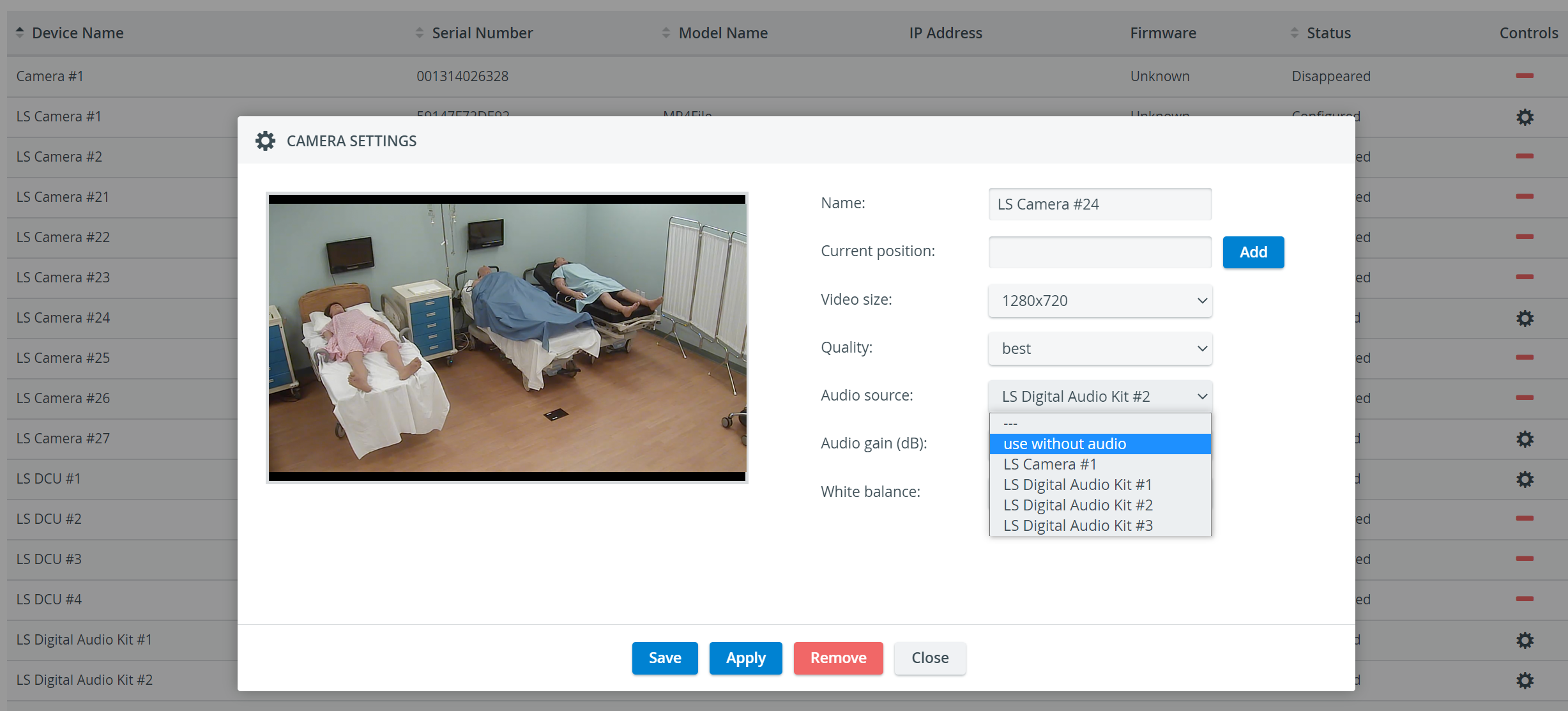
Privacy Mode-Related Settings
NOTE: Privacy Mode is available under the following conditions:
The audio source is set to: ‘use without audio.’ OR:
The audio source is connected to another Elevate-handled device that is mutable.
NOTE: If there is a DCU/encoder in the room along with cameras on which Privacy Mode can be enabled, users can activate privacy mode in the room using the SP toolbar or push button; however, privacy mode will only be enabled on the cameras, not on the DCU/encoder.

Privacy Mode Visual Indicator
A visual indicator shows that the room is in Privacy Mode.
When Privacy Mode is enabled, the Privacy Mode indicator appears in the Camera Settings window.
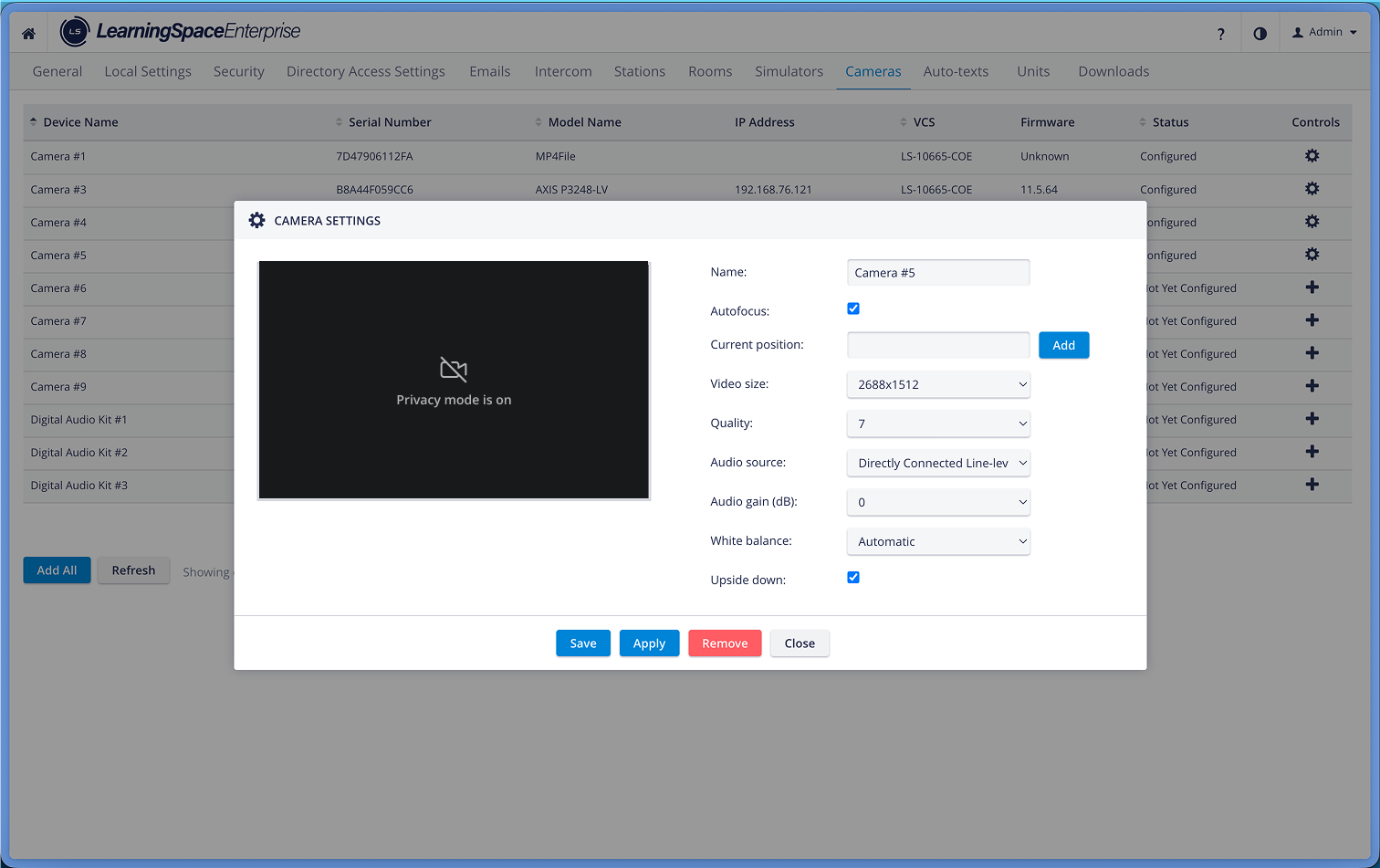
Privacy mode - Camera Settings
Privacy mode is currently not supported for mobile cameras. See Mobile Recording Feature
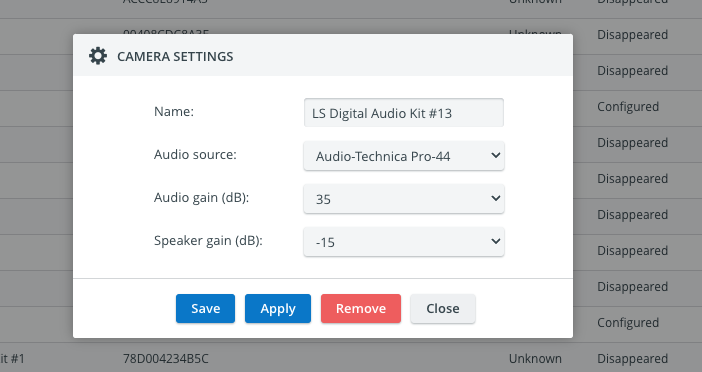
Speaker Settings

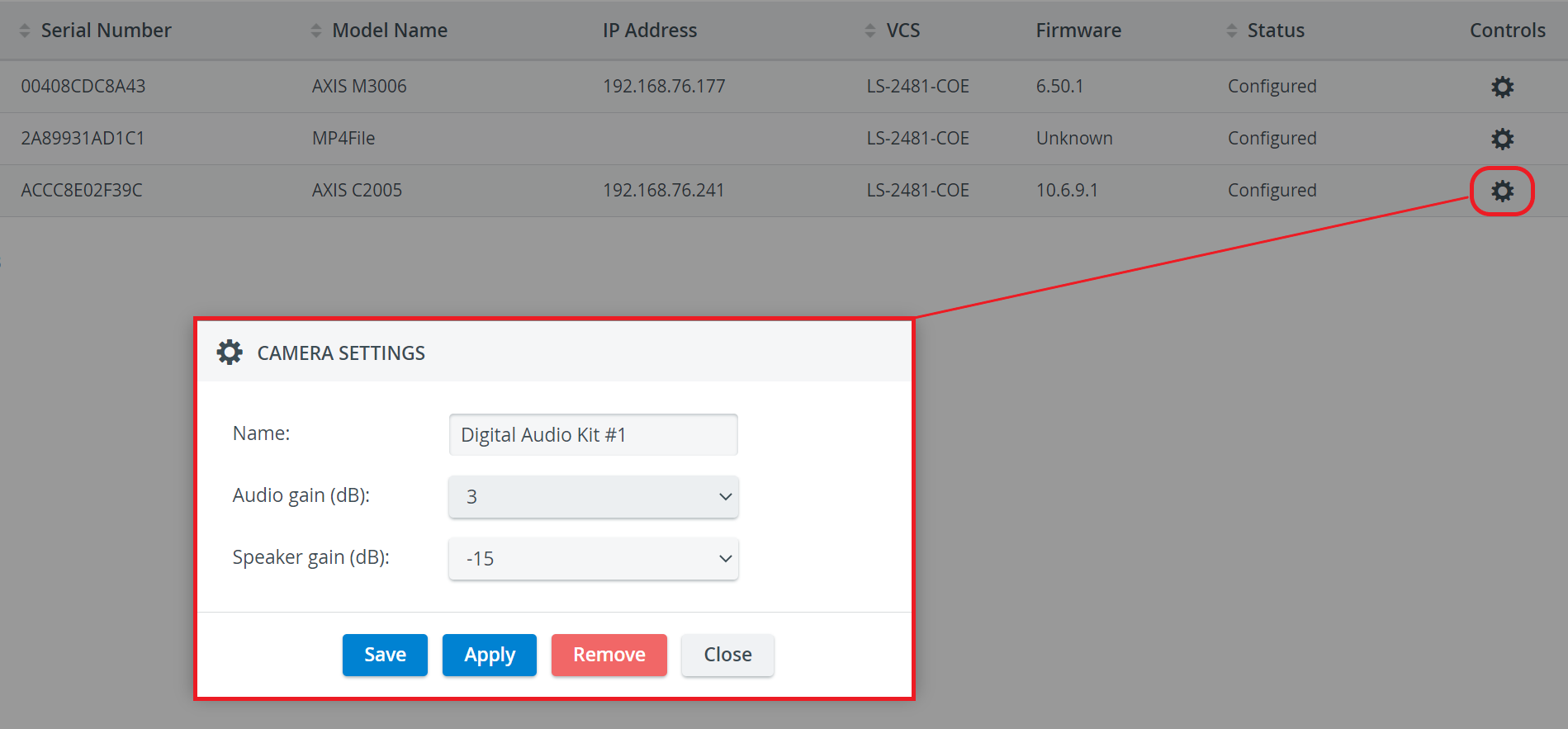
Name - Speaker name for distinction
Audio gain (dB) - controls the sensitivity of the integrated microphone of the speaker
Speaker gain (dB) - controls the speaker output volume
Default gain values are set for various audio sources to optimize device compatibility.
The default settings are as follows:
Line: 0dB
Axis: 35dB
Audio Technica: 35dB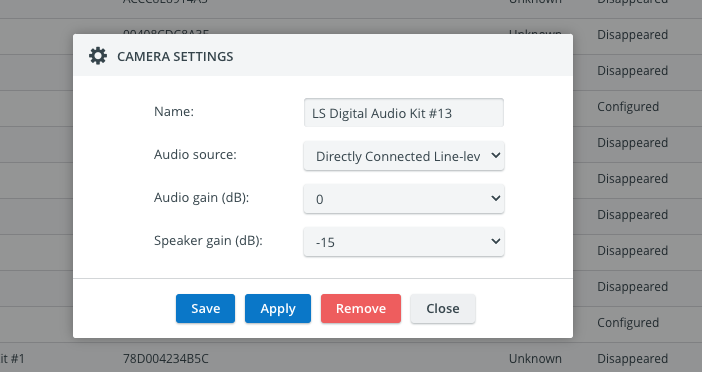
For more details on managing cameras, see How to Manage Cameras. For further information, visit our System Manager and System - How to pages.