Calendar Views
Room, Day, Week, Month, and List view
The Calendar can be viewed by Room, Day, Week, or Month, and a List view is also available, offering a more compact view of a semester alongside the list of all scheduled Events.
By default, when entering the module, the Room view is displayed, showing all scheduled events.
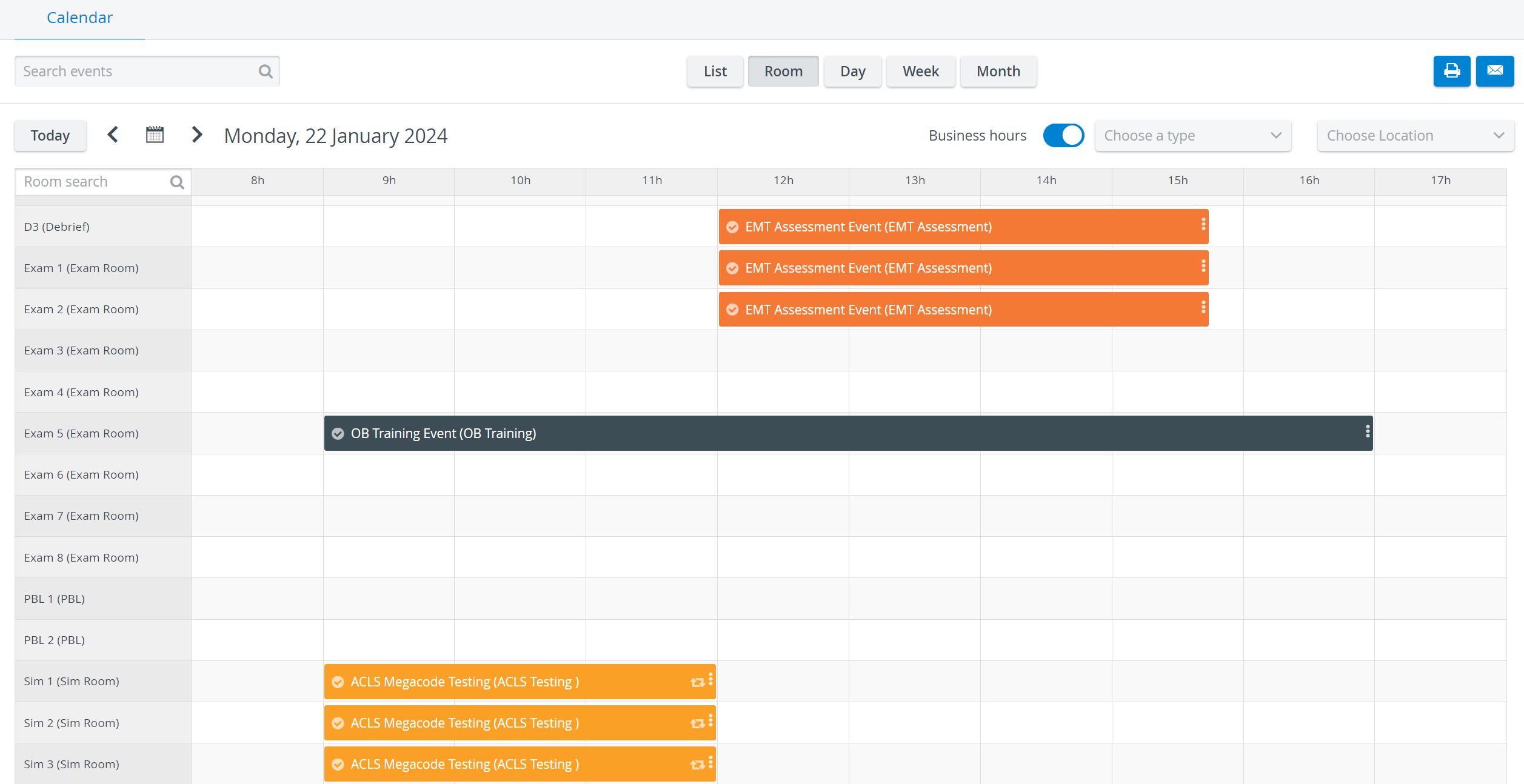
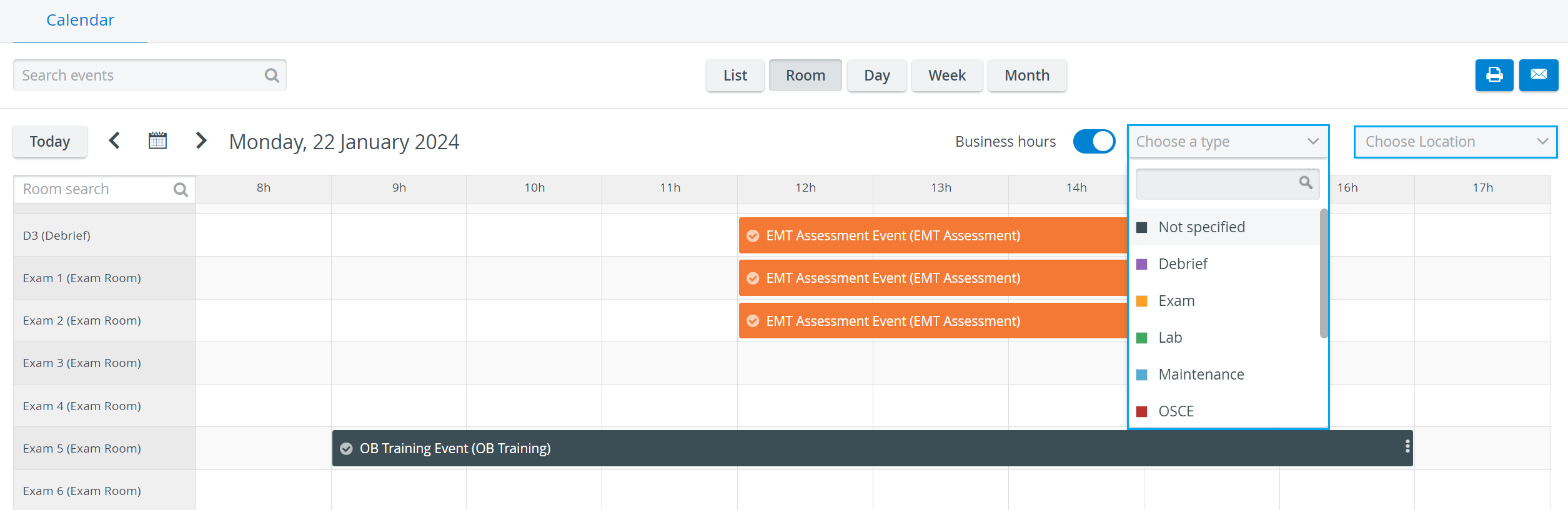
The display of Events can be narrowed by
selecting a specific (color-coded) Activity type in the Choose a type drop-down in the top right corner of the Calendar, or
by selecting a specific location in the Choose Location drop-down at the same place.
The Search events search bar, located in the top-left corner, enables targeted event searches.
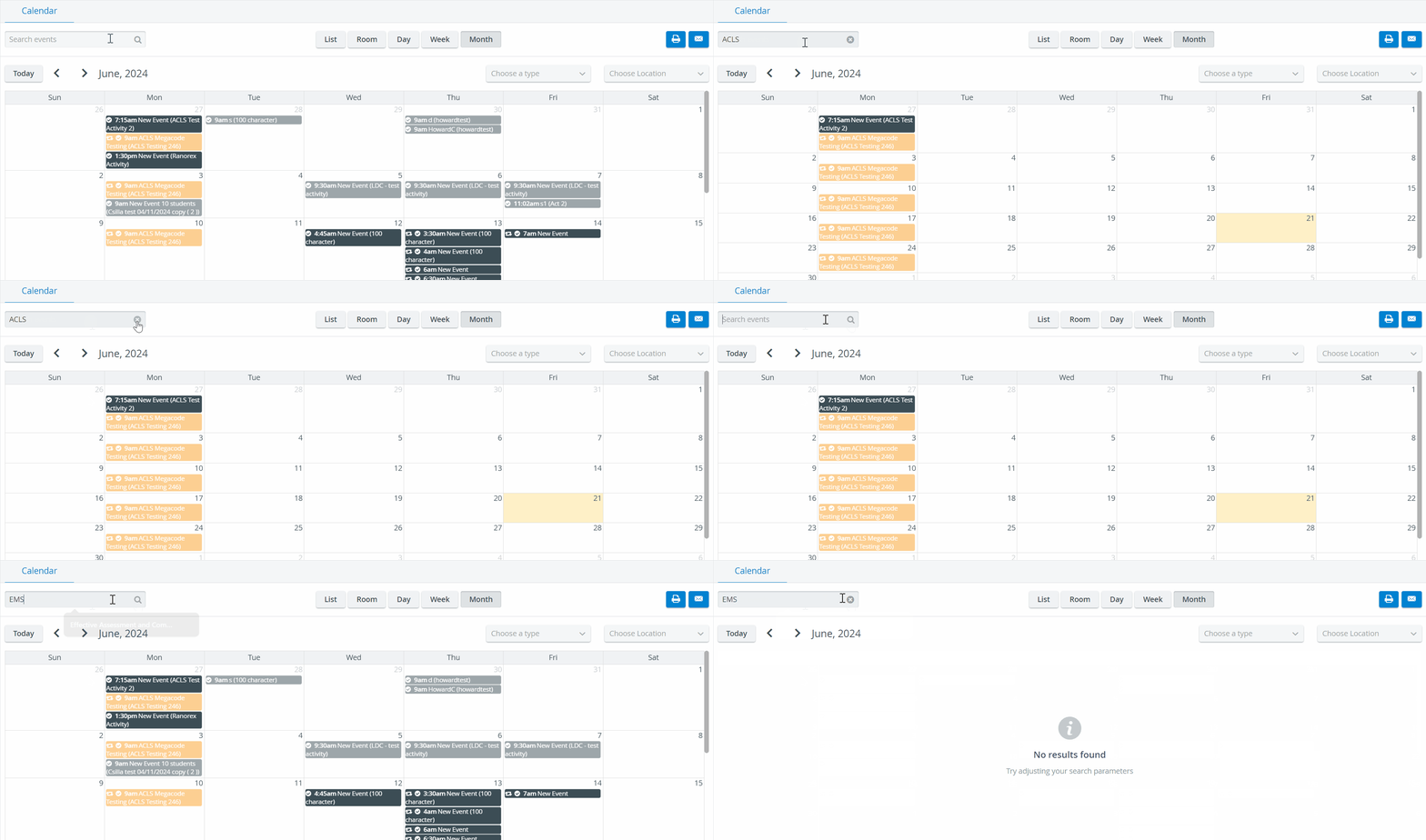
If there are no results, the "No results" screen will be displayed in all views.
Calendar icon
Clicking the Calendar icon below the search bar prompts a Calendar menu where any specific past or future date can be selected, and the date will be displayed according to the set view.

If a date is selected in the week view, the whole week, including the selected date, will be displayed.
Days with scheduled events are displayed in light blue, and any selected day is highlighted in dark blue in the Calendar menu.
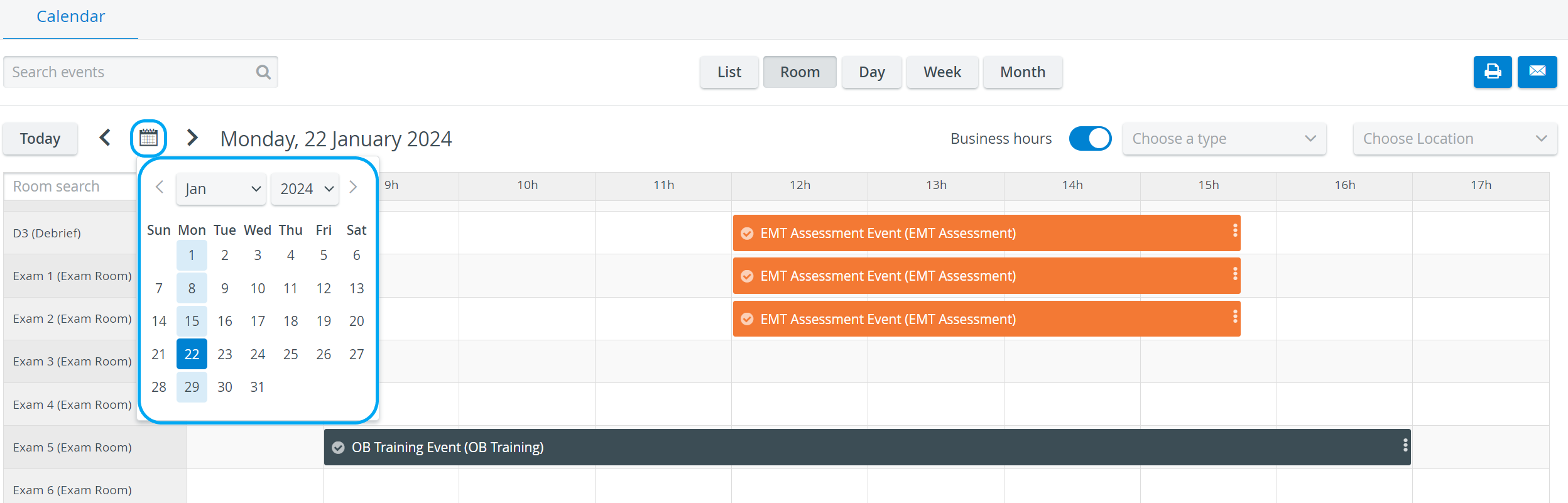
The backward and forward arrows next to the Calendar icon step one "unit" (depending on the user’s view) back or forward, respectively.


Clicking the Today button jumps to the view, including the current date in the Room and Day view.
Business Hours
The display can be set to All Hours or Business Hours in Room, Day, and Week views.
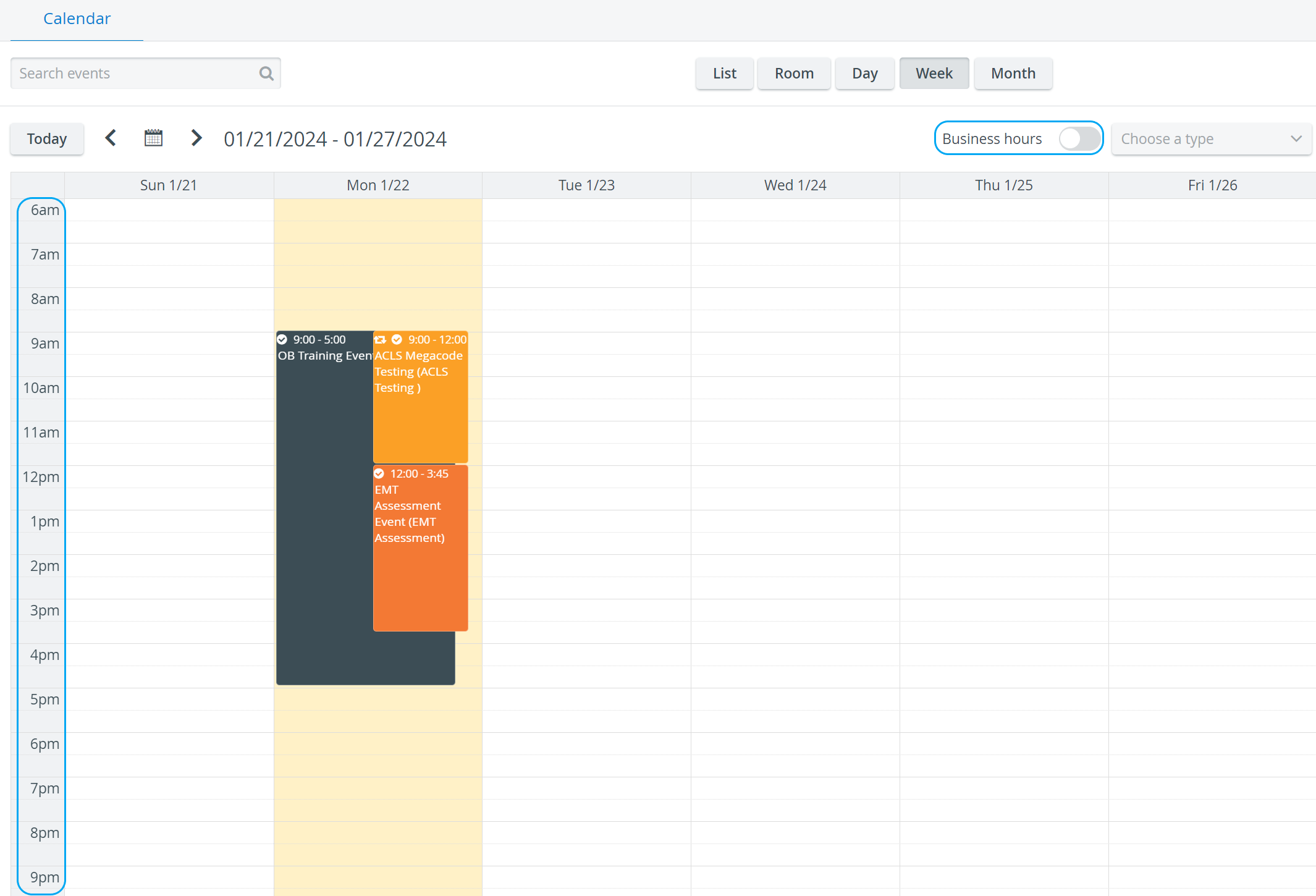
By default, the Business hours setting is activated, thus only business hours are shown.

Advanced Scheduling
In List view, the Advanced Scheduling link next to Events for which timeslots have already been created navigates directly to Advanced Scheduling.
Such Events cannot be modified in the Calendar and thus appear faded even for users with the necessary privilege(s).

IMPORTANT: Access to the Calendar module is restricted to users with Admin, SRP, or SRP (full control) privileges.
A user with either privilege can edit events. However, for users with SRP privilege, any modification made to time, repetition, Activity, or room settings must be (re-)approved by a user with Admin or SRP (full control) privilege.
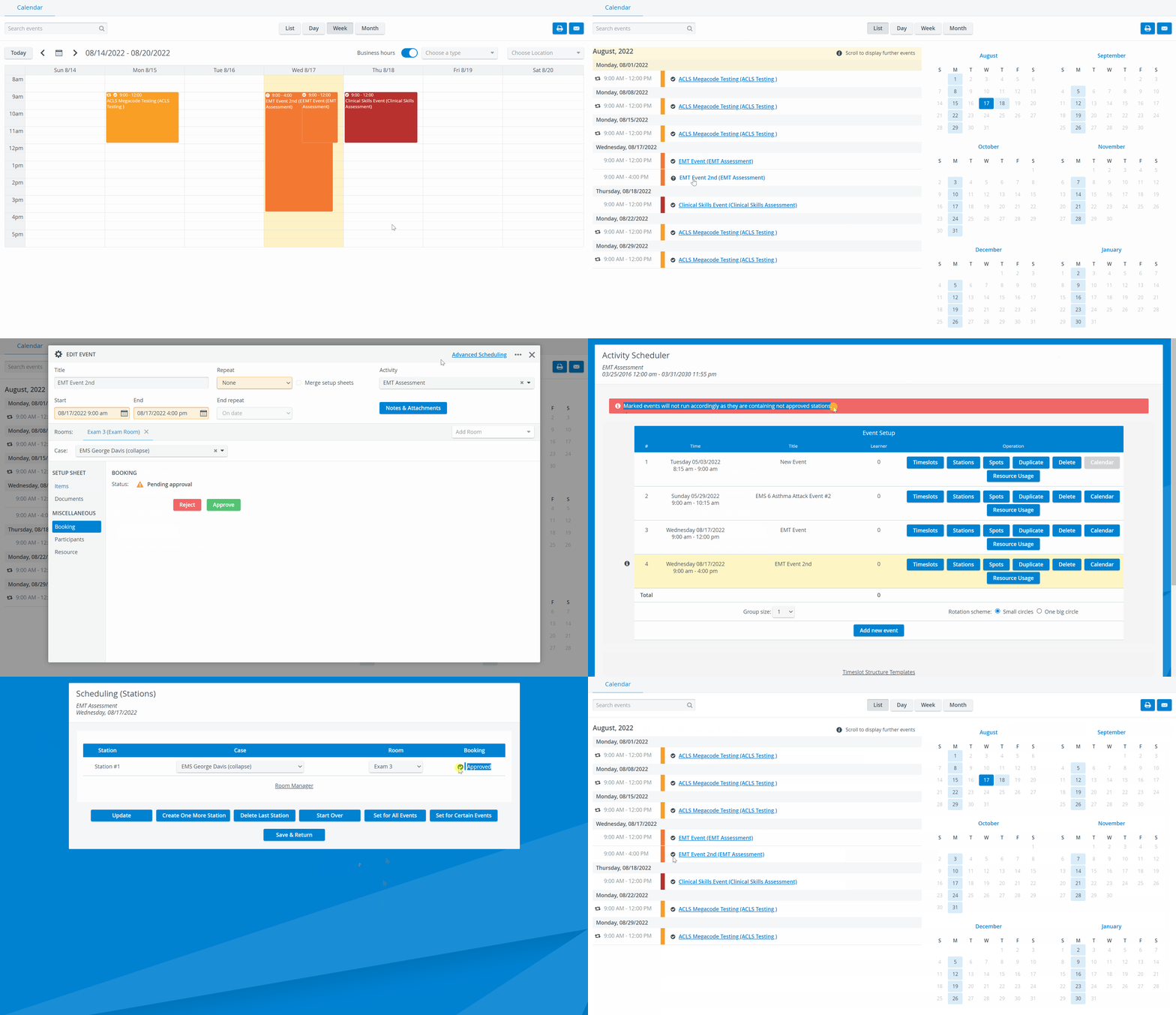
In all Calendar views, the question mark icon next to an Event title indicates unapproved stations within that Event.
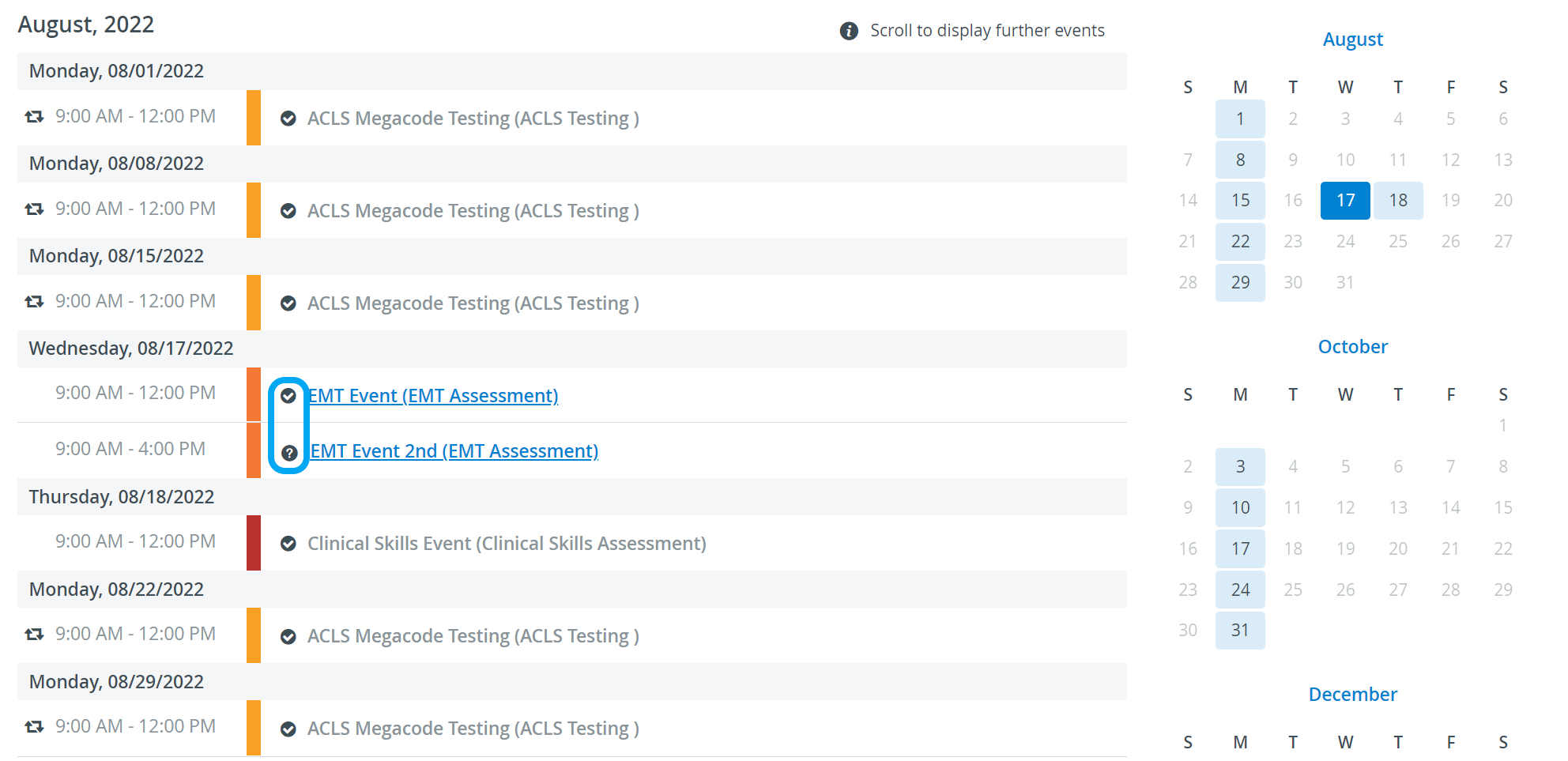

Stations can be approved by Admins or SRP (full control) level users either in Advanced Scheduling, Stations tab, or in the Edit Event pop-up, Booking tab.
Request for approval can be sent to these users via email.


For further information, visit our Calendar - How to pages or watch our Calendar Module Training Videos.