Automatic Recording Status at SP Data Entry Page
This feature allows participants in an Event to check the In-room station to see whether a recording is in progress.
The Automatic Recording Status box is available on the data-entry page for SP checklists.
The SP can leave a checklist open while learners perform their tasks; meanwhile, the In-room station will show the recording status.
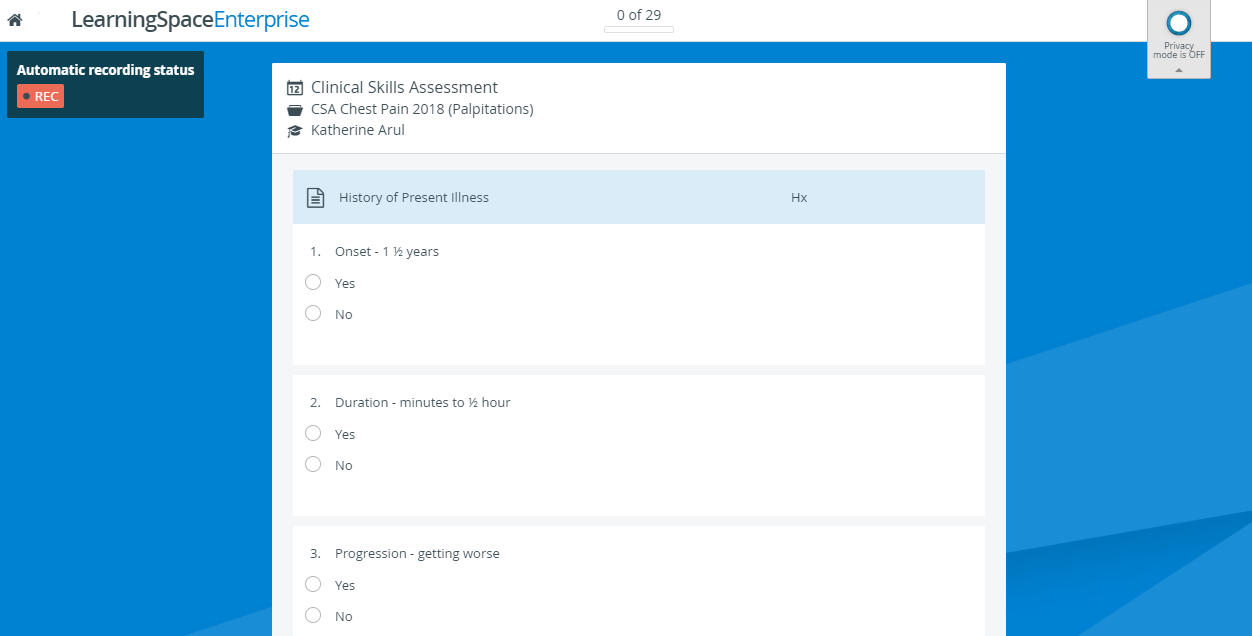
If a recording were stopped or somehow interrupted, the room would be informed immediately by the red recording sign going off.
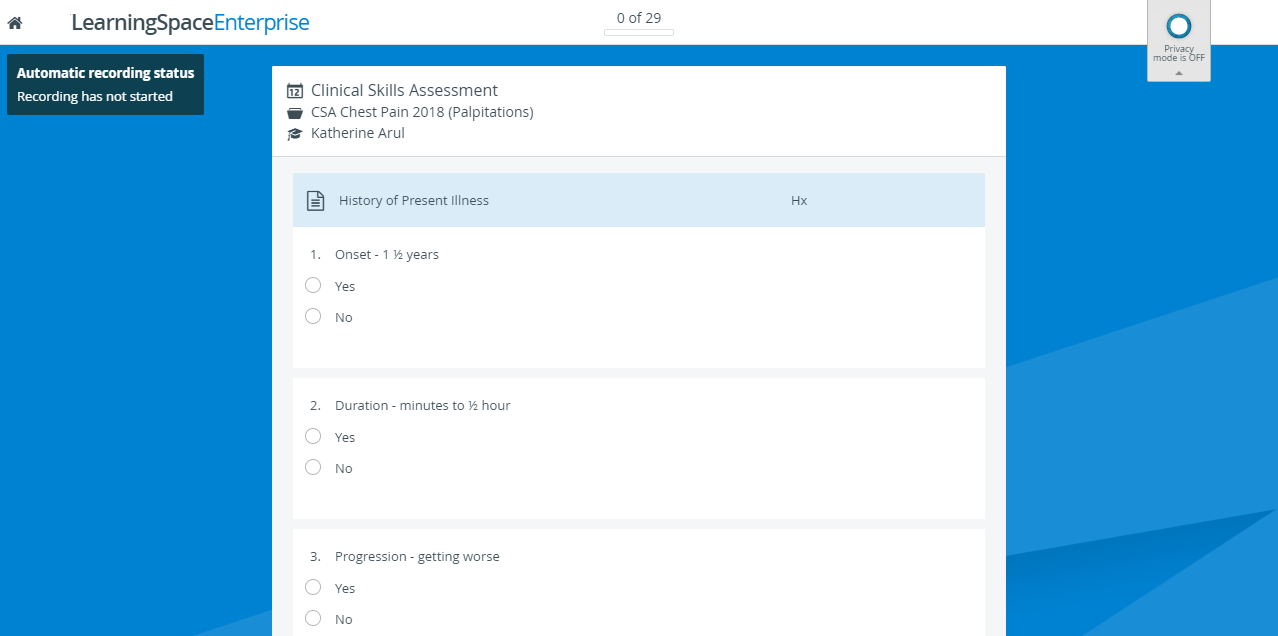
Accessing Automatic Recording Status
Before opening a checklist, the SP must check the Start Video Recording box.
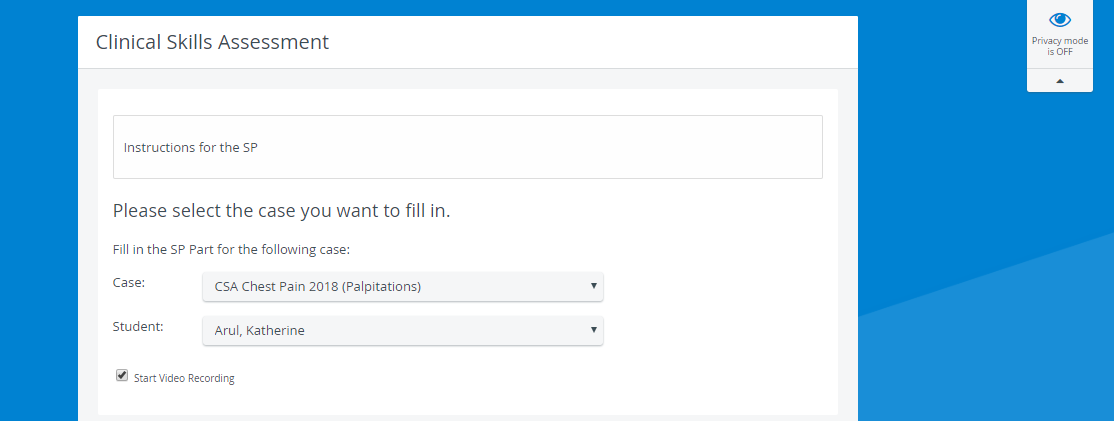
To display the Start Video Recording checkbox when the SP selects a case and learner, video start and video stop triggers need to be defined on the Activity's Basics tab.
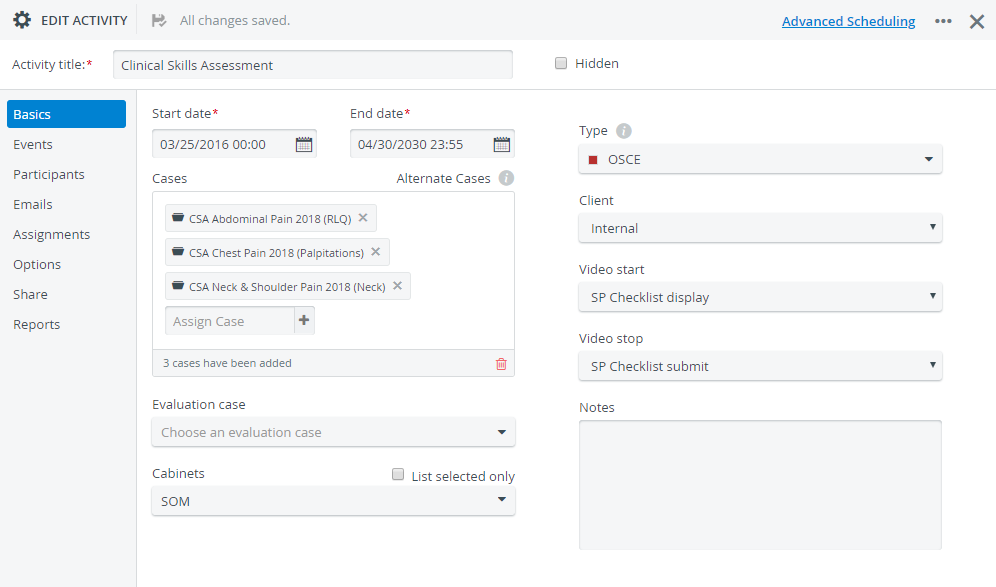
The Video start trigger needs to be the SP checklist display. The video stop configuration does not need to be SP-related: it can be the FON part display or any other option.
Also, the activity must be assigned to a room as an RNSA activity or booked through Advanced Scheduling. In both cases, the room needs an In-room station.