Assignments tab
In the Assignments tab, you can determine which Faculty member or Peer can evaluate which learner(s).
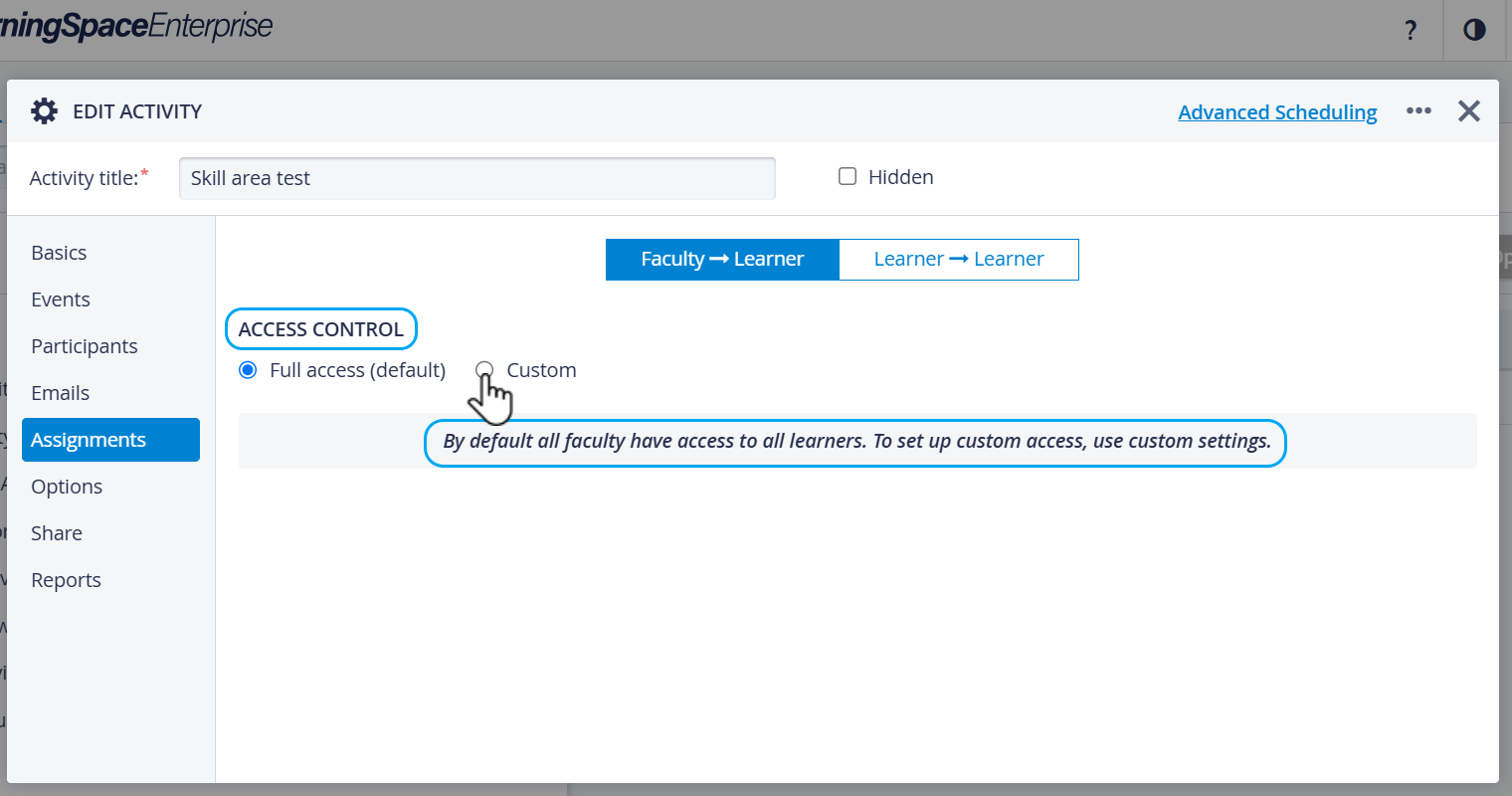
By default, all Faculty members have access to the data submitted by all Learners —> ‘Full access’.
To change this, you can set up custom access by switching to —> ‘Custom’.

Relations need to be created to set up custom access for the Faculty.
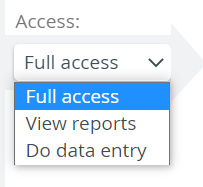
In the case of Faculty evaluators, you can even determine the evaluators' level of access to learner evaluation: Full access, View reports, or Do data entry.
To begin the evaluation assignments, first, add the main Faculty & Staff and Learner participant groups to Participants.
Important
When adding the Faculty & Staff and the Learner groups in Participants, the members of these two groups are automatically assigned to each other as evaluators (Faculty) and evaluees (Learner).
Also, evaluators have full access to learner evaluation by default.After adding these main groups, you can specify evaluator-evaluee subgroups.
The Assignments tab offers two options for creating evaluator-evaluee subgroups:Faculty → Learner
Learner → Learner.
You can create as many subgroups as you need under each option.
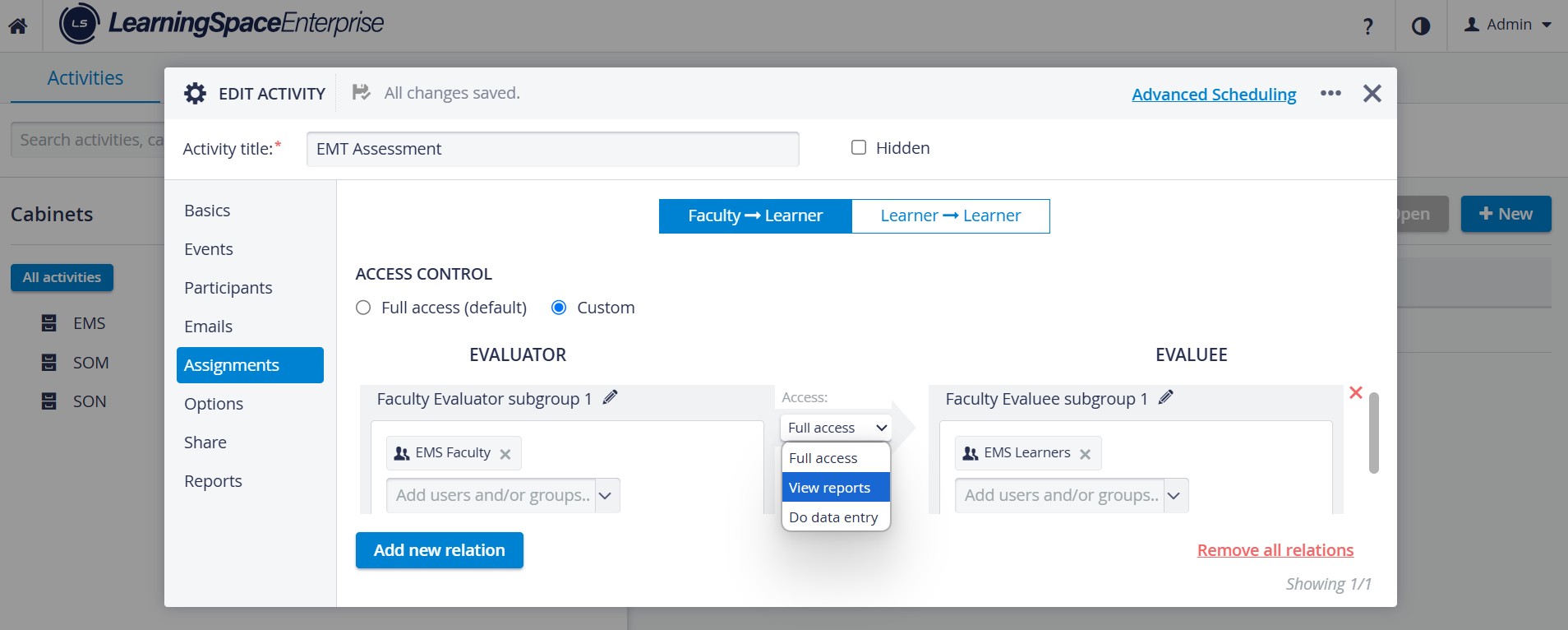
Faculty → Learner assignment
Add one or more faculty members on the Evaluator side of the tab, then select learners on the Evaluee side. The evaluators will have access exclusively to the evaluees, and the evaluees cannot be evaluated by anyone other than the delegated faculty members.
Determine the evaluator subgroup's level of access to the evaluees, grant full access to learner'’ scores and data entry, or limit evaluator access to either data entry or report review.
Learner → Learner assignment
Prepare peer evaluations in this tab: Delegate learners to evaluate one another. Selecting peer evaluators and their evaluees in the Assignments tab is essential in setting up Peer evaluation.
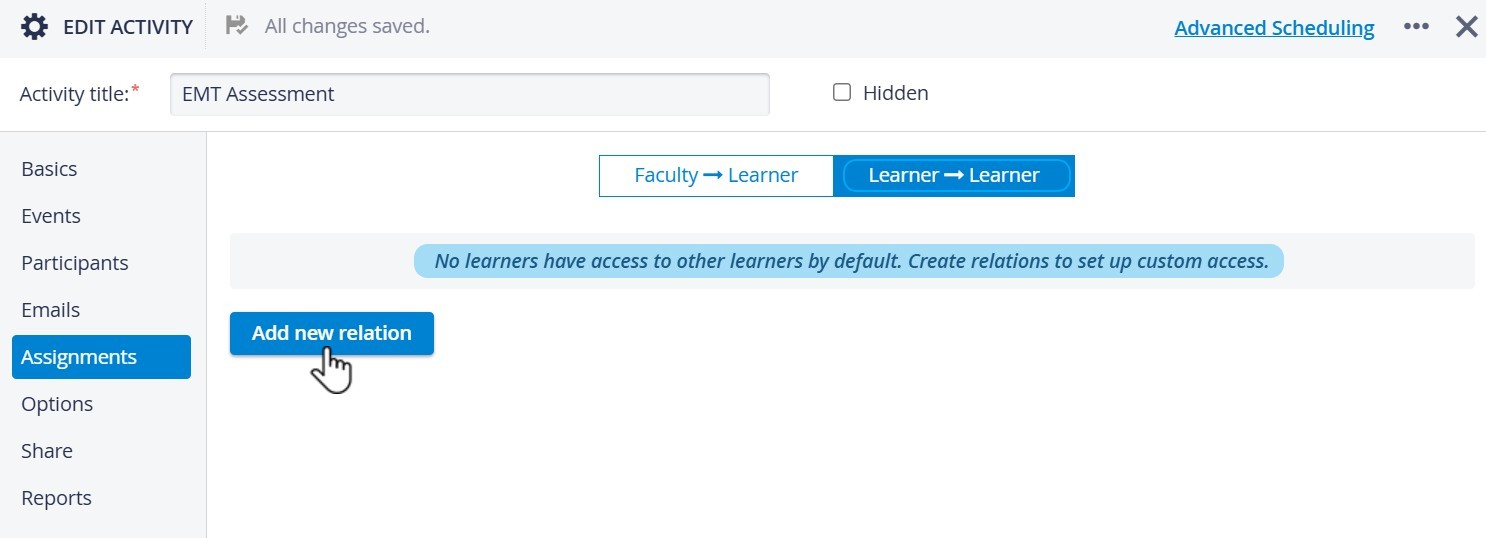
By default, learners do not have access to other learners. Relations need to be created to set up custom access.
Peer evaluation assignments work in one direction: evaluator learners can only evaluate the designated evaluee learners, but not vice versa.
If you want to have every learner evaluated by at least one of their peers, set up new evaluator-evaluee subgroups where the learners are assigned the opposite roles.
New Assignment
Clicking the Add New Group button can create a new assignment in either direction. This group can be formed from the members of the assigned participant groups.
The system automatically generates the group's title, but you can change it by clicking in the title field and entering the desired name.
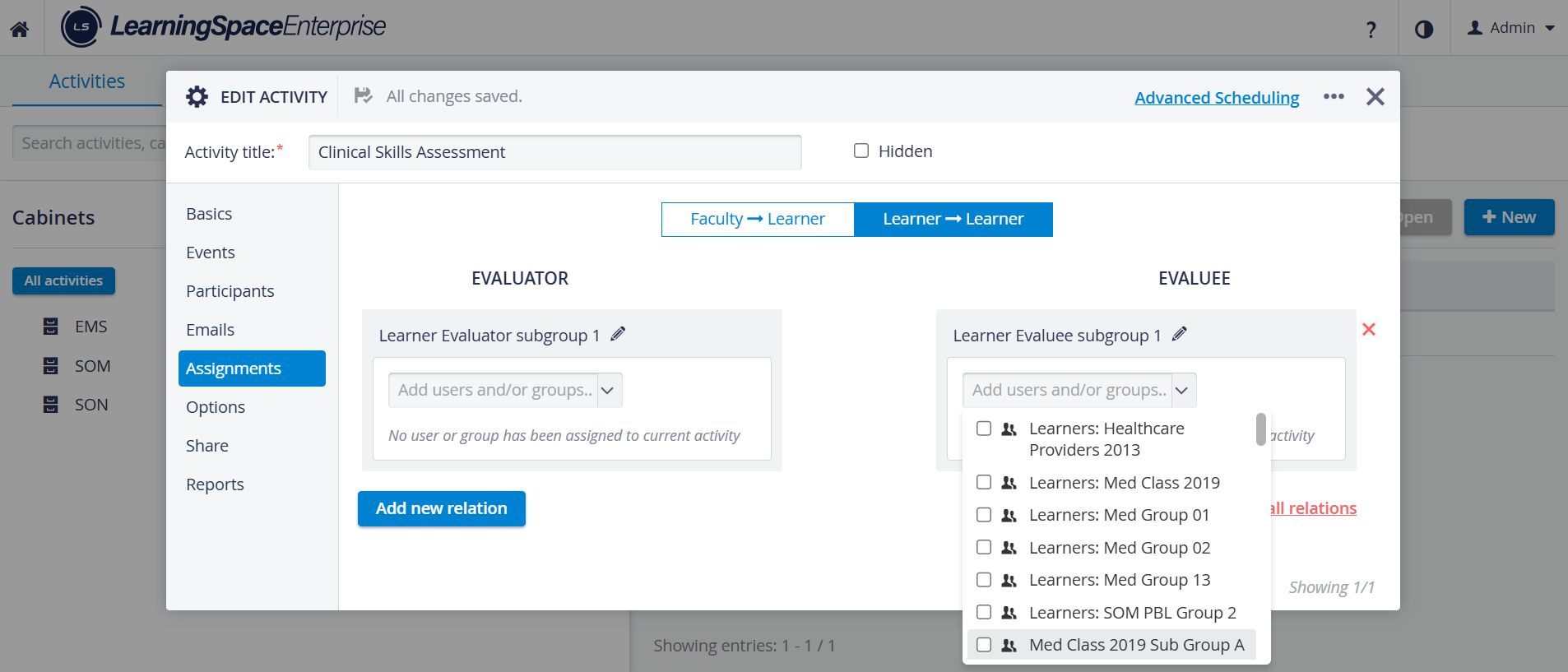
Individual users or subgroups created within the assigned participant groups can be added via the 'Add users...' field.
When you click the field, a drop-down list is displayed, listing all available members and groups within the participant groups.
Select the listed members intended to be added (by ticking their checkboxes), then click outside the drop-down menu to proceed.
Removing
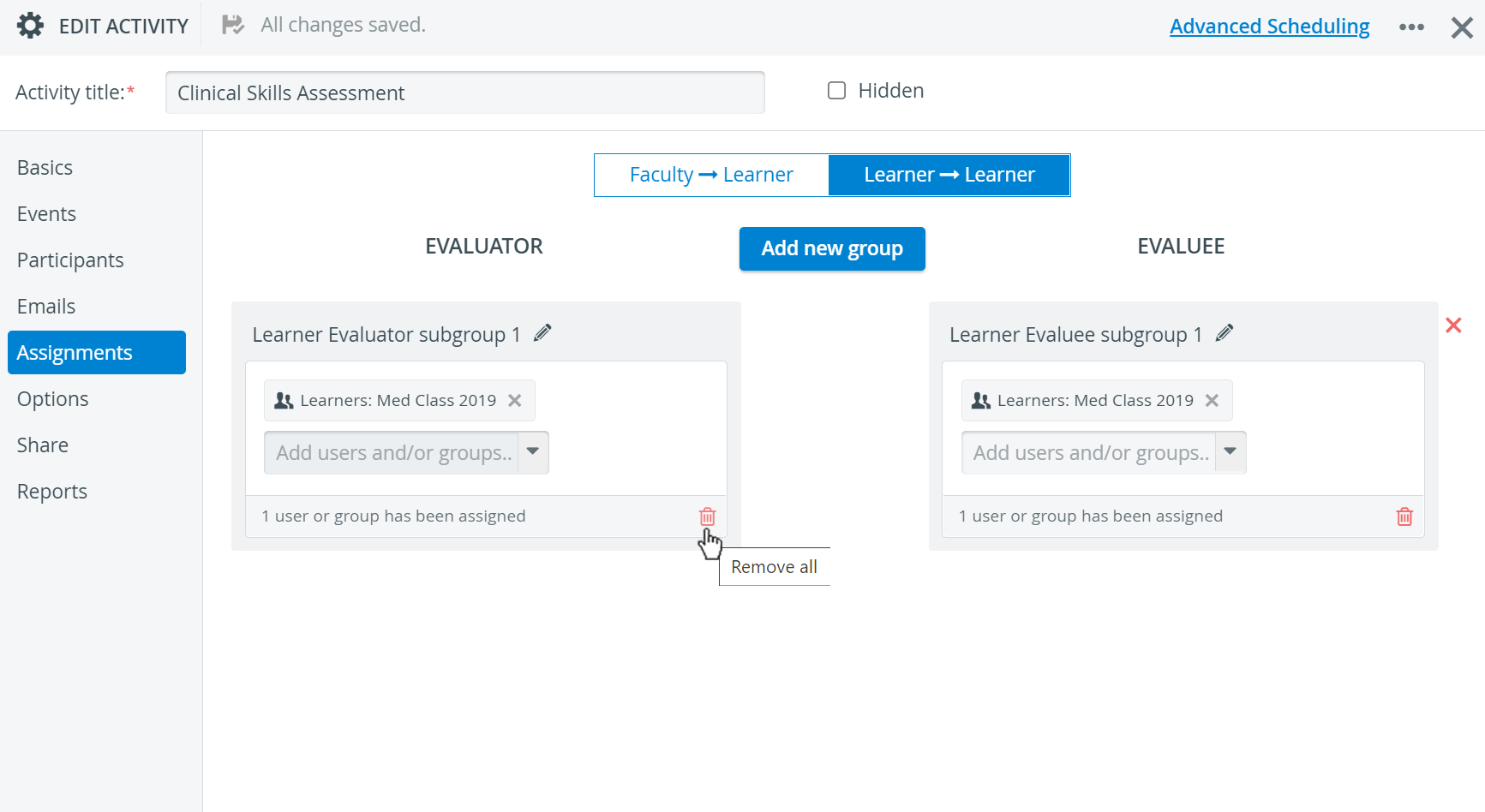
It is possible to remove individual users, evaluators, or evaluee groups separately and delete groups assigned to one another as a single entity. To do so:
click the red X
in the name field (red when hovering over the field) to remove individual entities

To remove either selection, click the red trash icon located at the bottom right corner of the evaluator/evaluee panel.

Click the red in the top right of the assigned groups to remove the whole assignment (i.e., both groups)

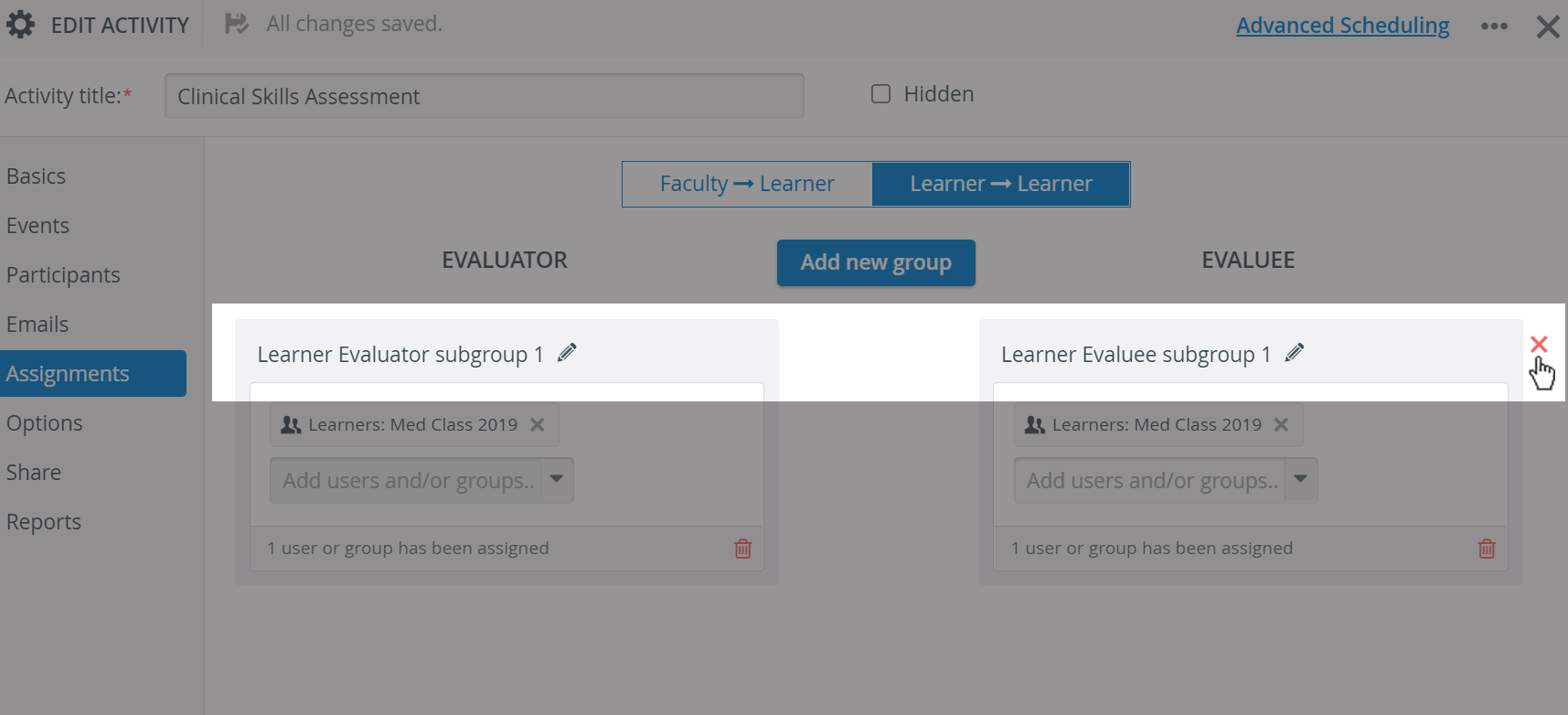
The system informs you before making any changes when you try to modify either of the assignment groups.
When assignments are deleted, the default evaluator-evaluee assignments are no longer accessible (only after re-adding participant groups).
Previously determined evaluator-evaluee settings in the Assignments tab will be erased after saving a new Faculty & Staff or Learner participant group.
Learn more on the Participants tab.
Assignments play an important role in adding annotations in Video Review as well! See more information about this on the Annotations Panel in Video Review page.
For more information, visit our Activity - How to pages and view our Activity Manager Training Videos.