Assets
Place your most valuable pieces of equipment in this category. Assets can only be registered individually to keep track of their whereabouts and follow their lifecycle with the utmost precision.
Lost or broken items can be deleted from the total quantity by Reconciliation.
Icon:

Item Properties
Details
Add a description, general information, and photos about your items in the Details tab:

The 'End of the Warranty' date is filled in from the first Check-in of the asset, where this information is required. See Asset Check-In.
Move the item to a different cabinet with the Cabinet dropdown.
Notes added to the Extra Notes field become searchable in the global inventory search field on the Catalog page.
Every item, including existing items in your inventory, will get assigned a unique, searchable, system-generated ID number.
You can look up items by complete or partial ID numbers in any search field.
Learn more about How to Detect Items in Your Inventory.
Item List
The Item List tab shows quick details (Location, Quantity) about your asset.
The Add new items button is active only if the Asset does not yet have a quantity.

The + Add new items button is available only to users with the Transaction Assignee privilege.
Using the Add to Cart option, you can add items to check out directly from the Item List. This will open a new cart for Check-out, where you can continue with the Check-out workflow.

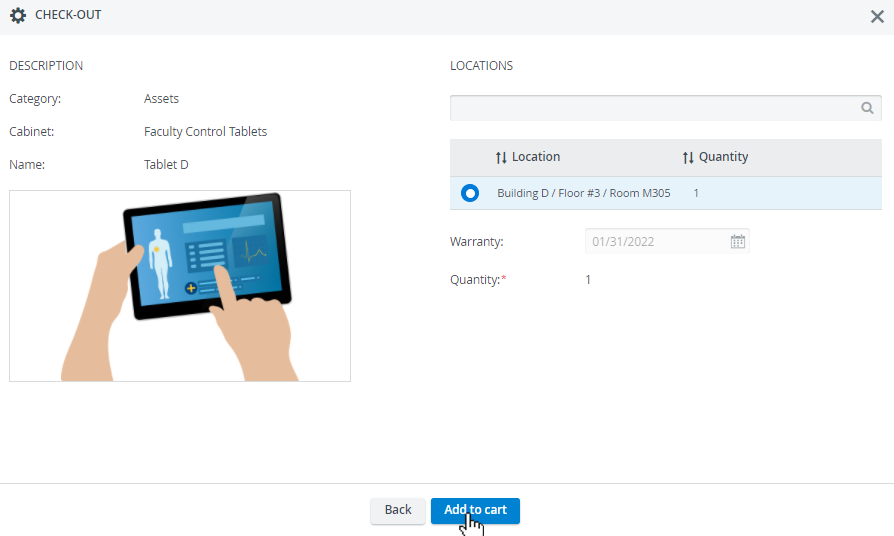
The Transaction Assignee privilege is not needed for the Add to Cart option.
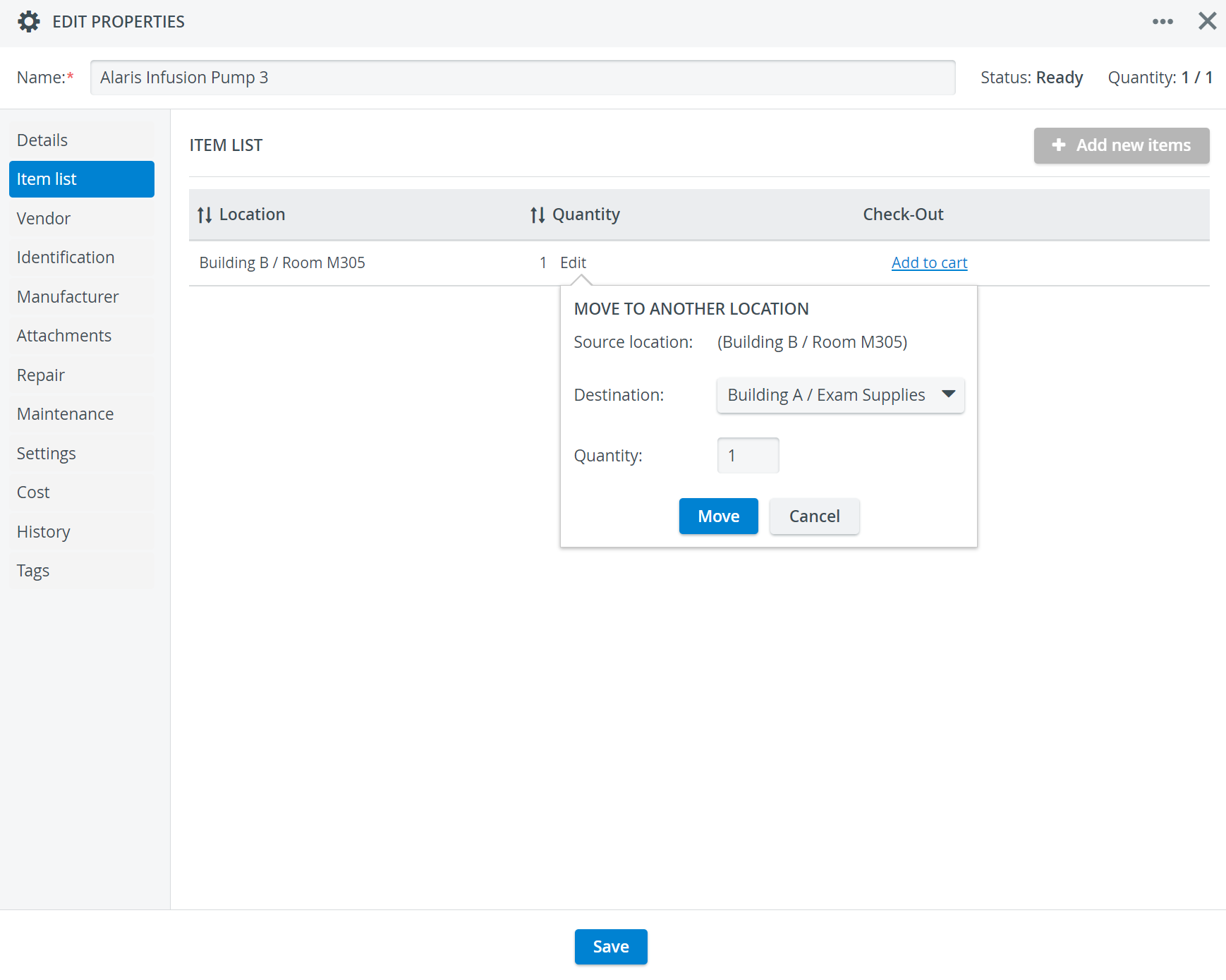
The Move to another location feature makes it easy to transfer an asset between locations without multiple transactions. Like easy check-in, the system will automatically create transaction logs (one check-in and one check-out) for any transfer made with this method.
Access the Move to another location option via the Edit button included at each location or batch:
Learn more about Transactions with Assets on the related Transactions pages: Asset Check-In, Asset Check-Out, and Asset Reconciliation.
Identification
In the Identification tab of Assets, you will find the item's unique ID Number and the + Add barcode option that allows you to add one or more barcodes to your item.
QR-code
Print the system-generated QR code of specific items to label your physical stock.

Apply one of the available scanning solutions to scan the barcodes on your items. How to Detect Items in Your Inventory.
Make sure that the cursor is active inside the barcode field when scanning.
Warning: When Assets Are Overbooked
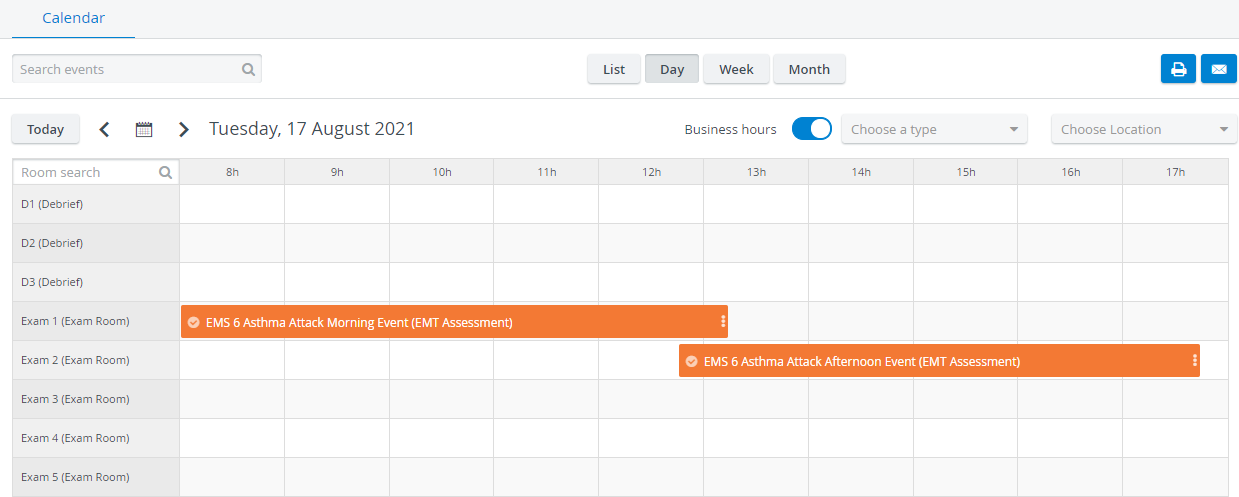
When setting up your events in the Calendar and creating Setup Sheets, the system will notify you if any Assets are overbooked for events.
When adding the same asset by mistake
to the same event planned in multiple rooms,
or to more events taking place simultaneously
or overlapping with each other,
The Setup Sheet in each event will warn you of any booking conflicts and show the asset's current status.
You can display the warning message and quantity information by hovering over the item highlighted in orange.

To resolve the issue, remove the asset from one of the events and select a different item.
Clicking the Add to Setup Sheet button repeatedly will multiply the number of items in the Setup Sheet.
In the case of overlapping events, an asset's potential booking conflict lasts from the start date of the first overlapping event until the end date of the last overlapping event.
Repair
In the Repair tab, you can issue a repair period for an asset. If an asset breaks down, you can set its status to "Under Repair" in the Catalog to reserve the item for repair.
You can set the Start Date and Expected duration of the repair, along with the Root Cause for sending the asset out for repair.
After the successful repair, use the Set ready option to make the item available for Transactions again.
During the repair period, no transaction can be made with the asset. How to Manage Asset Repair

Maintenance
In the Maintenance tab, you can schedule regular maintenance appointments to prevent deterioration of your assets or reserve an asset for unexpected maintenance. This way, you reserve the item and suspend all inventory transactions involving the asset during maintenance.

For a step-by-step guide, go to How to Manage Asset Maintenance.
View related Training videos.
Costs of Assets
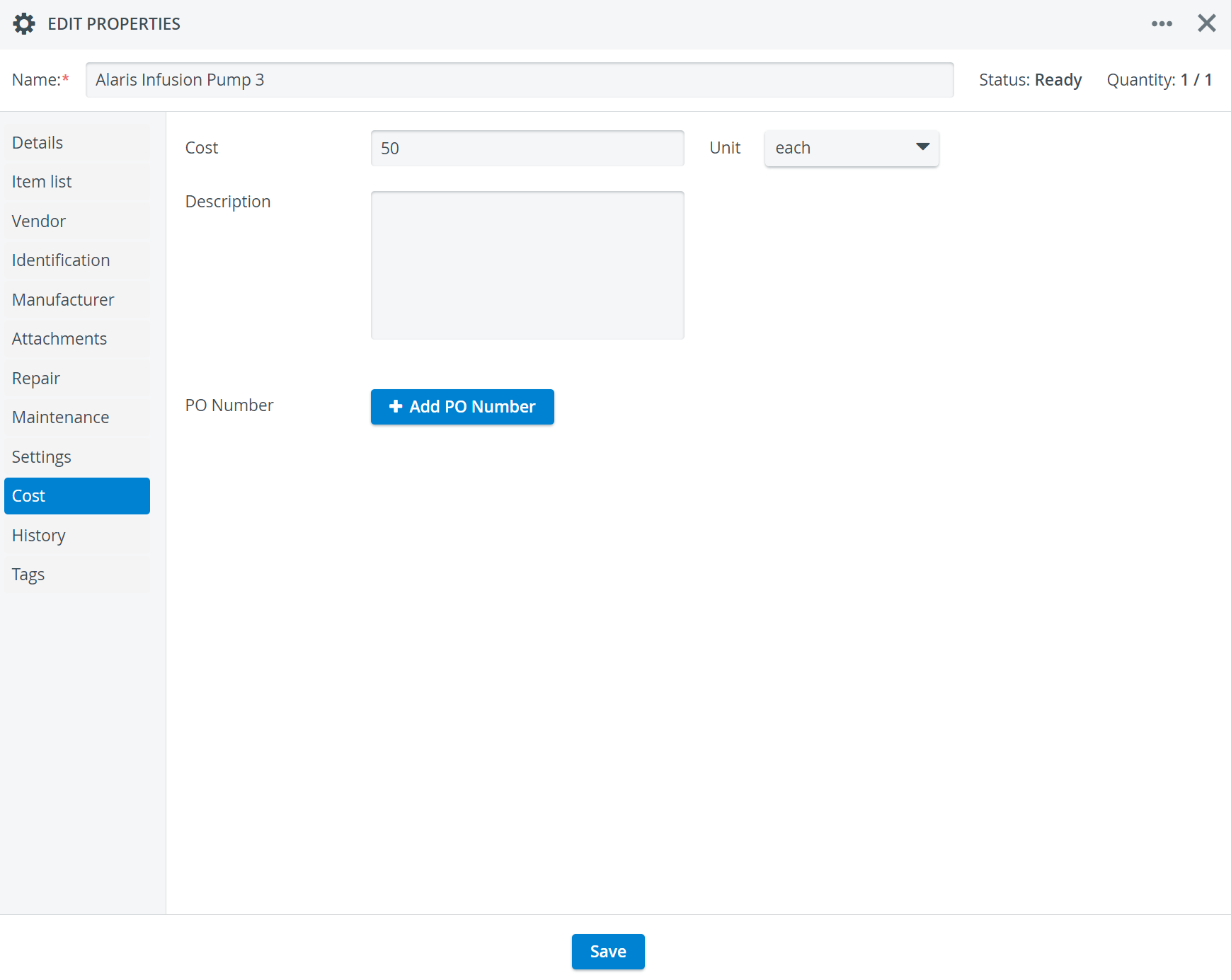
You can add the cost of an Asset in the Cost field of the Cost tab. This tab also contains:
a drop-down to provide the Unit of the item
a Description field for notes
and an option to enter the item's Purchase Order Number(s) / PO Number.
The Cost Report lists only the costs and quantities of consumed "Consumable" items for scheduled events that occurred within a given timeframe. It does not list the costs of assets.
History
The History tab of Assets lists the Transaction history logs of an item. Each entry is timestamped and includes other important details such as:
The Type of the Transaction,
Storage Location,
the name of the Transaction Assignee responsible for the equipment,
the date of the Transaction,
the title of the related Event,
The due date: the Asset must be returned to the stock.

Asset Tagging
When assembling Equipment and Supply Lists, you do not need to specify which asset you want to use for the scenario immediately. You can temporarily select a tag and decide on the actual asset later.
When preparing an event's Setup sheet, you can pull up the list of assets labeled with the tag and select a specific asset.
You can add identical tags to multiple assets to place them into the same subgroup: an asset tag will represent every asset labeled with that specific tag.
You can add tags to assets to
indicate their purpose, e.g., which scenario they will most likely be used in,
label them by departments, etc.
An asset can be assigned multiple tags, allowing it to belong to several subgroups simultaneously.
In the Edit Properties window of a selected asset, go to the Tags tab to add tags to your asset.
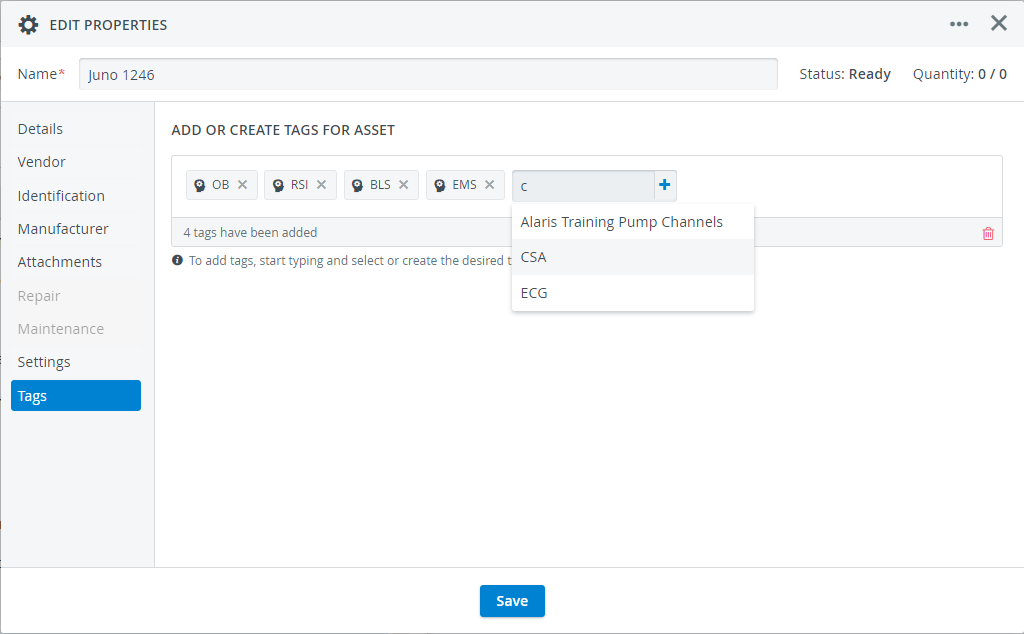
By adding the same tags to multiple assets, e.g., CSA, to several simulators, you create a subgroup of simulators that can be selected for Clinical Skills Assessment scenarios when you are planning an event.
When assembling the Equipment and Supply List for a scenario, you don't need to immediately decide which asset to use; you can add a tag that allows you to choose from multiple assets labeled with that tag.

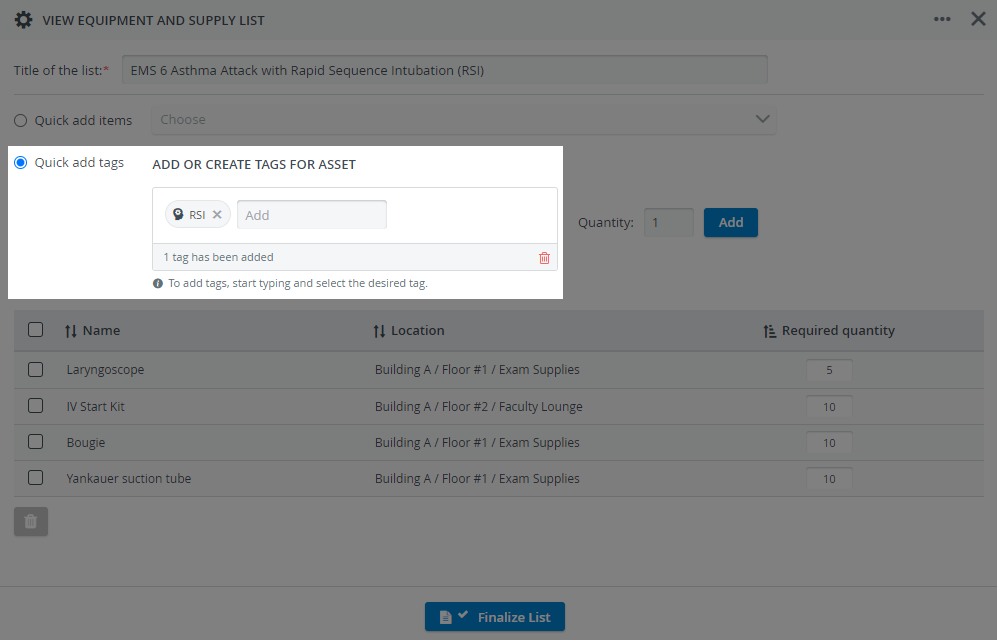
You only have to specify the asset when you are preparing the Setup Sheet of an event:
Important
Ensure that the asset you select for the event is not tied to another event and is or will be available for your current event.
Check Asset Availability
Check the status of the selected asset in the Catalog tab. If the asset is ready, you can check out the event's setup sheet.
If the asset is out On Loan, please contact the transaction assignee tied to the asset's latest check-out transaction in Transactions.
Use the Forecasting report in the Reports tab of the Inventory module to get an overview of upcoming events' supply and equipment needs.

Asset Catalog Entry and first-time check-in
Learn more about How to Add an Equipment and Supply List to a Case and How to Create an Equipment and Supply List.
Learn more about the Inventory Manager on our Inventory - How to pages, and watch the Inventory Manager Training Videos.