2024 Summer New Features
⛔ Disabled Room Display
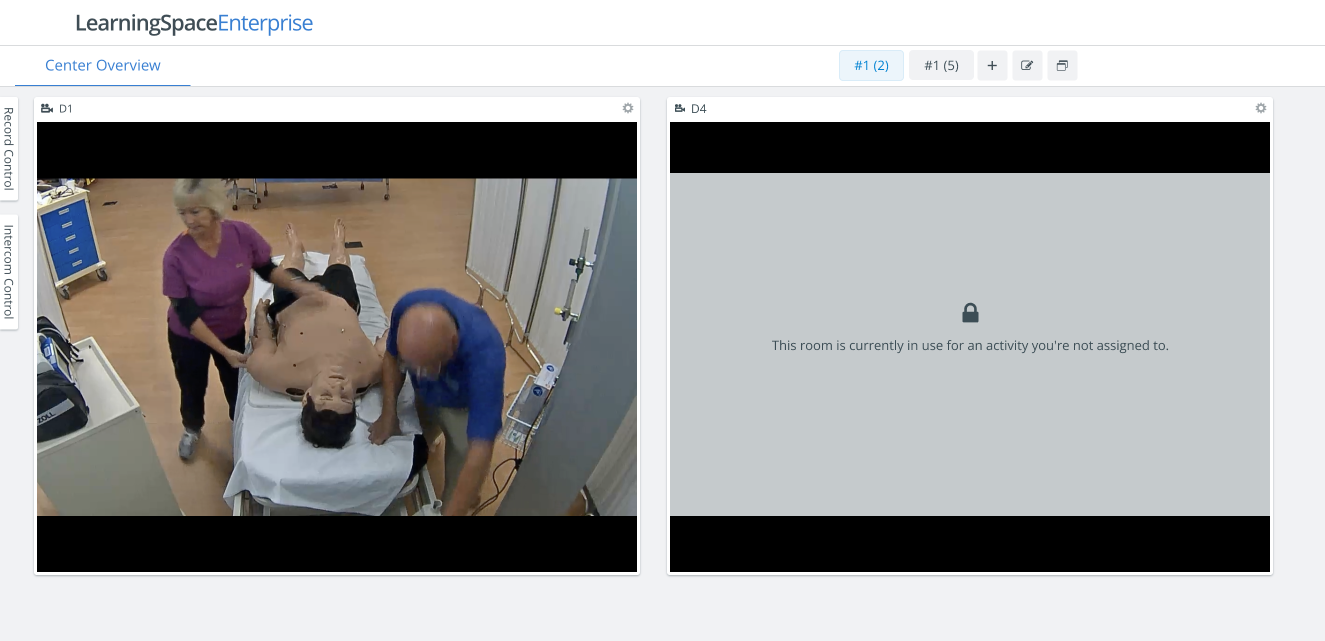
On the Center Overview page of the Recording module, Rooms to which access has been temporarily lost still appear on the tab but are in a disabled state. The room count next to the tab's name remains accurate and gives users clear visibility on why they cannot access certain rooms.
The following warning message is displayed:
“This room is currently in use for an activity you're not assigned to.”
IMPORTANT
When the room tile is disabled, the cogwheel in the top right corner and the "camera icon" in the top left corner are not clickable. The room tile is still draggable to move around, but no other interaction is available via it. Also, no stream is presented on the tile.
💻 HDMI Encoder and supported resolutions
Run a video cable to the input of the device and convert the connector if required:
UltraPortable: DVI input of the USB FrameGrabber
ONE appliance: HDMI input of the ONE appliance (in-built DCU)
Server appliance: HDMI input of the HDMI encoder (formerly DCU)
You must locate the HDMI encoder on the Cameras tab and add it to a room on the Rooms tab.
Recommended resolutions for the HDMI Encoder:
1920x1080
1280x720
For more information, see How to Connect Simulators or System Setup Guides.
📲 New SPA App in the Store
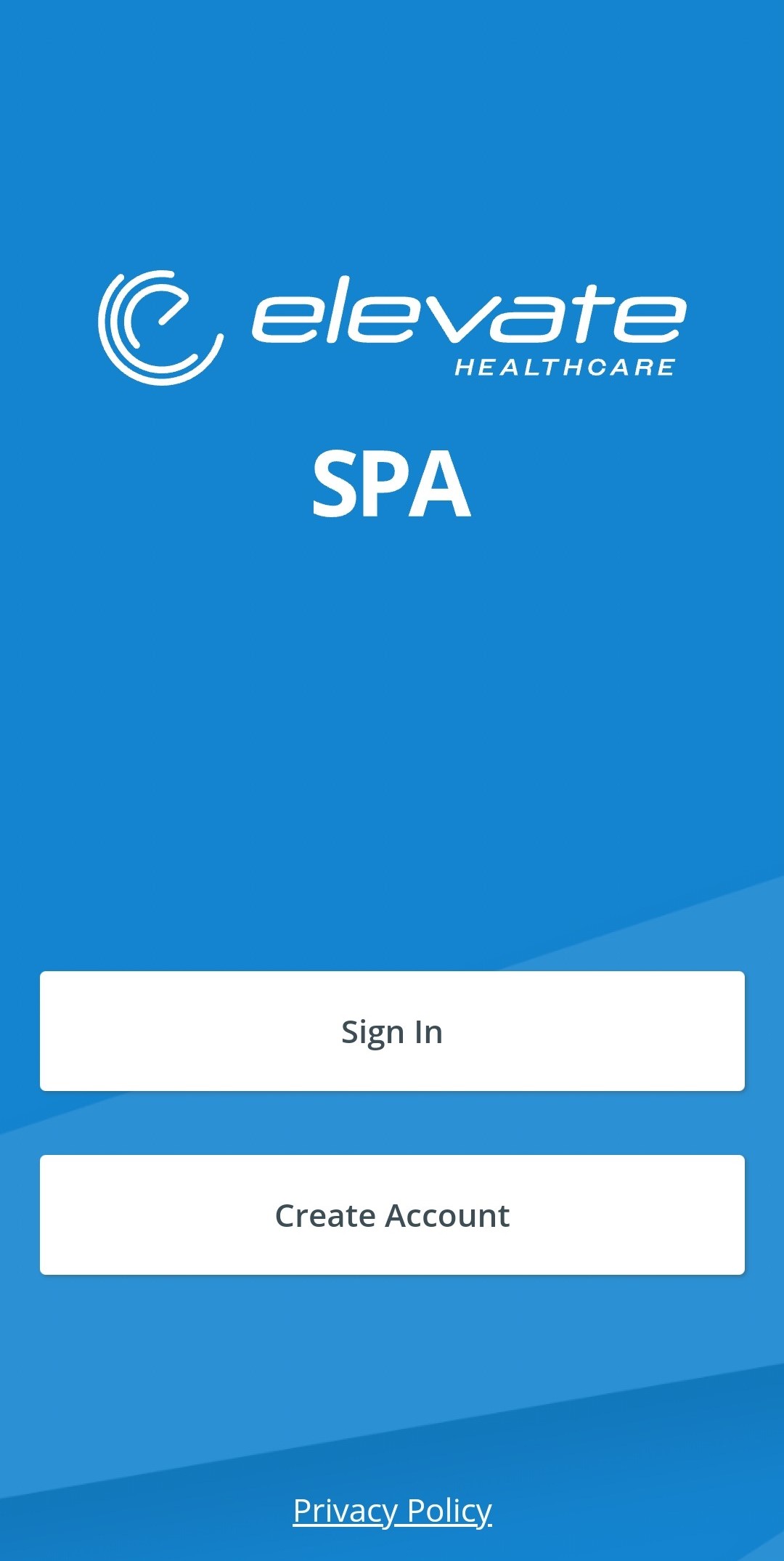
As part of our brand transformation to Elevate Healthcare, we have transitioned to new domains for our services. We have released a new SPA mobile app and generated a new SPA QR code for our customers to ensure the SPA module in LearningSpace continues functioning seamlessly.
NOTE: The SPA application itself is functioning as before; these “under-the-hood changes” are necessary for seamless operation.
🎥 LearningSpace Workflow VIDEO
Watch our new video tutorial about a basic LearningSpace Workflow:
LS workflow.mp4
See also the Notions and Concepts page.