2023 July New Features - Release Notes
Calendar - Standardized external API endpoint
Besides our already existing custom Calendar API Endpoint (available through System manager), we are now introducing a feature that allows you to get a standard ICS version of the LearningSpace calendar. You can use this new, additional endpoint to subscribe to the calendar from other services, like Microsoft Outlook or Google Calendar.
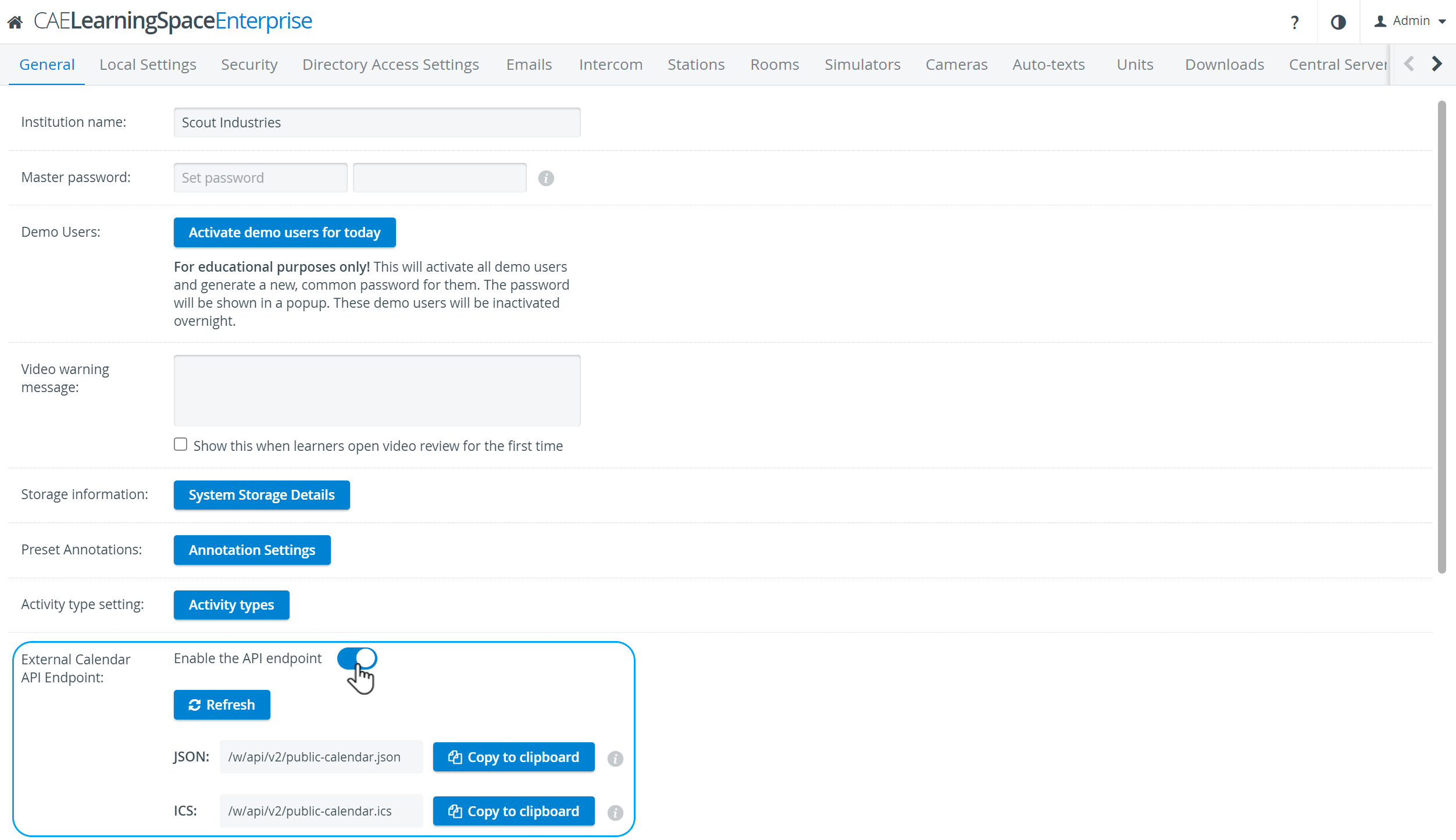
With the toggle ON, the ICS, the JSON links, and the Copy to clipboard buttons become active. Information related to the info icon is displayed when hovering over it.

If the Copy to clipboard button is clicked the link is copied to the clipboard and can be inserted/utilized as desired.
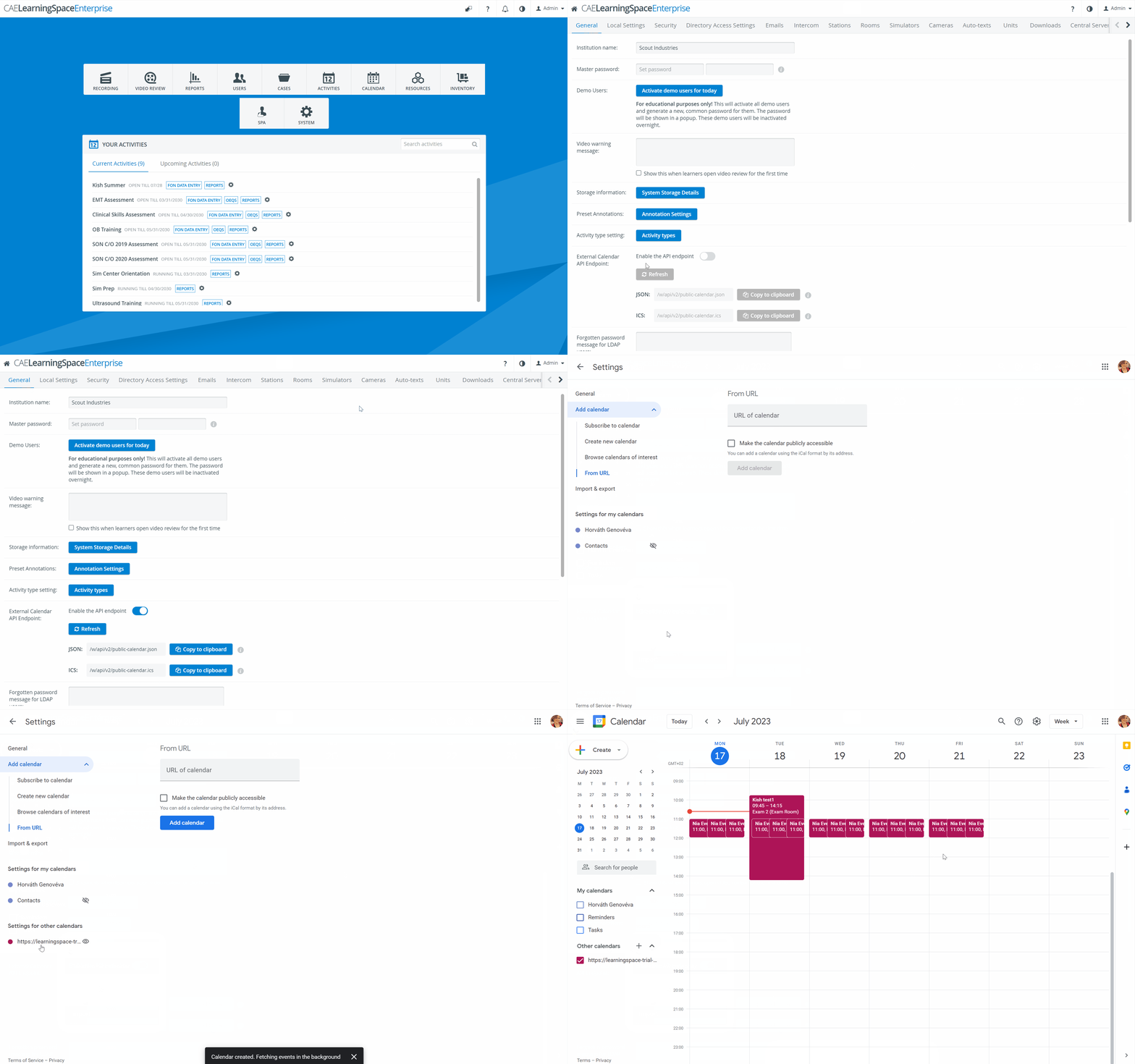
For further information go to External Calendar API Endpoint and How to Utilize External Calendar API Endpoint.
HTTPS Certificate Request/Upload Tool
LearningSpace is a web application that is accessed by a web browser on the client's computers. To secure the data traveling between the LearningSpace system and the client's browser, the otherwise unsecured HTTP traffic must be encrypted using strong SSL certificates, resulting in HTTPS traffic.
The securely encrypted HTTPS traffic will minimize the risks that are inherent to applications connected to the Internet.
The Intercom functionality of LearningSpace requires the web browser to have access to the microphone of the client PC, which in turn requires a secure HTTPS connection to the LearningSpace server.
LearningSpace's new HTTPS certificate requests tool is hideable. Please ask your System Administrator to enable it on your system.
Once enabled, the below version of SSL/HTTPS SECURE ACCESS SETUP will be available under the System manager, Security tab:
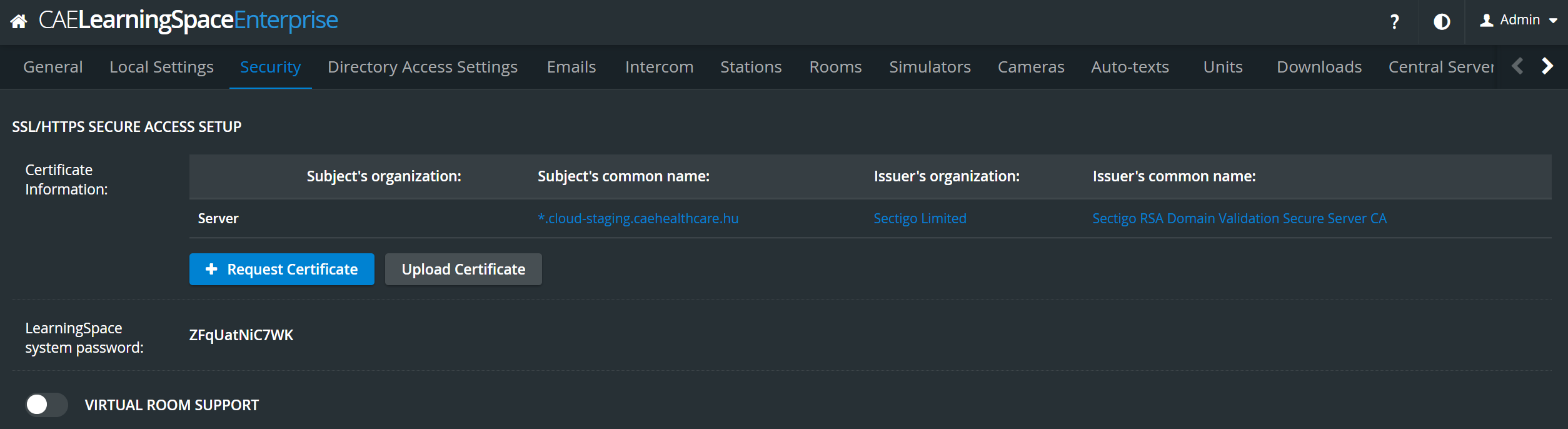
Two options will be available here:
If you do not have a certificate or a key → proceed to Request Certificate
If you have your own SSL certificate and a private key → proceed to Upload Certificate
Continue here for a step-by-step guide to the Process of requesting/uploading a certificate.
For more information, go to How to use the HTTPS certificate request/upload tool
Vertical Double Layout - Single Room View
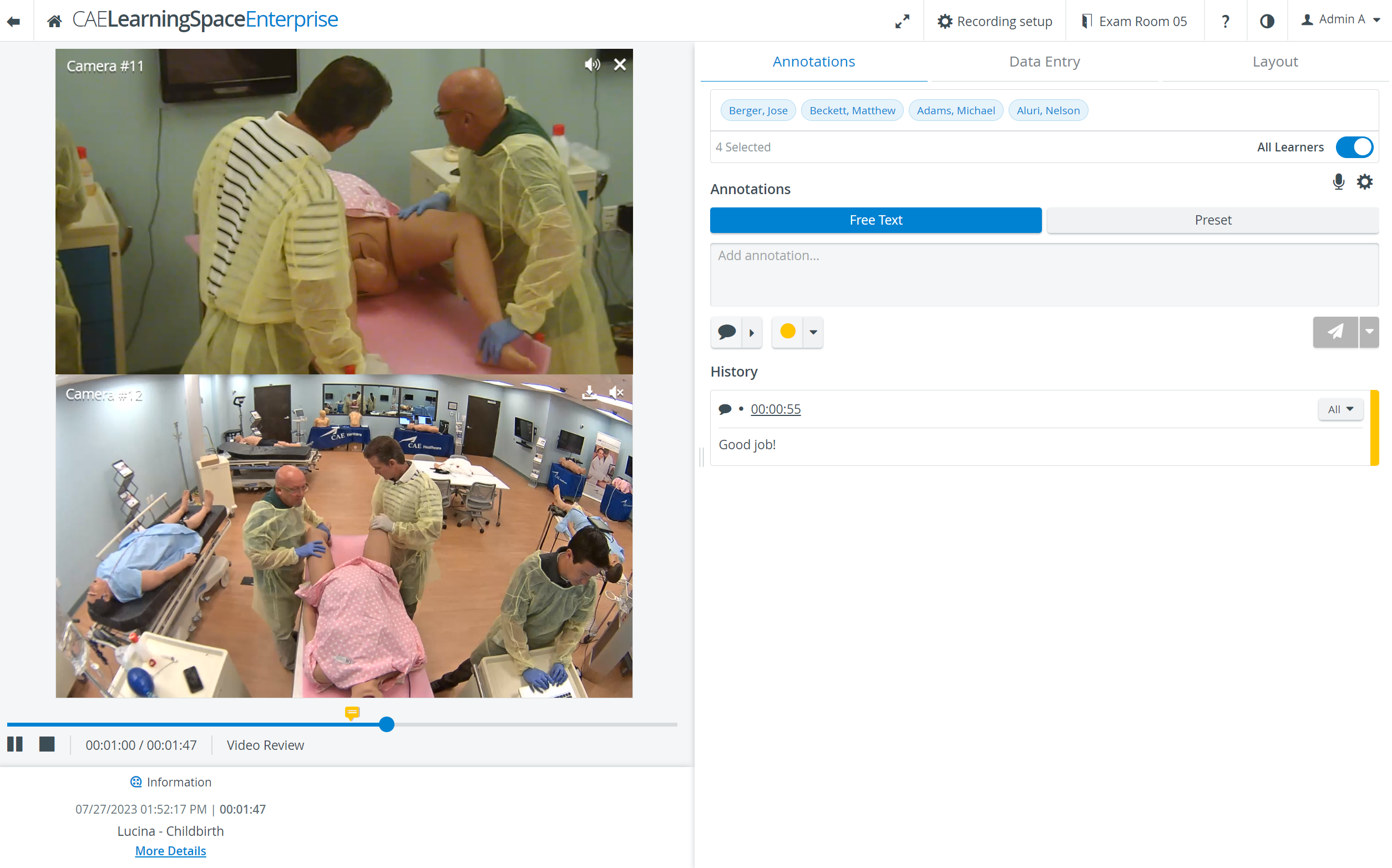
In some cases, two camera views must be displayed on top of each other (i.e., in a single column) during recording.
With our new Vertical double layout feature, the utilization of the space available in the Single Room View panels can be maximized and the panels on the right side (Annotations tab, Data Entry tab) or additional windows can be displayed in a larger size.
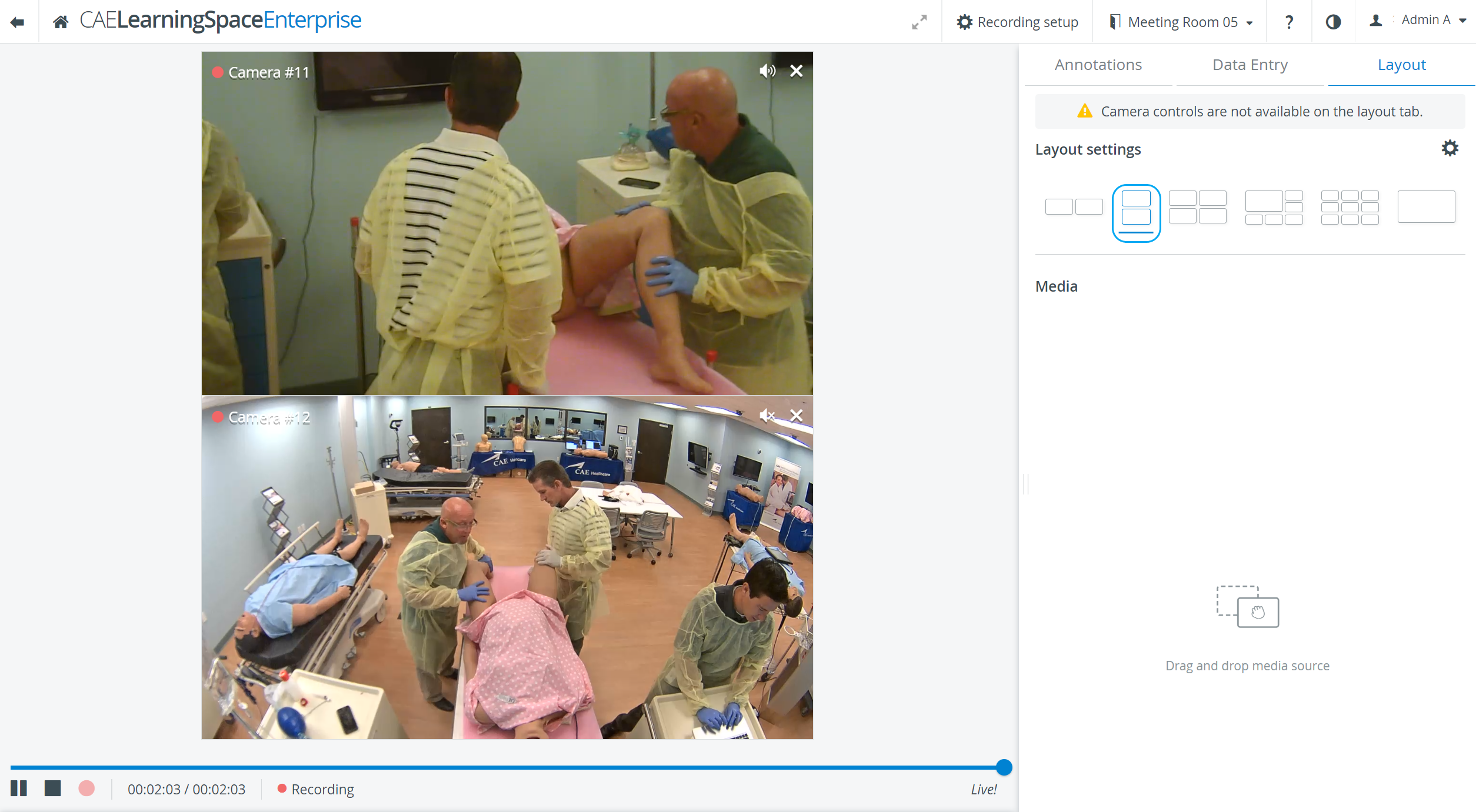
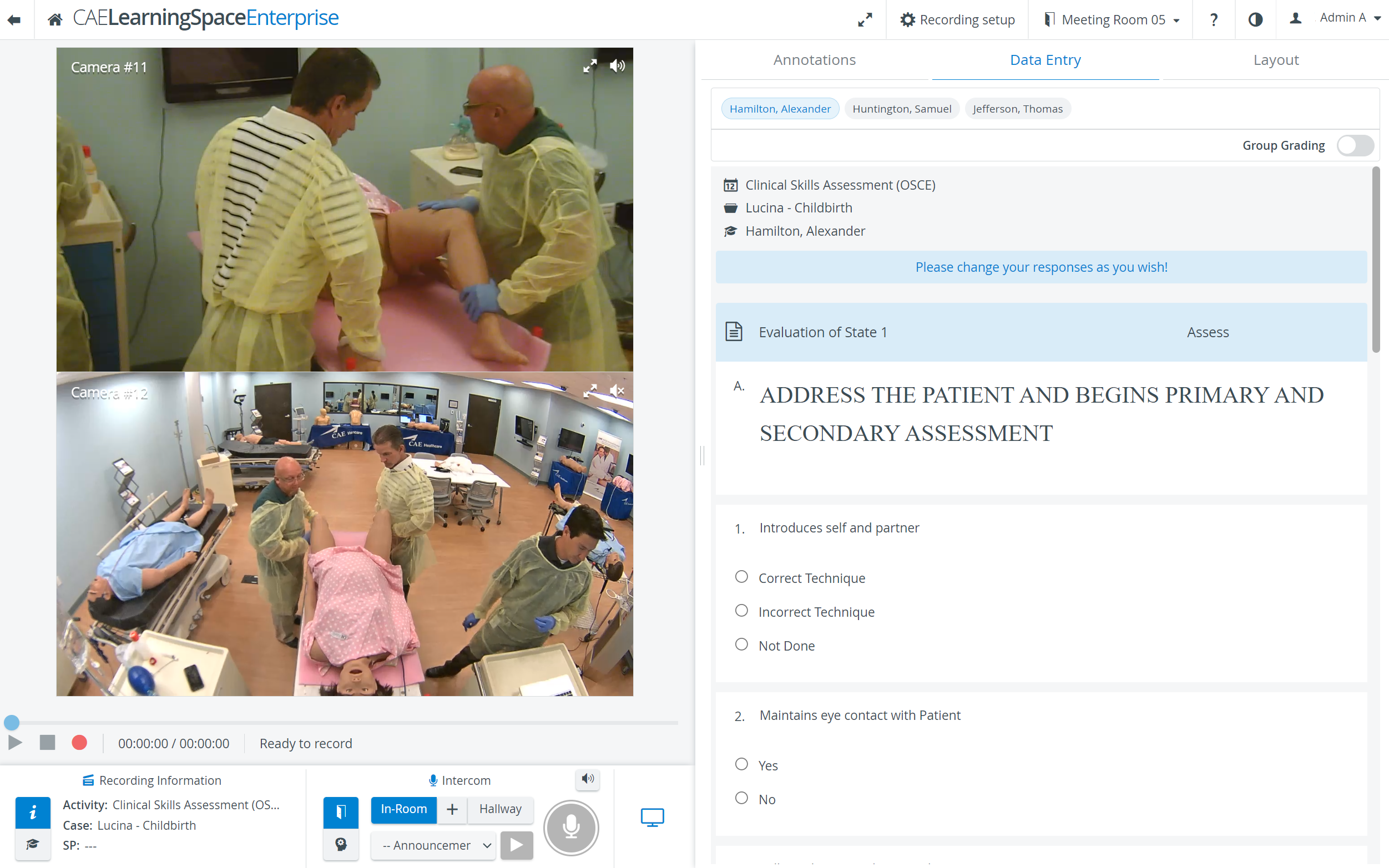
The new Vertical double layout feature is also available in the Video Review module.